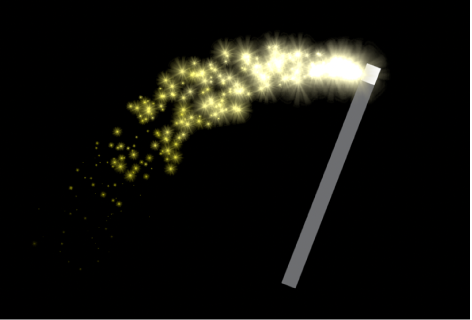
To use a Match Move behavior, you need at least two objects in your project: a source object and a destination object. Typically the source is a background video clip and the destination is a foreground layer. You apply the Match Move behavior to the destination object (a shape, text, an image, a particle emitter, a camera, or other object); the behavior analyzes movement in the source object based on its video motion or its animation attributes (such as applied keyframes or behaviors). The resulting tracking data is then automatically applied to the destination object. When you play back the project, the destination object is animated to match the movement of the source object.
For a full description of Match Move parameters, see Match Move controls.
In this typical workflow, the Match Move behavior tracks an element of a background video clip and then applies the resulting track data to a foreground object. As a result, the foreground object matches the movement of the tracked element in the background clip.
Import a video clip, then import a still image (or add a shape).
In the Layers list, the still image layer (or shape layer) must be above the video clip layer.
In the Layers list, select the still image or shape layer (the foreground layer), click Behaviors in the toolbar, then choose Motion Tracking > Match Move.
Important: When applying the Match Move behavior to a group, make sure the footage being analyzed resides outside of the group being tracked.
A single onscreen tracker (a red crosshair in a circle) is added to the canvas. Because the default Match Move tracker records position data, it’s known as an anchor tracker.
Optional: To track more complex motion (such as a rotating element or an element with four corners), do one of the following:
Add a second tracker to track additional rotation and scale data: In the Behaviors Inspector, select the Rotation-Scale checkbox (under the Anchor checkbox). For more information, see About two-point tracking.
Add four trackers to track an element with four corners: In the Behaviors Inspector, click the Type pop-up menu, choose Four Corners, then proceed to step 3 of Use four-corner tracking to pin a foreground object to a background element.
Move the playhead to the frame where you want the track analysis to begin.
Note: You can specify a portion of a clip to be analyzed. For more information, see Define a range of frames for analysis.
In the canvas, drag the tracker (or trackers) to the area (or areas) you want to track.
As you drag the tracker in the canvas, the region around the tracker becomes magnified to help you find a suitable reference pattern.
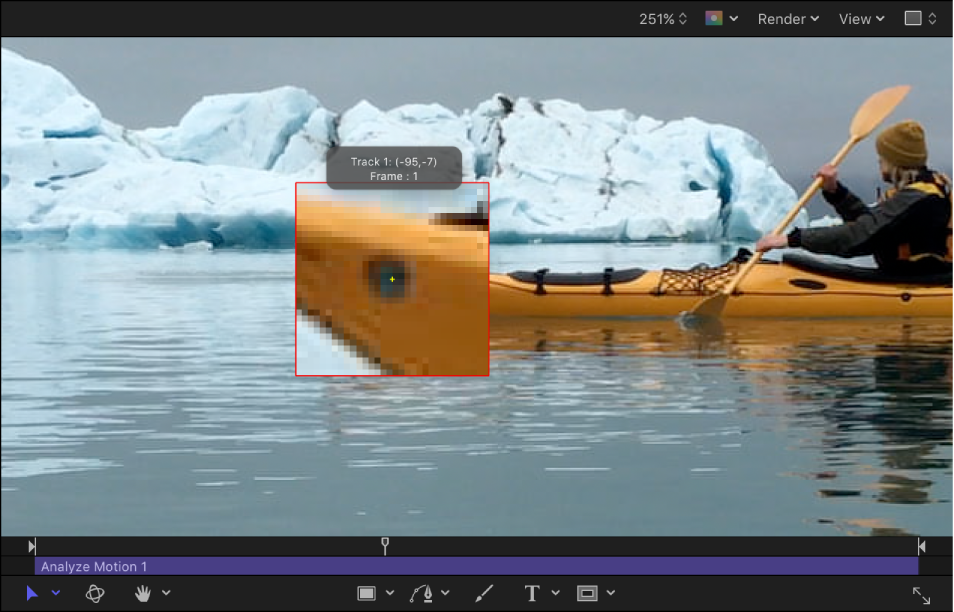
In the Behaviors Inspector or HUD, click the Analyze button.
The behavior analyzes the movement of the reference pattern in the video clip, then matches the movement of the foreground object to it.
Because objects animated with keyframes or behaviors already contain motion data, you can apply that data to a destination object using the Match Move behavior without having to perform a tracking analysis.
The following simple example uses a “magic wand” image (an ellipse shape) animated using the Spin behavior, and a Magic Dust particle emitter (available in the Library). The Match Move behavior extracts the animation of the magic wand and applies it to the Magic Dust particle emitter to create the illusion of sparkles flying off the tip of the spinning wand.
Make sure the destination object (the particle emitter) is above the source object (the magic wand shape) in the Layers list.
In the Layers list, select the destination object, click Behaviors in the toolbar, then choose Motion Tracking > Match Move.
In the Layers list, the Match Move behavior appears directly under the particle emitter.
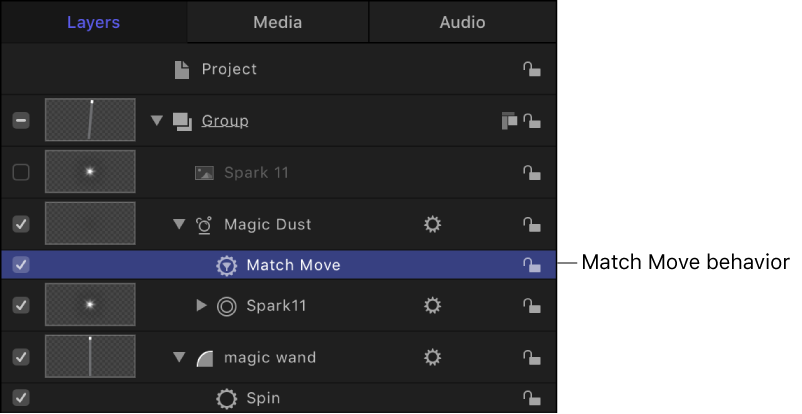
Because the animated source object (the spinning magic wand) is below the Match Move behavior in the Layers list, the source animation data is automatically loaded into the Source well in the Behaviors Inspector. If you don’t see the animated object in the Source well, drag the animated object from the Layers list into the Source well.
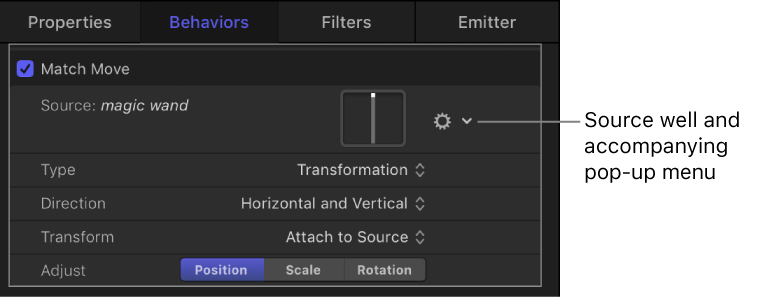
In the canvas, drag the destination object (the particle emitter) to the tip of the magic wand.
The motion path inherited from the source object appears in the canvas, attached to the destination object.
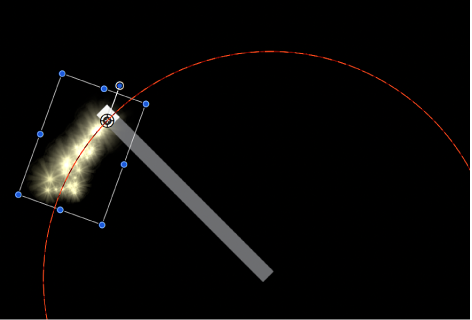
As a result, the particle emitter and the wand now share the same animation path.
Play the project (press the Space bar).
The particles match the movement of the wand.