
When you select the Transform Glyph tool, you can spatially adjust glyphs in the canvas by choosing between two types of onscreen transform controls:
Handles that adjust scale, position or rotation (identical to 3D onscreen controls)
Handles that spatially distort face (fill color), outline, glow, or drop shadow—stretching or shearing one of those attributes
You choose a handle type from the Attribute pop-up menu in the Text HUD.
Select a text layer in the Layers list, canvas, or Timeline.
In the canvas toolbar, click and hold the transform tools pop-up menu, then choose Transform Glyph.
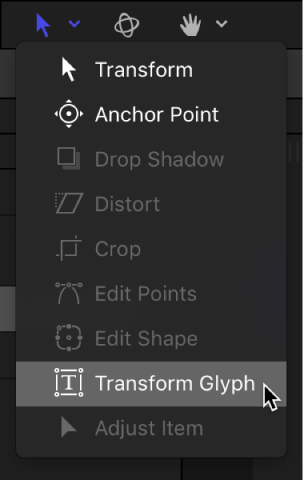
A glyph is selected in the canvas. To select a different glyph, click another glyph in the canvas. For information about selecting multiple glyphs, see Select characters with the Transform Glyph tool.
In the Text HUD, ensure that the Attribute pop-up menu is set to Transform Glyph.
This setting activates scale, position, and rotation handles in the canvas.
Note: If the HUD is not visible, choose Window > Show HUD (or press F7).
Drag a transform handle in the canvas.
The glyph is modified in the canvas.
In the Format pane of the Text Inspector, the Scale, Offset, or Rotation parameter is modified simultaneously. (Offset represents a glyph’s position in the canvas.)
Select a text layer in the Layers list, canvas, or Timeline.
In the canvas toolbar, click and hold the transform tools pop-up menu, then choose Transform Glyph.
A glyph is selected in the canvas. To select a different glyph, click another glyph in the canvas. For information about selecting multiple glyphs, see Select characters with the Transform Glyph tool.
In the Text HUD, click the Attribute pop-up menu, then choose one of the following: Face, Outline, Glow, or Drop Shadow.
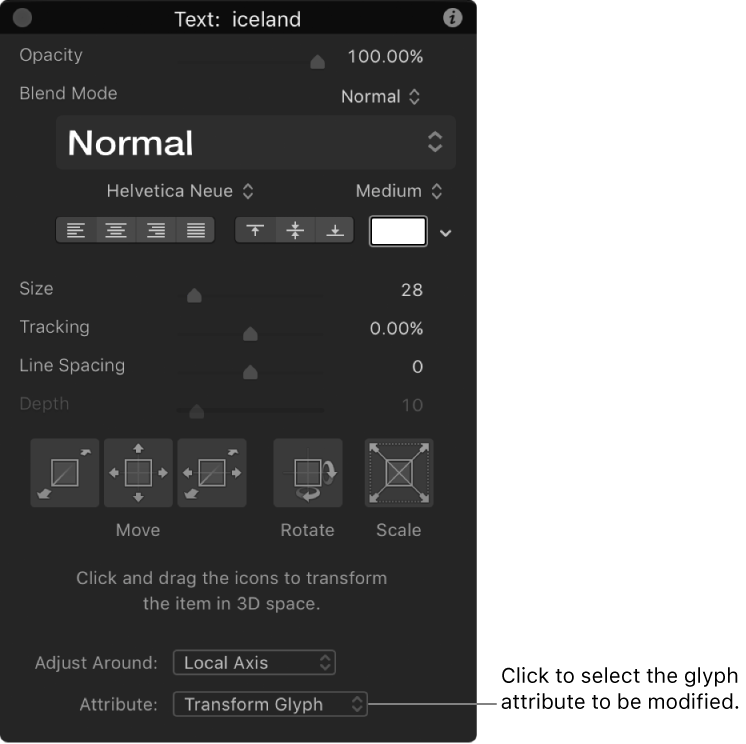
Note: If the HUD is not visible, click the HUD button in the toolbar (or press F7).
The selected glyph (or the focused glyph, if multiple glyphs are selected) is enclosed by a bounding box with eight handles: four corner handles for distorting, and four middle handles for shearing.
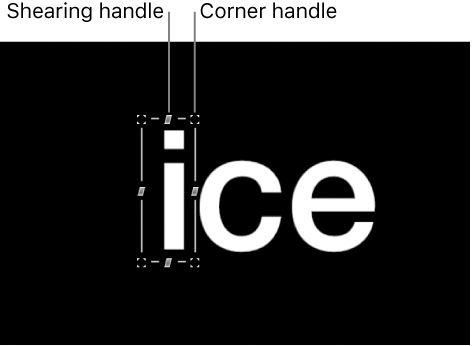
Do any of the following:
Shear the style attribute: Drag a middle handle.
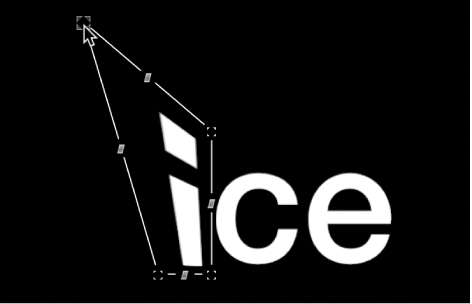
Distort the style attribute: Drag a corner handle.
The glyph’s face, outline, glow, or drop shadow is sheared or distorted in the canvas.
In the Appearance pane of the Text Inspector, the activation checkbox for the attribute you adjusted is selected, and related controls become available for further adjustment.