
Before you can transform a glyph, you must select it using the Transform Glyph tool in the canvas toolbar. You can select a single glyph or multiple glyphs in a text layer. When more than one glyph is selected, the last Shift-selected glyph is enclosed in a bounding box with transform handles. This is known as the focused glyph. Each of the other glyphs in the selection are enclosed in a bounding box without transform handles. Any selected glyph (focused or not) is affected by transforms applied to the focused glyph.
Note: If you use the Transform Glyph tool to distort an appearance attribute of a glyph (Face, Outline, Glow, Drop Shadow), only one glyph can be selected at a time.
Select a text layer in the Layers list, canvas, or Timeline.
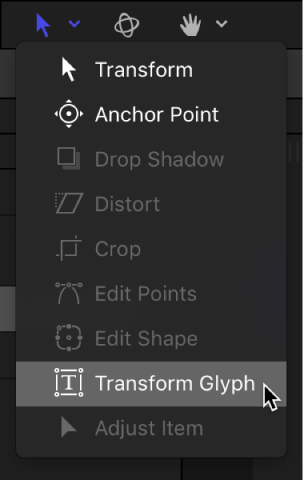
In the canvas toolbar, click and hold the transform tools pop-up menu, then choose Transform Glyph.
A bounding box with transform handles appears around the first glyph in the text. (Or, if a different glyph was previously selected, the bounding box surrounds that glyph).
If you want to select a different glyph in the text layer, click another glyph in the canvas.
Select a text layer in the Layers list, canvas, or Timeline.
In the canvas toolbar, click and hold the transform tools pop-up menu, then choose Transform Glyph.
Ensure that the Attribute pop-up menu in the HUD is set to Transform Glyph (because the other settings in the menu allow only one glyph selection at a time).
A glyph is selected in the canvas.
Choose Edit > Select All (or press Command-A).
All glyphs are selected.
Select a text layer in the Layers list, canvas, or Timeline.
In the canvas toolbar, click the transform tools pop-up menu, then choose Transform Glyph.
Ensure that the Attribute pop-up menu in the HUD is set to Transform Glyph (because the other settings in the menu allow only one glyph selection at a time).
A glyph is selected in the canvas.
Do one of the following:
Select contiguous glyphs: Pressing and holding the Shift key, click in the canvas to select additional adjacent glyphs; or drag in the canvas to select adjacent glyphs.
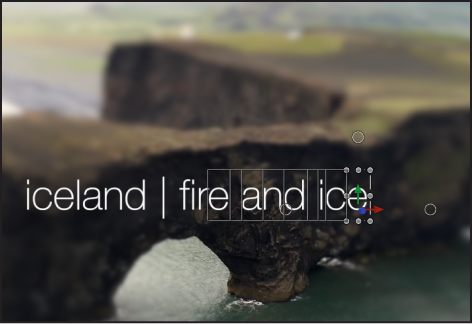
Select noncontiguous glyphs: Pressing and holding the Command key, click to select nonadjacent glyphs.
Although the onscreen controls appear only around the focused (last selected) glyph, any glyph surrounded by a box is affected when you adjust the onscreen controls.
Choose Edit > Deselect All (or press Shift-Command-A).
Any previously selected glyphs are deselected.
With an active Transform Glyph tool selection, click a different text layer in the Layers list or Timeline.
The selection shifts to the second text layer.