
You can perform advanced text editing tasks in the Text Inspector.
The Text Inspector is divided into three subpanes:
Format: Contains controls for adjusting basic text parameters such as font, size, alignment, line spacing, tracking, and kerning. See Display the Format pane of the Text Inspector.
Appearance: Contains controls for adjusting visual text styles, including opacity, blur, color, outline, glow, and drop shadows. See Display the Appearance pane of the Text Inspector.
Layout: Contains controls for adjusting text arrangement settings such as margins, tabs, scrolling, word wrapping, and text on a path. Display the Layout pane of the Text Inspector.
Many of the controls in the Text Inspector are also available in the HUD.
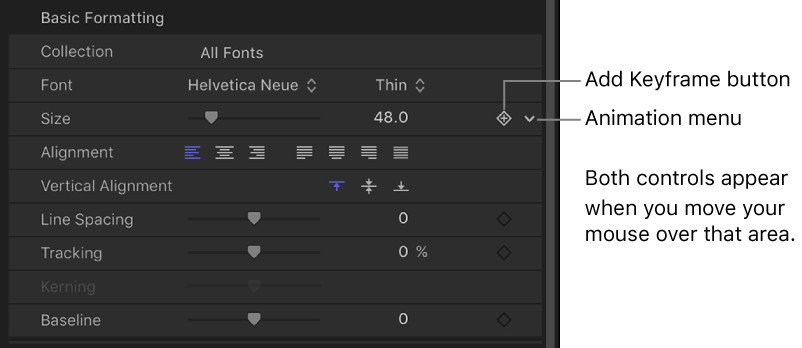
If a text parameter can be animated, moving the pointer over the right side of the parameter’s row in the Inspector displays the Add Keyframe button and the Animation menu. Click either to access keyframe and animation controls. For more information, see Keyframe controls in the Inspector and Animation menu.
To reset a parameter to its default settings (including removing keyframes), click the parameter’s animation menu, then choose Reset Parameter.