
The Geometry pane of the Shape Inspector contains controls that allow you to change the shape type, to close or open a shape, and to individually adjust the position of a shape’s control points.
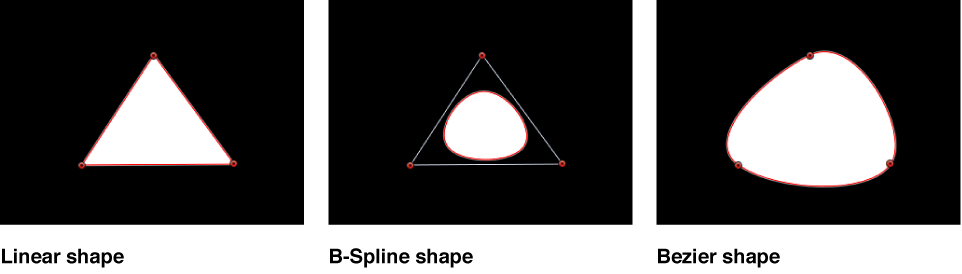
The Geometry pane controls are available for all shapes regardless of what is selected in the Brush Type pop-up menu in the Style pane. You can change a shape’s type at any time. Changing a shape’s type changes its form. For example, a single set of control points produces the following three shapes, depending on the selected Shape Type.
The Geometry pane contains the following adjustable controls:
Basic Geometry controls
Roundness: A slider (available when a simple rectangle shape, Bezier shape, or B-Spline shape is selected) that adjusts the roundness of shape corners. Use this control to create rounded rectangles or to smooth the edges of any shape.
Curvature: A slider (available when a simple circle shape is selected) that adjusts the degree of curvature of the circle. When set to 100%, the shape is elliptical. When set to 0%, the shape is rectangular.
Preserve Scale: A checkbox (available when a simple rectangle shape, Bezier shape, or B-Spline shape is selected) that controls whether the Roundness setting is absolute or relative to the overall shape size. When this checkbox is selected, the roundness remains at the same approximate percentage of curvature as the object is scaled. When this checkbox is deselected, the curvature varies as the overall shape changes size.
Radius: A slider (available when a simple circle shape is selected) that controls the width and height of the shape. Click the disclosure triangle to reveal individual X (width) and Y (height) sliders.
Size: A slider (available when a simple rectangle shape is selected) that controls the scale of the shape. Click the disclosure triangle to reveal individual Width and Height sliders.
Shape Type: A pop-up menu (available when a complex shape with control points is selected) that sets the type of control points used to define the shape. For example, if you originally created a Bezier shape, you can choose B-Spline from this menu to change each Bezier control point into a B-Spline control point. Changing the shape type does not move the control points, although the shape is changed, sometimes dramatically. There are three options:
Linear: All control points are joined by hard angles, and the resulting shape is a polygon. The control points of a Linear shape lie directly on its edges.
Bezier: Control points can be a mix of Bezier curves and hard angles, creating any sort of shape. The control points of a Bezier shape lie directly on its edge.
B-Spline: Control points are all B-Spline points, with different degrees of curvature. B-Spline control points lie inside, outside, or on the edge of the shape, and are connected by the B-Spline frame.
Closed: A checkbox (available when a complex shape with control points is selected) that, when selected, connects the first and last points of an open shape. If you select a closed shape in the Canvas, this checkbox is selected. Deselecting this checkbox disconnects the first and last points, converting the object into an open shape.
Convert To Points: A button (available when a simple shape is selected) that, when clicked, converts a simple shape to a complex shape with editable control points. For more information, see Convert a simple shape or mask to editable control points.
Control Points controls
When a complex shape with control points is selected, this list becomes available, displaying the X and Y position parameters for the shape’s control points. The Control Points list also contains a single Animation menu (the downward arrow that appears when you move the pointer over the right side of the Control Points header row) that affects all the control points, letting you add keyframes, reset the shape’s animation, display the animation curve in the Keyframe Editor, and so on. For more information on using the Animation menu, see Animation menu.