
You can view and edit region parameters in the Region inspector, located in the upper part of the inspector. When a single region is selected, the title bar of the Region inspector shows the region name; when multiple regions are selected, the title bar shows the number of selected regions.
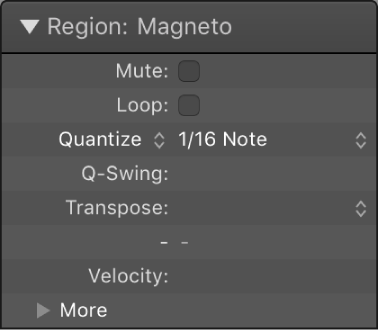
The Region inspector shows parameters for the selected region or regions, including Quantize and other parameters. Some parameters are shared, while others are available for only audio or MIDI regions. There are additional advanced quantization parameters that you can view and edit by clicking the More disclosure triangle.
You can also open the Region inspector in a separate floating window.
If no region is selected, the upper line of the Region inspector displays the text Default Settings. The region parameter settings displayed are applied to newly recorded regions as realtime playback settings..
If several regions are selected, the number of selected regions is displayed, in place of a region name. If you alter any region parameter, all selected regions are affected. If a given parameter is set differently in the individual regions, an asterisk (*) appears in the parameter field. You can alter this parameter for all selected regions, and the value differential will be retained (relative alteration). If you want to set all selected regions to the same value, press and hold Option-Shift while changing the value (absolute alteration).
 When Show Advanced Tools is selected in the Advanced preferences pane, additional parameters appear in the lower part of the Region inspector. You can view and edit these parameters by clicking the More disclosure triangle.
Choose Window > Open Region Inspector Float (or press Option-R).