
You can open an existing project to continue working. You can also open several projects simultaneously, allowing you to copy or move data between them, or to compare different versions of a project.
You can open projects created in Logic Pro 5 or later. Projects saved in Logic Pro X are not backward-compatible with earlier Logic Pro versions.
When you open a project created in an earlier version of Logic Pro, the project is converted to a Logic Pro X project. In the Save dialog, you can select whether to save the converted project as a project package or a project folder.
You can configure Logic Pro to open a project automatically on startup by choosing a startup action in the Logic Pro > Preferences > General > Project Handling pane. For more information, see Project Handling preferences.
Choose File > Open (or press Command-O).
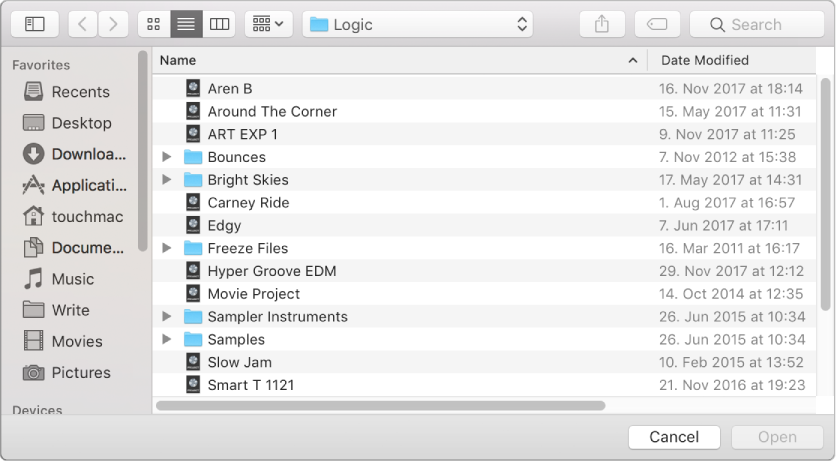
If another project is open, a dialog appears, asking whether you want to close the open project. You can turn off this prompt in the Logic Pro > Preferences > General > Project Handling pane.
Locate and select the file, then click Open.
You can also open a Logic Pro project (or a MIDI file) by dragging it onto the Logic Pro icon in the Dock.
Do one of the following:
Choose File > Open Recent, then choose your project.
In the Project Chooser, click Recent, then double-click the project.
You can clear all items in the Open Recent submenu by choosing Clear Menu.
Tip: If you set the Startup Action in Logic Pro > Preferences > General > Project Handling to Open Most Recent Project, Logic Pro reopens the last open project automatically.
Choose File > New (or press Command-N).
In the Project Chooser, select Demo Projects on the left.
Double-click one of the demo projects on the right.
Open one project, then open one or more additional projects.
In the dialog that appears, click Don’t Close.
Choose the project name at the bottom of the Window menu. The active project is marked with a checkmark.
When you open a project, Logic Pro analyzes the project to determine which channels are needed for project playback. Only plug-ins needed to enable the full signal flow for playback (including auxes, busses, and outputs) are loaded. This allows projects to quickly be opened and be ready for playback and editing. While you're working on the project, other plug-ins are loaded as needed. You can prevent a track from loading when you open a project by using the On/Off button in the track’s header.
Plug-ins load dynamically when the "Only load plug-ins needed for project playback” checkbox is selected in Project Settings > General.