
 When Show Advanced Tools is selected in Advanced preferences, you can use the musical grid setting to determine the view option for the ruler and whether or not tempo information is written into recorded audio files.
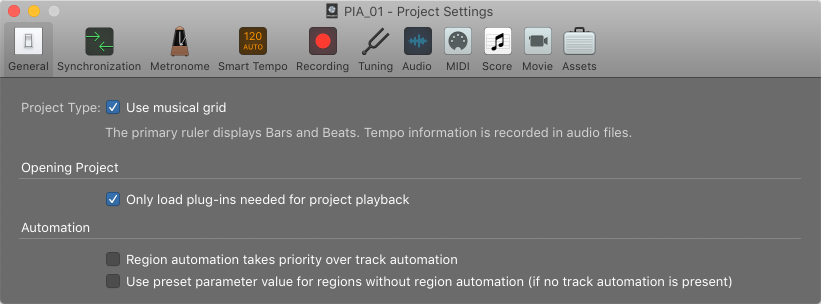
“Use musical grid” checkbox: Sets the ruler to bars and beats, and tempo information is recorded into audio files. If deselected, the ruler is set to time, and tempo information is not recorded into audio files. In general, the only reason not to show the musical grid in the primary ruler is with spoken word or other non-musical projects. If you are working on a project containing music and you want to show time in the Tracks area, consider using the secondary ruler to show time in addition to the primary ruler showing the musical grid. For more information on the primary and secondary ruler, see Position items using the ruler.
"Only load plug-ins needed for project playback” checkbox: When checked, only plug-ins needed to enable the full signal flow for playback (including auxes, busses, and outputs) are loaded when a project is opened. This includes:
The focused track.
Audio tracks containing audio regions (not including frozen tracks).
Software instrument tracks containing MIDI regions (not including frozen tracks)
Audio tracks with input monitoring active.
Audio and software instrument tracks with plug-ins that automatically generate sound without requiring any input.
Auxiliary tracks with external or ReWire inputs.
Any other tracks required for the complete signal flow.
Plug-ins on tracks that not required for project playback are dimmed to indicate that they are currently inactive. This includes tracks without regions on them, frozen tracks, tracks that have been turned off, and aux tracks not in the signal path.
After opening a project, inactive plug-ins load any time you:
Select a track or channel strip with inactive plug-ins.
Add a region to a track with inactive plug-ins.
Unfreeze a frozen track.
Add a plug-in to a channel strip with inactive plug-ins.
Click a plug-in on an inactive track or channel strip.
Click a plug-in slot on an inactive channel strip and select “Activate Channel” from the pop-up menu.
Click a Channel EQ or Compressor slot on a channel with inactive plug-ins.
Add an additional output to a multi-output software instrument on a channel with inactive plug-ins.
Record-enable one or more channel strips with inactive plug-ins.
Use selection-based processing on a track with inactive plug-ins.
Change a send or output on an active channel.
Set or change an input on an audio or aux channel.
Note: Inactive plug-ins do not load for tracks that are turned off.
Only loading plug-ins as needed can be a significant time saver when opening large projects with a large number of tracks and plug-ins, only some of which are used. It also more efficiently allocates your computer’s resources, which can help you get better performance if you are experiencing audio dropouts or other glitches.
For more information on opening projects, see open projects. For more information on working with plug-ins, see plug-ins overview.
“Region automation takes priority over track automation” checkbox: If selected, track-based automation is suspended between the region start and end, if the region contains automation data for the same parameter. It’s on by default in new projects—and off by default in projects created in older Logic versions.
“Use preset parameter value for regions without region automation (if no track automation is present)” checkbox: If selected, the parameter value you set in the channel strip or plug-in is applied to all regions that don’t have automation data for that parameter. If deselected, the final parameter value of the preceding region with automation data is used for regions without automation data.