
Mixing a project involves balancing the different parts of the project and blending them into a cohesive whole.
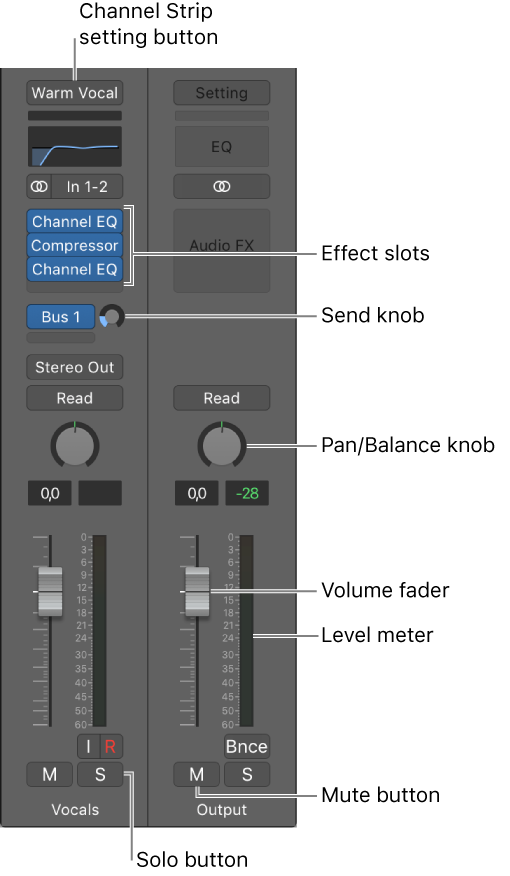
In the Mixer, each track has a channel strip that corresponds to its track type. You can control the sound of the track using its channel strip controls, which include Mute and Solo buttons, a Volume fader and level meter, a Pan/Balance knob, and others. You can also add effect plug-ins, change plug-in settings, and control the signal flow using sends and auxiliary (aux) channel strips.
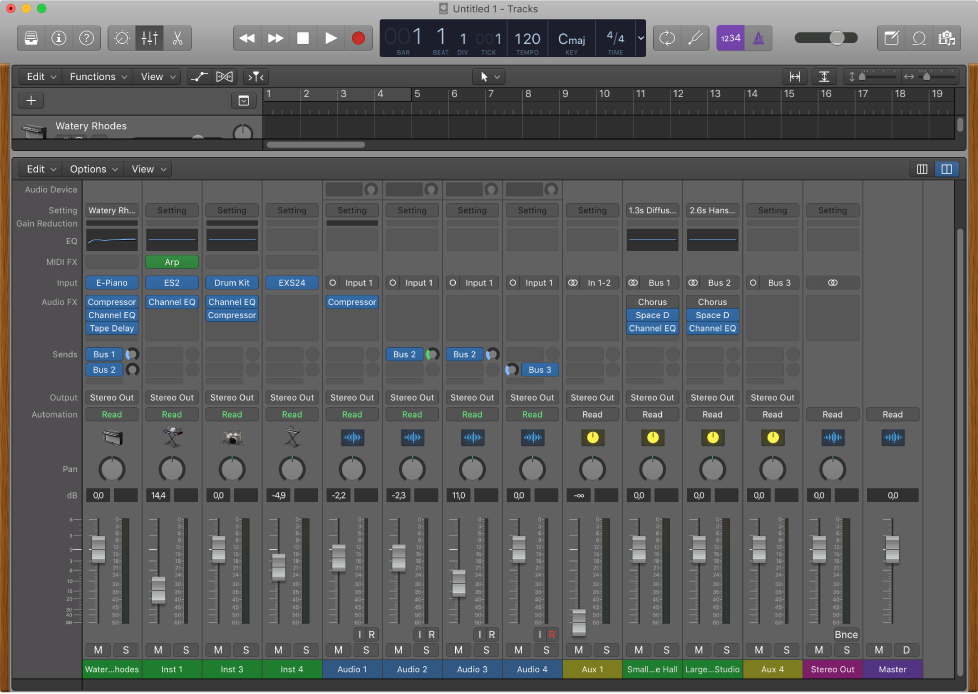
The channel strip for the currently selected track also appears in the lower-left part of the inspector, along with the channel strip for its output. You can try out the following tasks using either the inspector channel strips or the channel strips in the Mixer.
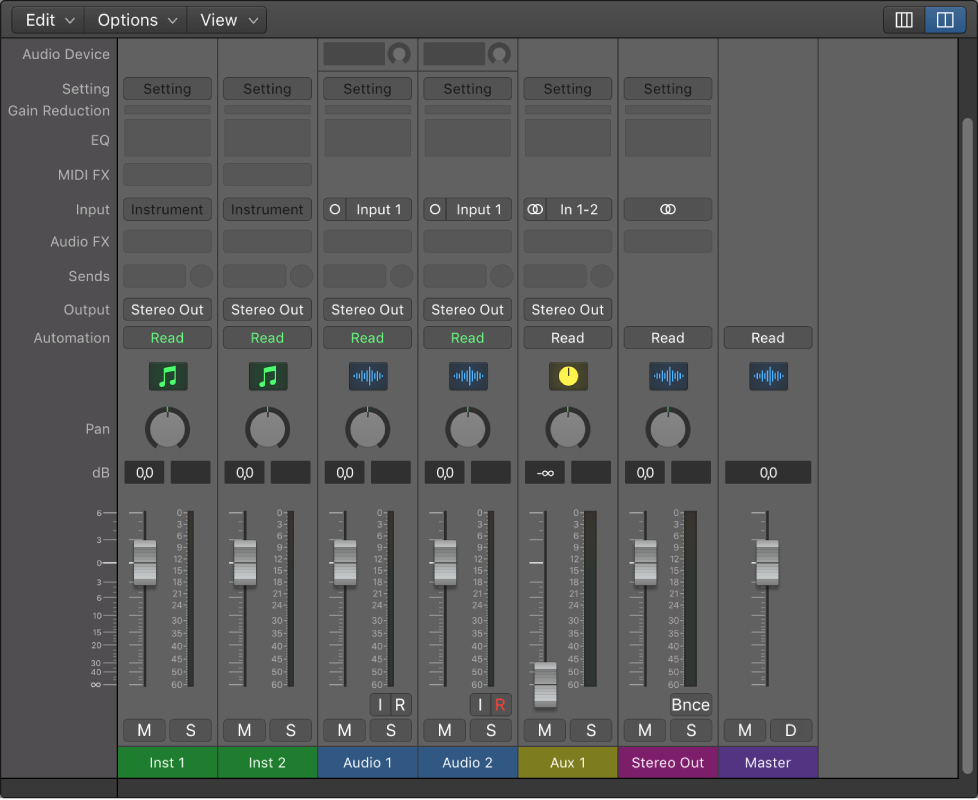
Click the Mixer button  in the control bar (or press X).
The Mixer opens below the Tracks area.
Click the channel strip’s Mute button (with an “M”).
Click the button again to unmute the channel strip.
Click the channel strip’s Solo button (with an “S”).
When you solo a channel strip, the Mute buttons of all unsoloed channel strips flash.
Click the button again to unsolo the channel strip.
Drag the Volume fader up or down.
Drag the Pan control vertically.
Click and hold the Setting button at the top of the channel strip, then choose a setting from the pop-up menu.
Do one of the following:
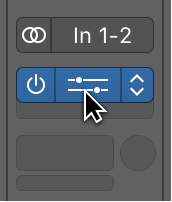
Click the rightmost part of the Effect slot (with the Up and Down arrows), then choose a plug-in from the pop-up menu.
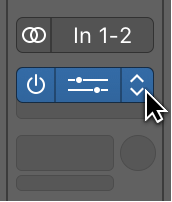
Place the pointer above or below an existing slot, click the blue line that appears, then choose a plug-in from the pop-up menu.
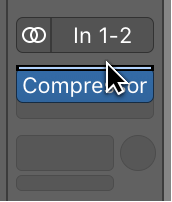
Click the center area of the plug-in slot.
For detailed information about mixing a project, see Mixing overview. For more information about channel strip controls, see Channel strip controls.