
Each channel strip has a set of controls (also called components), which varies according to channel strip type. You can adjust the channel strip volume and pan position, mute and solo channel strips, add and adjust effects, and send the output to auxiliary or output channel strips.
Audio Device controls: The following audio channel strip controls are only visible when you are using a compatible audio interface. See your audio interface users guide for more information.
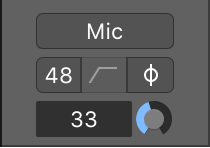
Input type slot: Choose the type of audio device connected to the input, for example microphone, instrument, line level equipment, and so on.
Phantom power button: Sends phantom power to an attached microphone. Check your microphone documentation to determine if your microphone needs phantom power.
Filter button: Activates a low-cut filter across the input. This can reduce the amount of low-frequency rumble recorded, if present in the source signal.
Phase reverse button: Use this button to reverse the phase of the audio signal. This can be useful when recording the same signal with multiple microphones. When the button is lit, the phase is reversed.
Input gain knob: Use to set the amount of input gain.
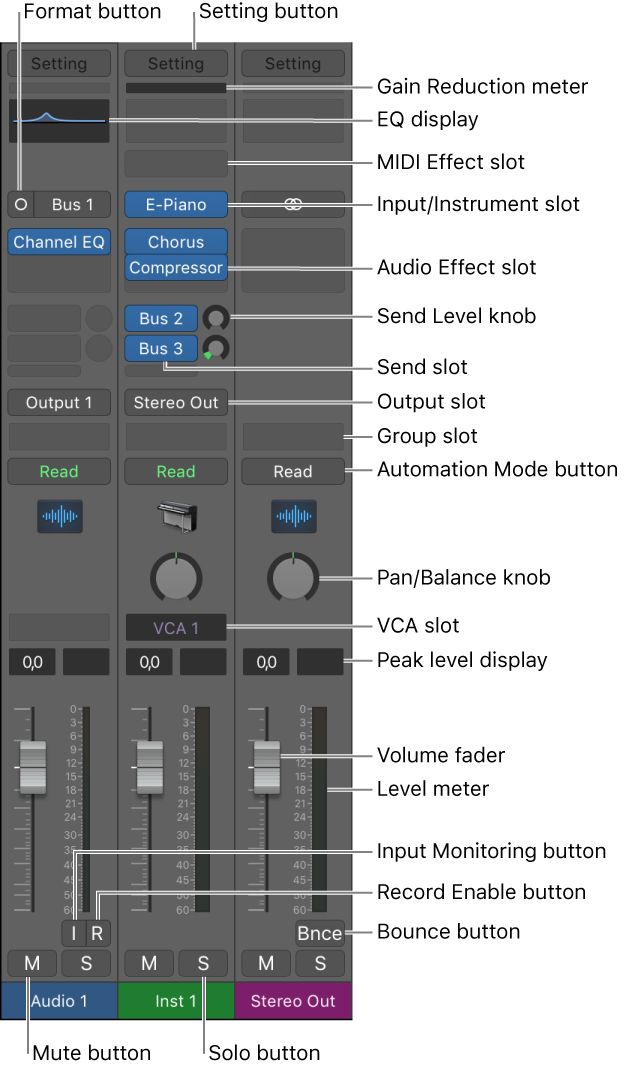
Setting button: Use to load, browse, or save channel strip settings for the selected track. These settings represent the entire routing configuration of a single channel strip, including plug-ins and their settings.
Input/Instrument slot: Choose the channel strip’s input source—the input source that your microphone or instrument is connected to.
Audio Effect slot: Inserts an audio effect into the channel strip. Use effects to alter signals in real time.
Send slot: Routes the signal to an aux channel strip. The Send Level knob that appears defines the amount of signal to route. Use sends to process effects for multiple signals at the same time.
Send Level knob: Controls the amount of signal sent to an aux channel strip. Use sends to process effects for multiple signals at the same time.
Output slot: Choose the channel strip’s output destination—where the channel strip signal is sent to.
Pan/Balance knob: Sets the channel strip signal’s position. On mono channel strips, it controls the signal’s left/right position. On stereo channel strips, it controls the balance between the left and right signals.
VCA slot: Assigns the channel strip to an existing VCA group.
Peak level display: Updates during playback to show the highest peak level reached. A red display indicates signal clipping.
Volume display: Shows the playback volume.
Volume fader: Adjusts the playback volume of the channel strip signal.
Level meter: Shows the level of the input signal—when playing an instrument or singing, for example. Amber and yellow signals are safe. Red indicates signal clipping.
Mute button: Removes the signal from the overall composition so that it can’t be heard.
Solo button: Isolates the signal from the overall composition so that it can be heard alone.
(Input) Format button: Switches the channel strip input format between Mono and Stereo. Click-hold to choose Left, Right, or Surround format.
Dim button: Turns on Dim Volume mode. This sets the playback volume to the Dim value set in the Logic Pro > Preferences > Audio > General pane.
 When Show Advanced Tools is selected in the Advanced preferences pane, the following additional controls become available:
Gain Reduction meter: Displays the gain reduction of the first Compressor plug-in in the channel strip. If no compressor is inserted, the meter should display the gain reduction of an inserted Limiter or Adaptive Limiter plug-in.
EQ display: Click to insert a Channel EQ into the first unused Insert slot, or to open the topmost inserted Channel or Linear Phase EQ. Option-click to insert a Channel EQ into the first slot and move any inserted plug-ins down one slot. Shift-click to insert a Linear Phase EQ into the first unused Insert slot. Option-shift-click to insert a Linear Phase EQ into the first slot and move any inserted plug-ins down one slot. Use EQ effects to shape an audio signal by adjusting specific frequency range levels.
MIDI Effect slot: Insert a MIDI effect into the channel strip.
Group slot: Controls a channel strip’s group assignment. Use the Group Settings window to define which parameters are controlled for the entire group at once.
Automation Mode button: Sets how channel strip and plug-in changes are handled during recording and playback.
Input Monitoring button: Allows you to hear incoming audio on audio tracks that aren’t armed for recording. Use to set audio levels or to practice parts before recording.
Record Enable button: Arms the track or channel strip for recording.
Bounce button: Bounces the output of any output channel strip to an audio file.
You can choose which channel strip controls you want displayed on channel strips by doing one of the following:
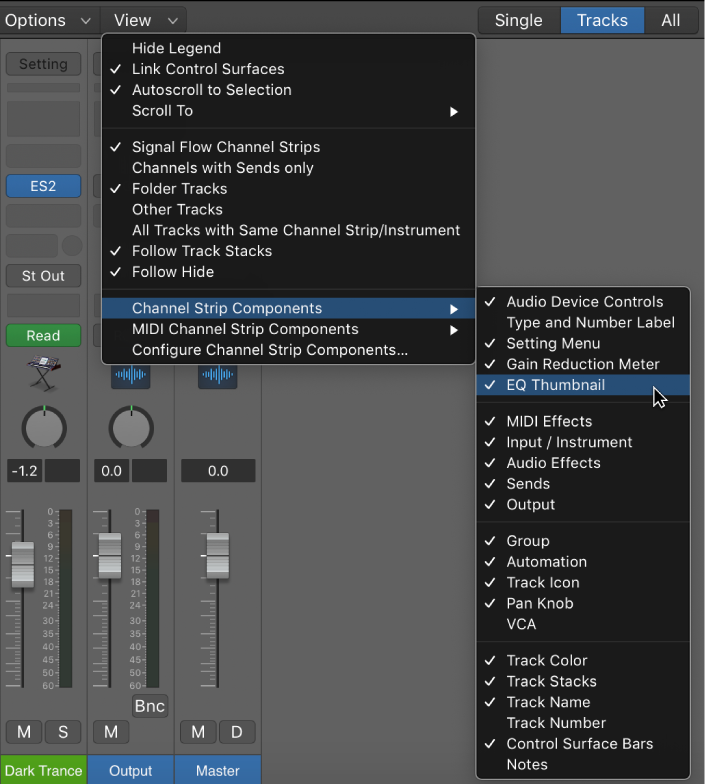
In the Channel Strip Components or MIDI Channel Strip Components submenus of the Mixer > View menu, choose a control to display, or deselect a control to remove it.
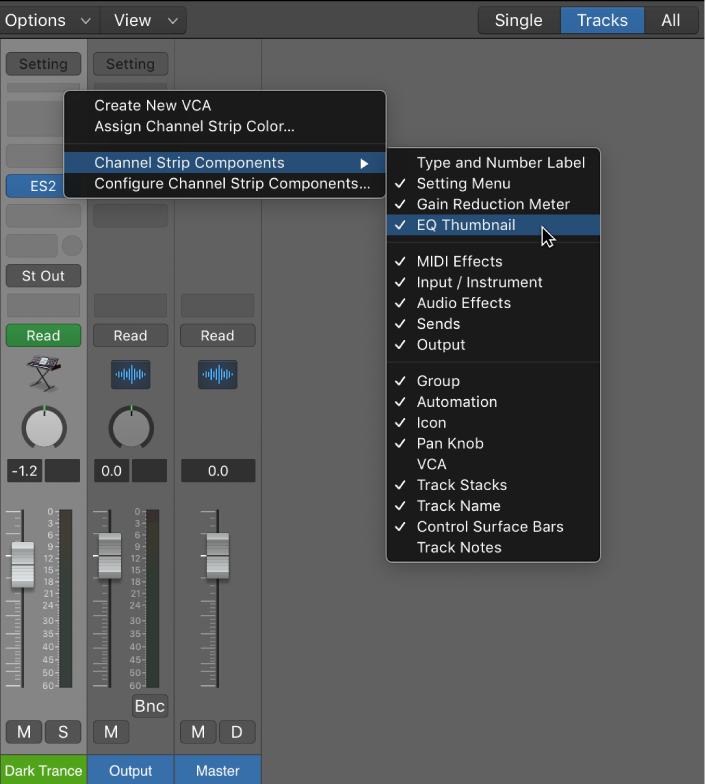
Control-click a portion of a channel strip not containing a channel strip control and in the Channel Strip Compnents submenu of the pop-up menu choose a control to display, or deselect a control to remove it from channel strips.
Choose Configure Channel Strip Components from the Mixer > View menu or the channel strip pop-up menu and choose which controls you wish to display.
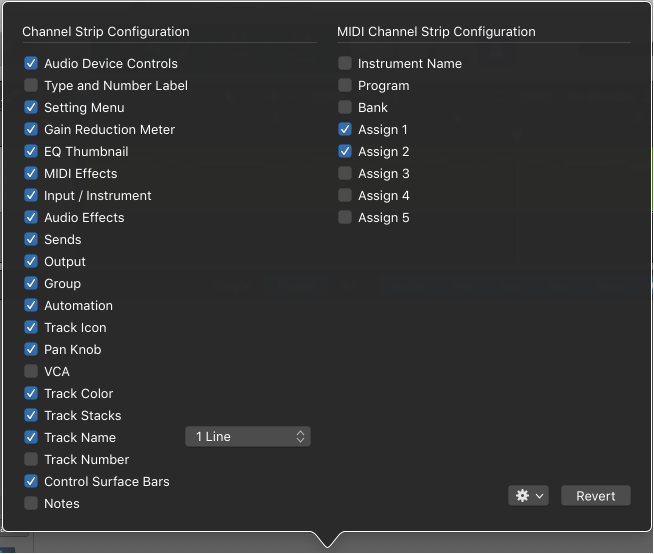
Choose Configure Channel Strip Components from the Mixer > View menu or Control-click a channel strip and choose Configure Channel Strip Components from the pop-up menu.
Choose Store as User Defaults from the Actions menu.
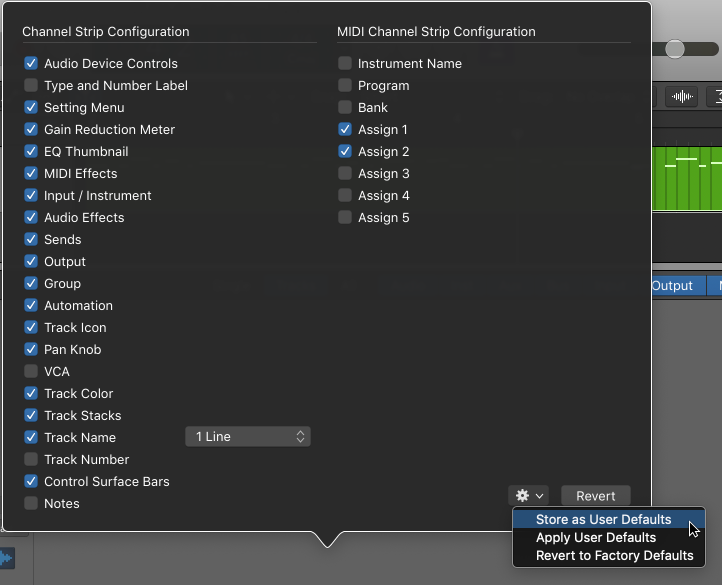
Choose Configure Channel Strip Components from the Mixer > View menu or Control-click a channel strip and choose Configure Channel Strip Components from the pop-up menu.
Choose Apply User Defaults from the Actions menu.
Choose Configure Channel Strip Components from the Mixer > View menu or Control-click a channel strip and choose Configure Channel Strip Components from the pop-up menu.
Choose Revert to Factory Defaults from the Actions menu or click the Revert button.