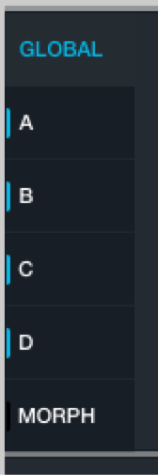

Source components are shown only in advanced view. Click the Advanced button to switch to advanced view.
At the left of the source section are six buttons: Global, A, B, C, D, and Morph. Colored indicators to the left of each button denote the following: blue = active source, green = morphing enabled for the source.
When the Global button is on, the source master controls are displayed. The main filter and master voice controls are also displayed when Global is active. See Main filter controls and Master voice section.
When the A, B, C, or D button is on, the subpage controls for the selected source are displayed. See Source subpage controls.
When the Morph button is on, source morphing parameters are displayed. See Morph controls.
The source select field in each source does double duty as a VU meter that shows the current output level from the source into the main filter section. When the output level exceeds 0 dB, it clips the input of the main filter section, and the VU meter turns red. This is useful for quickly determining the cause of unwanted distortion.
Note: Sources can also be routed directly to the effects section, bypassing the main filters. The VU meter is shown regardless of the source output destination.
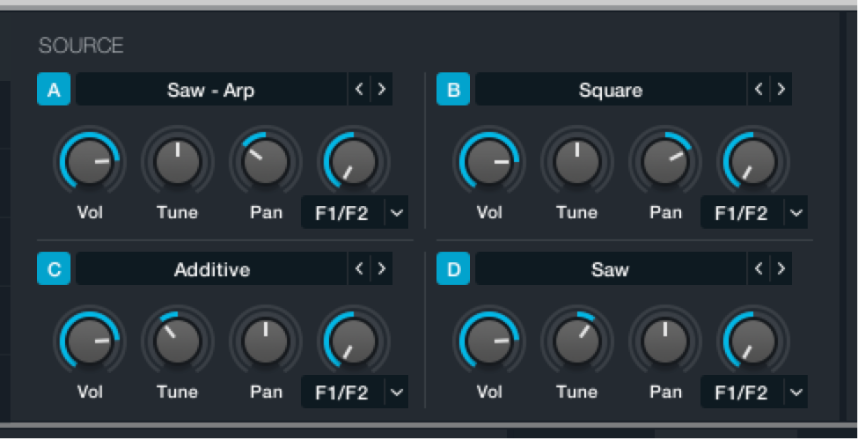
Source master controls
A/B/C/D buttons: Turn the selected source on or off.
Source select pop-up menu and field: Display the name of the current source audio data. Click the Previous and Next buttons (the arrows) to step through available waveform data. This field also acts as a VU meter during playback. Click to open a pop-up menu with a number of source content handling commands.
Import Audio: Import audio data into the element. See Import browser.
Load VA: Load waveform data into the VA element. This automatically enables the VA element and disables all other synthesis engines for this source. See VA element controls.
Load Source: Load source data from disk. Data is in SRC file format. Loaded data includes all source control settings and a reference to any loaded or imported audio data. Source control modulations are not loaded as part of the SRC file.
Save Source: Write source data to disk in SRC file format. Saved data includes all source control settings and a reference to any loaded or imported audio data. Source control modulations are not saved as part of the SRC file.
Copy Source: Copy source data to the Clipboard. This is useful for duplicating the content and settings of one source in another. Copied data includes settings of all source controls and a reference to loaded or imported audio data. Source control modulations are also copied.
Paste Source: Paste source data from the Clipboard.
Clear Source: Reset the source to the default state.
Randomize Source: Apply random variations to source controls, depending on active elements in the source.
Vol knob: Set the source output level (-inf dB to 0 dB).
Tune knob: Tune the source in semitone increments. A further Fine Tune control is available on each source subpage. See Source subpage controls.
Pan knob: Determine the source output position in the stereo field. This parameter works as a pan control if the source Stereo button is off or as a left/right balance control if the source Stereo button is on.
Send knob: Determine the balance of the source output (post source filters, if used) sent to the destinations specified with the Send Destination pop-up menu.
Send Destination pop-up menu and field: Determine where the source output is sent (post source filters, if used).
F1/F2: Source output is routed to main filters 1 and 2. The balance between these targets is set with the Send knob.
F1/FX A/B/C/D: Source output is routed to main filter 1 and effects rack A, B, C, or D. The balance between these targets is set with the Send knob.
F2/FX A/B/C/D: Source output is routed to main filter 2 and effects rack A, B, C, or D. The balance between these targets is set with the Send knob.
Note: Signals sent to effects rack A, B, C, or D destinations bypass the main filters when the Send knob is set to the full-right position. See Effects overview.