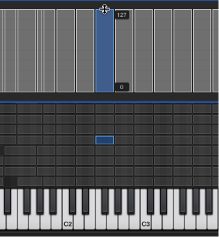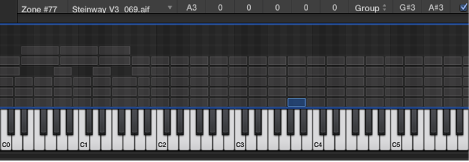

You are not limited to editing zones and groups in the Parameters area. You can also graphically edit a number of zone and group parameters in the Zones/Groups Display area above the keyboard. If you want to edit the audio file of a zone, see Edit samples in the Logic Pro X Audio File Editor.
Drag the zone or group to the target position.
Shift-click or drag to select the zones or groups, and drag them to the target position.
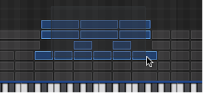
Hold down Option-Command while dragging the zone.
Move the pointer to the beginning or end of a zone or group (the pointer changes to the resize icon).

Drag the start or end point of the zone or group to the target position.
Use one of the following key commands:
Shift Selected Zone(s)/Group(s) Left: Option–Left Arrow key
Shift Selected Zone(s)/Group(s) Right: Option–Right Arrow key
Use one of the following key commands:
Shift Selected Zone(s)/Group(s) Left (Zones incl. Root Key): Option-Shift–Left Arrow key
Shift Selected Zone(s)/Group(s) Right (Zones incl. Root Key: Option-Shift–Right Arrow key
Click the Show Velocity button at the top of the Instrument Editor (or use the Show/Hide Velocity key command).
The Velocity Display area opens above the Zones/Views Display area.
Click one or more zones or groups in the Velocity Display area.
The velocity bars of the selected zones/groups are highlighted in the Velocity Display area.
Move the pointer to either the High or Low value of the velocity bar that you want to change (the pointer changes to the resize icon).
Drag upward to raise the value, or downward to lower the value.