
You can open presentations saved on your Mac, in iCloud Drive, on connected servers, and in third-party storage providers. If you can’t open a Keynote presentation, make sure that you have the latest version of Keynote from the Mac App Store. If a presentation is dimmed and can’t be selected, it means the presentation can’t be opened by Keynote.
You can open and edit Microsoft PowerPoint presentations (files with a .pptx or .ppt filename extension) in Keynote, then save them as Keynote or PowerPoint presentations.
Do any of the following:
Open a presentation on your Mac: For a Keynote presentation, double-click the presentation name or thumbnail, or drag it to the Keynote icon in the Dock or the Applications folder. For a PowerPoint presentation, drag it to the Keynote icon (double-clicking the file opens PowerPoint if you have that app).
Open a presentation you recently worked on: In Keynote, choose File > Open Recent (from the File menu at the top of your screen). Keynote shows up to the last ten presentations you opened.
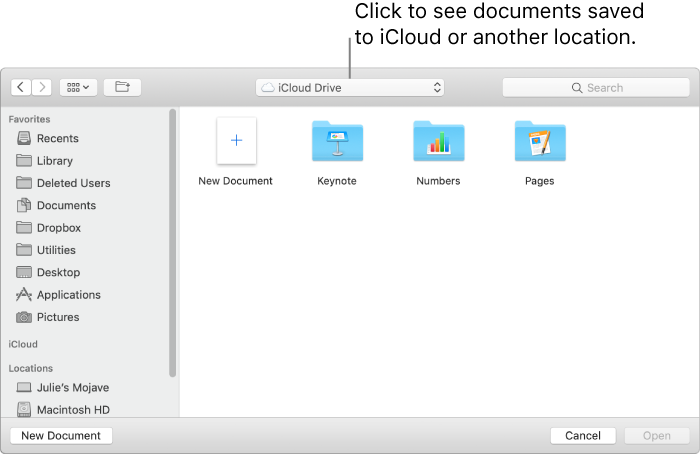
Open a presentation stored somewhere other than your Mac (such as iCloud Drive): In Keynote, choose File > Open (from the File menu at the top of your screen). In the dialog, click a location in the sidebar on the left, or click the pop-up menu at the top of the dialog, then choose the location where the presentation is saved. Double-click the presentation to open it.
When you open a Keynote presentation that uses fonts not installed on your computer, a missing font notification appears briefly at the top of the presentation. In the notification, click Show and choose a replacement font.
You can have more than one Keynote presentation open at a time. When you work in multiple presentations, it’s helpful to open them in tabs rather than in separate windows—that way, you can move between them by clicking the tabs in the tab bar.
Choose Apple menu > System Preferences, then click Dock.
Click the “Prefer tabs when opening documents” pop-up menu, then choose Always.
This setting applies not just to Keynote, but also to documents in other applications such as TextEdit, Numbers, and Pages.
Do one of the following:
Close a presentation but keep Keynote open: Click the red close button in the top-left corner of the Keynote window, or press Command-W.
Close the presentation and quit Keynote: Choose Keynote > Quit Keynote (from the Keynote menu at the top of your screen). All of your changes are saved.