
Using paragraph styles is a quick way to uniformly format text throughout a presentation.
Select the text box or shape with the text you want to change, or select specific text.
Click the Text tab at the top of the sidebar on the right.
If you don’t see a sidebar, or the sidebar doesn’t have a Text tab, click  in the toolbar.
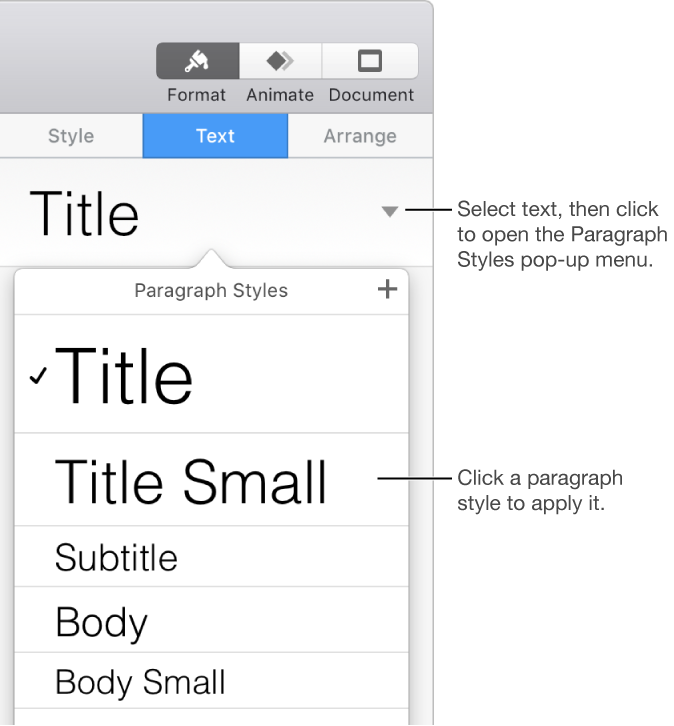
Click the paragraph style name at the top of the sidebar, then choose a style from the Paragraph Styles pop-up menu.
If you later change the look of text that has a paragraph style applied to it—for example, you make the text bold or change its color—an asterisk and an Update button, in some cases, appears next to the style’s name in the Paragraph Styles pop-up menu, indicating that the style has an override. You can update the paragraph style to incorporate the overrides if you want.
You can also apply character styles and apply list styles to selected text.
Tip: For faster formatting, create keyboard shortcuts to apply styles to text.