
Add lines between paragraphs
Select the text where you want to add a rule.
Click the Text tab at the top of the sidebar on the right, then click the Layout button near the top of the sidebar.
If you don’t see a sidebar, or the sidebar doesn’t have a Text tab, click
 in the toolbar.
Click the disclosure triangle next to Borders & Rules.
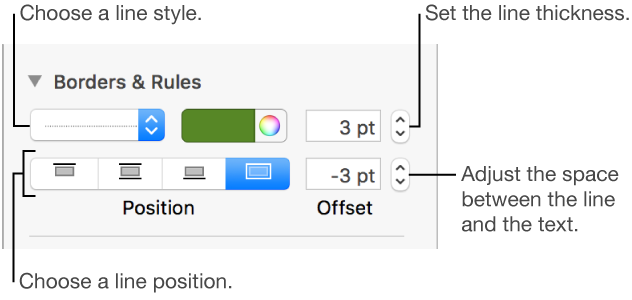
Click the pop-up menu below Borders & Rules, then choose a line type (solid, dashed, or dotted).
To set where the line appears, click a Position button.
Depending on the type of object where the text appears (shape or text box), some options may not be available.
Choose a line color next to the line style pop-up menu.
To see colors that go with your theme: Click the color well on the left.
To see all colors: Click the color wheel, then choose a color in the Colors window.
To adjust the spacing between the line and the text it’s applied to, click the arrows for the Offset field.
To remove a rule, select the paragraph, click the pop-up menu below Borders & Rules, then choose None.