 in the toolbar. (Click the button again to hide the sidebar.)
Keynote makes it easy to create and show beautiful presentations. Start with one of the themes, then modify it however you like. Each theme comes with predesigned styles—coordinated sets of colors, borders, effects, and so on—for text, shapes, photos, video, and other objects.
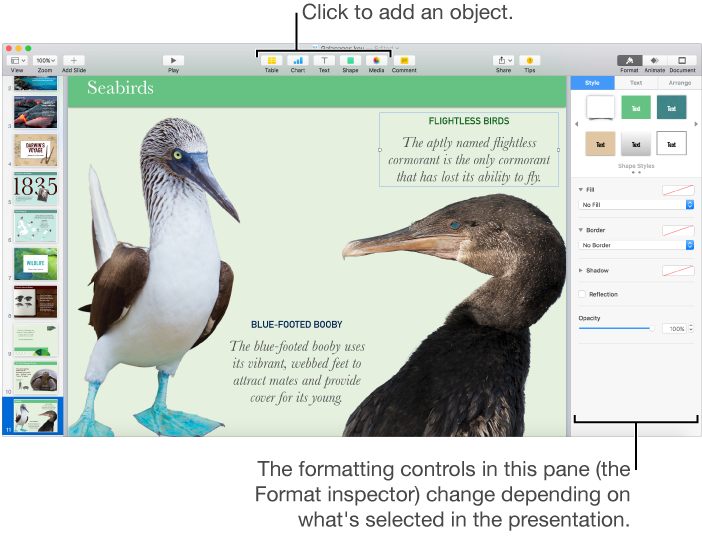
When you select text or an object—like a photo or a shape—in a presentation, formatting controls for it appear in the sidebar on the right. Only the controls you need to modify the selected object are visible. If you don’t see a sidebar, click in the toolbar. (Click the button again to hide the sidebar.)
You can quickly change the look of the selected text or object (image, shape, table, or cell) by applying a new style to it. For text, click the paragraph style name at the top of the sidebar on the right and choose a new paragraph style. For objects, click one of the six object styles.
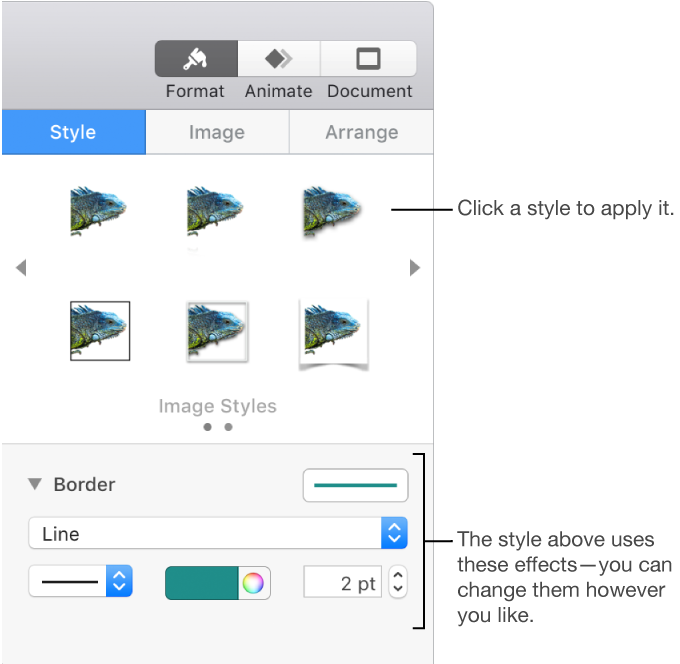
Use the other controls in the sidebar to customize the object however you like. You can save your settings as a new style, which is then available in the sidebar so you can apply it to other text or objects. You can also save the presentation as a new theme.