You can fill shapes and text boxes with an image, a solid color, or a gradient (two or more colors that blend into one another).
Select a shape or text box, then click the Style tab at the top of the sidebar on the right.
If you don’t see a sidebar, or the sidebar doesn’t have a Style tab, click
in the toolbar.
Do any of the following:
Use a color or gradient designed to go with the theme: Click the color well next to Fill, then choose a color or gradient.
Use a two-color gradient fill: Click the disclosure triangle next to Fill, click the pop-up menu and choose Gradient Fill, then choose colors. The left side of the color well shows colors that match the theme; the color wheel opens the Colors window, where you can choose any color.
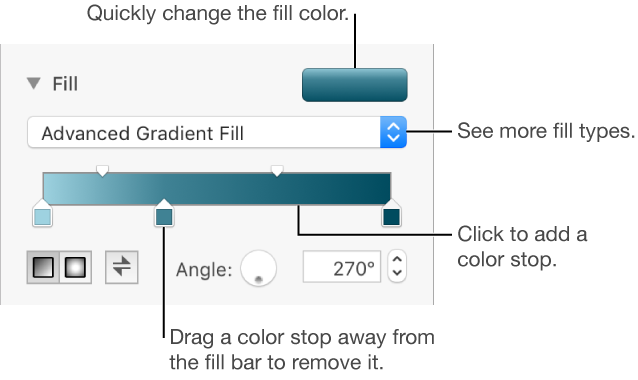
Use a custom gradient: Click the disclosure triangle next to Fill, click the pop-up menu and choose Advanced Gradient Fill, then click the color stops below the slider to choose colors. You can slide the color stops and use the other controls to change the blend, angle, and direction of the gradient.
You can fill shapes and text boxes with an image.
Select a shape or text box, then click the Style tab at the top of the sidebar on the right.
If you don’t see a sidebar, or the sidebar doesn’t have a Style tab, click
in the toolbar.
Click the disclosure triangle next to Fill, then click the Fill pop-up menu and choose Image Fill, or Advanced Image Fill if you want to add a tint to the image.
Click Choose, navigate to your photos, then double-click an image to add it.
If you chose Advanced Image fill to add a tinted image, click the color well (to the right of the Choose button) to select a tint color.
To make the tint more or less transparent, drag the Opacity slider in the Colors window.
To change how the image fills the object, click the pop-up menu above the Choose button, then choose an option:
Original Size: Places the image inside the object without altering the image’s original dimensions.
Stretch: Sizes the image to fit the object’s dimensions.
Tile: Repeats the image inside the object.
Scale to Fill: Makes the image larger or smaller to leave no space in the object.
Scale to Fit: Resizes the image to fit the object’s dimensions.
You can save a custom fill to use it again.
Select the shape or text box with the fill you want to save.
Click the Style tab at the top of the sidebar on the right.
If you don’t see a sidebar, or the sidebar doesn’t have a Style tab, click
in the toolbar.
Click the color well next to Fill, then drag the fill in the Current Fill well to another well to replace its fill.
You can drag only to a well of the same type. For example, if the custom fill is a gradient, drag the fill in the Current Fill well to a well in the Gradient Fills section.
To change which types of fills you can replace, click the Fill Type pop-up menu, then select a different option. For example, if you want to save a gradient fill, click the pop-up menu, select Gradient Fill, then drag the fill in the Current Fill well to a well in the Gradient Fills section.
If you want to use the same formatting for other objects, you can create your own object style to use again.