
Assign a shortcut to a style
Click any text in the presentation, then click the Text tab at the top of the sidebar on the right.
If you don’t see a sidebar, or the sidebar doesn’t have a Text tab, click
 in the toolbar.
Click the Style button near the top of the sidebar.
Do one of the following:
For a paragraph style: Click the paragraph style name at the top of the tab, move the pointer over the name of the style you want to assign a shortcut to, then click the arrow that appears.
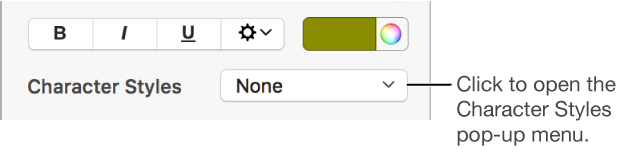
For a character style: Click the Character Styles pop-up menu, move the pointer over the name of the style you want to assign a shortcut to, then click the arrow that appears.
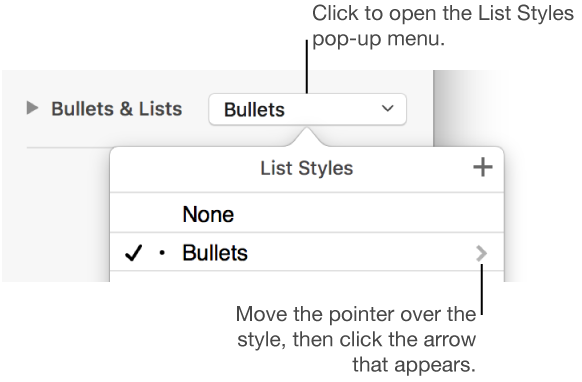
For a list style: Click the Bullets & Lists pop-up menu, move the pointer over the name of the style you want to assign a shortcut to, then click the arrow that appears.
Choose Shortcut, then choose a key.
Now, the shortcut key appears next to the style name in the menu for easy reference.