Select the text you want to change.
To change all of the text in a text box or a table cell, select the text box or triple-click the table cell.
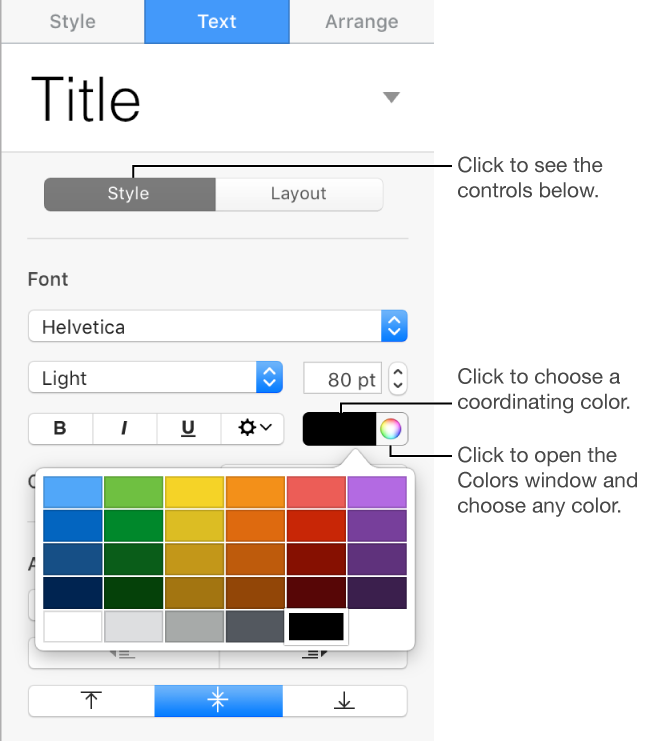
Click the Text tab at the top of the sidebar on the right, then click the Style button near the top of the sidebar.
If you don’t see a sidebar, or the sidebar doesn’t have a Text tab, click
 in the toolbar.
In the Font section of the sidebar, do one of the following:
For colors that coordinate with your theme: Click the color well then choose a color.
For any color: Click the color wheel, then choose a color from one of the color palettes.