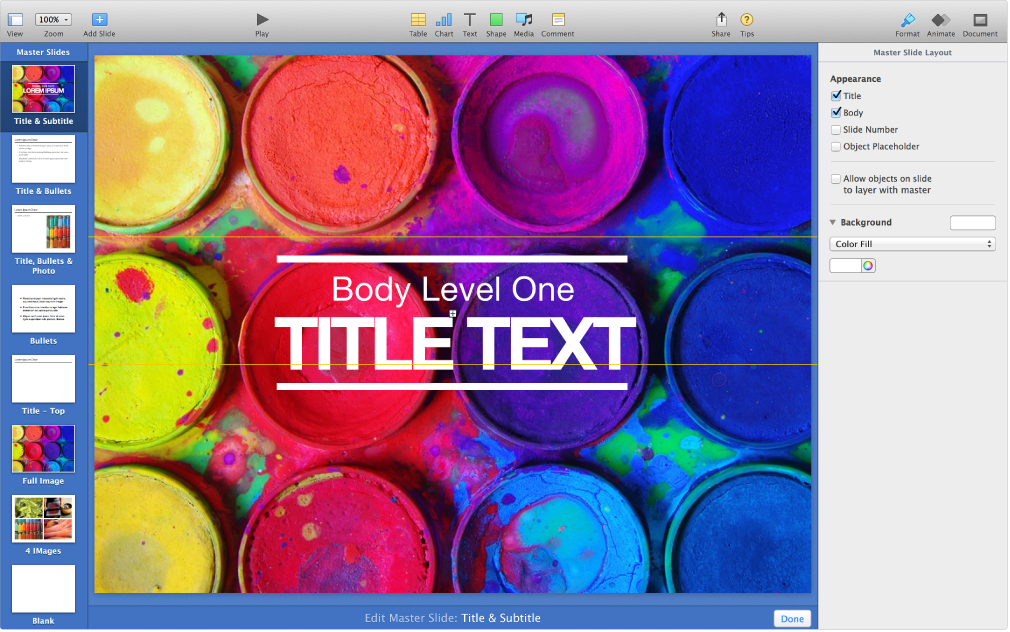

The slide layouts used in each Keynote theme are based on master slides. When you want to add a slide to your presentation that has particular elements—such as a title and subtitle, a bulleted list, or an image—you select the slide layout that most resembles the layout you want, then you replace the placeholder elements and make other changes as necessary. Only the slide in your presentation is changed; the master slide remains in its original state.
If you add new images, text, and other objects to a master, these objects become part of the slide background and aren’t editable in your presentation. If you want text, shapes, or images to be editable in your presentation, you must add them as placeholders to the master slide.
You can make changes to a master slide like you can to a regular slide—including modifying the appearance of text, changing the slide background, and changing the size of the images. When you do, the changes appear on every slide in the presentation that’s based on that master.
Click View  in the toolbar, then choose Edit Master Slides.
Do any of the following:
Click  in the toolbar, then select a master slide.
In the slide navigator, select a slide with a layout similar to the layout you want, and press Return.
Double-click the name of the master slide in the slide navigator and type a new name.
Modify the slide however you like by adding text, images, shapes, placeholders, or other objects.
If you want objects on a master slide to layer with objects you add to slides based on that master, select the slide and in the Format inspector, and select “Allow objects on slide to layer with master.” To learn more about layers, see Layer, group, and lock objects.
Click Done at the bottom of the slide canvas, or click View in the toolbar, then choose Exit Master Slides when you’re done editing.
Click View in the toolbar, then choose Edit Master Slides.
Select the master slide you want to edit.
Add text, an image, or a shape to the slide, change its appearance however you want, then place it where you want it to appear on the master slide.
Select the text, image, or shape, then in the Style pane of the Format inspector, select the “Define as Placeholder” checkbox (at the bottom of the pane).
Click Done at the bottom of the slide canvas, or click View in the toolbar, then choose Exit Master Slides when you’re done editing.
To create a placeholder on a master slide for a table and chart, add an object placeholder. On any slide based on the master, you can add a table or chart and the table or chart assumes the size and position of the object placeholder.
Click View in the toolbar, then choose Edit Master Slides.
Select the master slide you want to edit.
In the Master Slide Layout pane of the Format inspector, select the Object Placeholder checkbox.
An object placeholder is added to your slide; you can resize it and position it where you want. Only one object placeholder can be added to a master slide.