Add and edit images

You can add photos and graphics from your iPhoto or Aperture library, or drag them from a website or from the Finder. You can crop an image by masking out parts you don’t want, and make adjustments to its background and exposure.

Add an image

Mask (crop) a photo

You can hide unwanted portions of an image without modifying the image itself.

  1. Double-click the image.

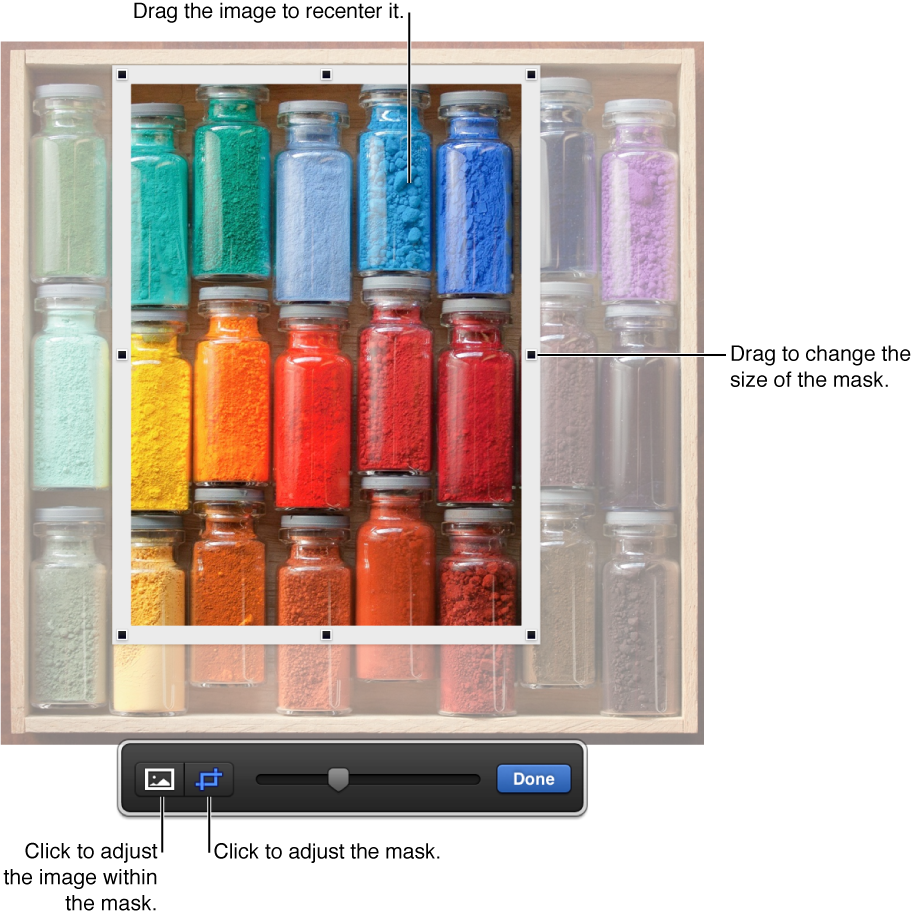
  2. Use the controls that appear to change which parts of the image are visible:

    Mask controls over a photo

  3. Click Done.

To reset the mask (so that it returns to its original size), double-click the image to reveal the cropping controls. Or, you can select the image, then click Edit Mask in the Image pane of the Format inspector.

Remove background or other elements from a photo

Use the Instant Alpha tool to make parts of an image transparent. This feature is useful for removing an unwanted background or color.

  1. Select the image.

  2. In the Image pane of the Format inspector, click Instant Alpha.

  3. On the image, click the color you want to remove, then drag slowly over it.

    As you drag, the selection grows to include areas that use similar colors. Click and drag multiple times to remove multiple colors.

    • Remove all instances of the color (even in other parts of the photo): Hold down the Option key while you drag.

    • Add colors back to an image: Hold down the Shift key while you drag.

  4. Click Done, or click Reset to return the image to the original.

Adjust exposure, saturation, and other image settings

  1. Select the image.

  2. In the Image pane of the Format inspector, use the controls to make adjustments.

    • Exposure: Changes the overall lightness or darkness of the image.

    • Saturation: Changes the richness of color in the image. Dragging to the right makes the colors richer or more vibrant.

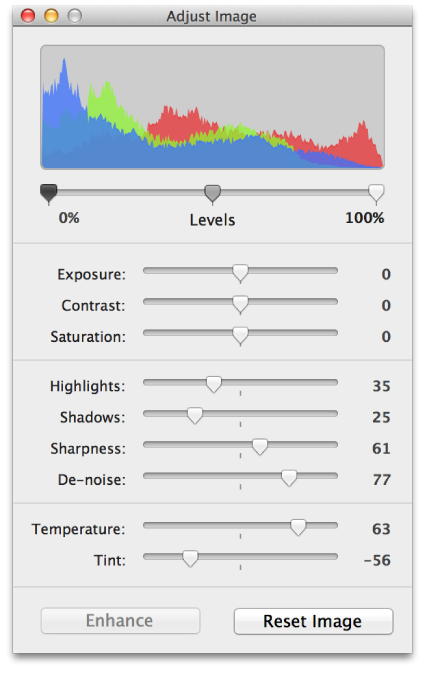
    • Enhance: Automatically adjusts the image by spreading the red, green, and blue tones evenly across the histogram.

  3. To see the image histogram and adjust more advanced features like levels, gamma, temperature, and tint, click Advanced Image button.

    Adjust Image window showing histogram

To restore the original settings, click Reset Image.

See also
Change an object’s appearance