
Apple Music provides access to millions of songs and videos. As an Apple Music subscriber, you can:
Play songs, TV shows, movies, and music videos on up to ten computers and devices.
Download songs and videos so that you can listen to them even when you’re not online.
Get recommendations for new music based on your musical tastes, which you can fine-tune at any time.
See what Apple Music contributors—artists, reviewers, DJs, and others—are listening to and subscribe to their playlists.
Discover new music with friends by sharing your playlists and the music you’re listening to.
Even if you aren’t an Apple Music subscriber, you can follow your favorite artists and curators, find out what they’re listening to, and keep up with their latest releases, news, and tour schedules.
If you’re not already signed in to iTunes, sign in using your Apple ID.
If you don’t have an Apple ID, you can create one during setup.
Choose Music from the pop-up menu at the top left.
Click For You, then click Try it Now.
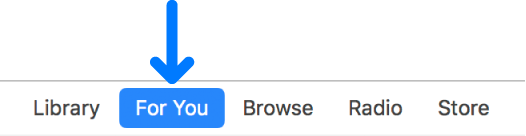
If you don’t see For You, choose iTunes > Preferences, click General, then select Show Apple Music Features.
Follow the onscreen instructions.
When you join Apple Music as a new subscriber, the subscription is free for a trial period.
At the end of the trial period, your subscription is renewed monthly. For information about turning off automatic renewal, see the Apple Support article View, change, or cancel your subscriptions.
Any items in your music collection that aren’t available in Apple Music are automatically uploaded to iCloud, so you can access them from your other computers and devices.
Choose an option (Music or Movies, for example) from the pop-up menu at the top left.
Do any of the following:
View recommendations tailored for you: Click For You, then click Recommendations.
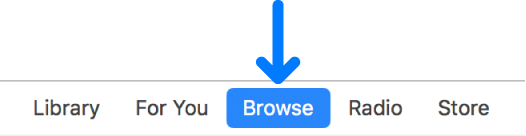
See what’s new in Apple Music: Click Browse, then click a category (New Music, Playlists, TV & Movies, and so on).
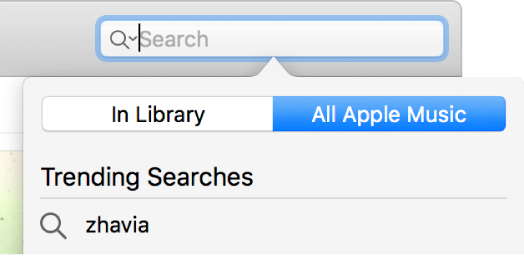
Search the Apple Music catalog: Click in the search field in the top-right corner of the iTunes window, enter your search criteria for the item you want to find, then click All Apple Music.
To play an item, double-click it. If your Mac has a Touch Bar, you can also tap the Play button  in the Touch Bar.
You can add songs, albums, playlists, TV shows, movies, and music videos from Apple Music to your iCloud Music Library, which is accessible whenever you’re signed in to Apple Music.
After you add an item to your iCloud Music Library, you can download them to your computer or device to play at any time, even when you’re offline.
Important: Items you download from Apple Music can’t be burned to a disc or added to a device, such as iPod or iPad. Items can only be downloaded to a device directly from Apple Music.
To add an item to your iCloud Music Library, do one of the following:
On a computer: Control-click an item, then choose Add to Library.
On an iOS device: Tap + next to an item.
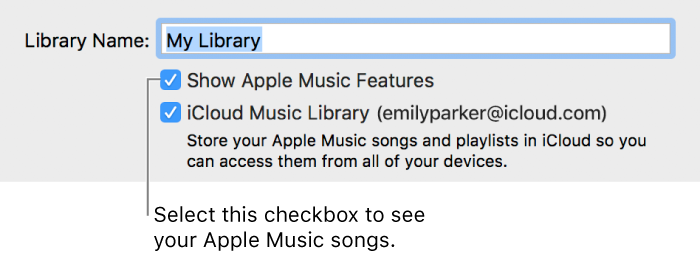
If you don’t see your added items in the iTunes sidebar, choose iTunes > Preferences, click General, make sure iCloud Music Library is selected, select Show Apple Music Features, then click OK. When this checkbox is selected, you also see items you’ve added to other computers and devices.
To download an item, click the iCloud Download button  next to the item.
To view only your downloaded items, select Downloaded in the sidebar on the left.
If you don’t renew your Apple Music subscription, downloaded items remain on your computer, but you can’t play them until you rejoin.
Tip: To add songs to a playlist without adding them to your library, choose iTunes > Preferences, click General, then deselect “Add songs to Library when adding to playlists.”
For more information about playlists, see Create a playlist.
When you join Apple Music, you’re asked about your preferred music genres and artists. Apple Music then uses your preferences to make recommendations for you. You can update your preferences at any time.
You can also let Apple Music know about your favorite and least favorite songs and albums.
Update your musical preferences: Choose Account > Choose Artists For You, then follow the onscreen instructions.
Love a song or album: Hold your pointer over the item, click the Action Menu button  then choose Love. You can also click an item’s Not Loved button
  wherever it appears in iTunes.
Dislike a song or album: Hold your pointer over the item, click the Action Menu button then choose Dislike. You can also click an item’s Loved button  .
.
Tip: To see all your preferred songs in one place, create a Smart Playlist of your Loved songs and albums.
You can subscribe to playlists created by any Apple Music contributor. When the owner updates the playlist, it’s updated in your library.
Hold the pointer over a playlist and click the Action Menu button .
Choose Add to Library.
To view your subscribed playlists, choose Music from the pop-up menu at the top left, then select a playlist in the sidebar on the left, below Apple Music Playlists.
Even if you aren’t an Apple Music subscriber, you can follow your favorite artists and curators using Connect.
Choose Music from the pop-up menu at the top left, click For You, then click Connect.
If you’re using Connect for the first time, click Sign In and follow the onscreen instructions.
Click Find More Artists and Curators.
Click the Follow button for each artist or curator you want to follow.
To see the latest updates from the artists and curators you follow, go to Connect, then click See Who You’re Following.
You can show your playlists and what you’re listening to with your friends, and discover new music together.
To create your profile, choose Music from the pop-up menu at the top left, click For You, click Connect, click the My Account button in the upper-right corner of the window, then click Get Started.
You can add friends to follow when you set up your profile.
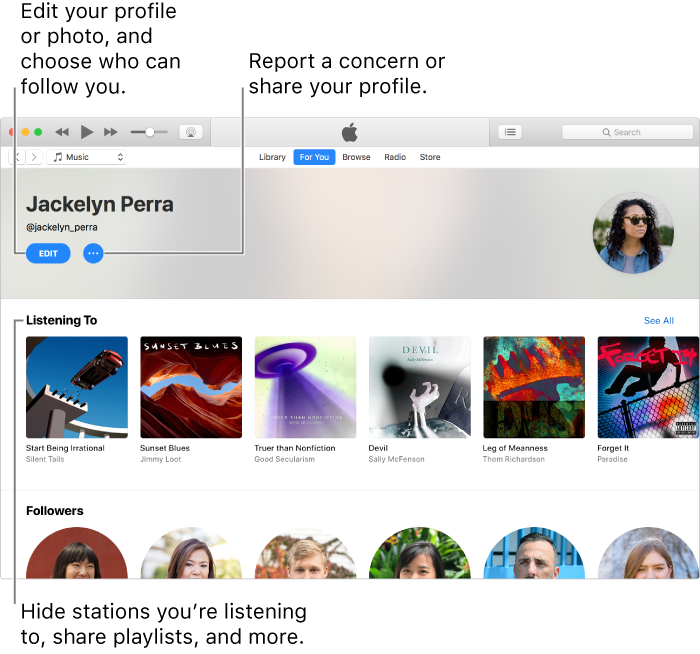
To add friends later, do any of the following:
Click the My Account button, then click Find More Friends at the bottom of your profile.
Enter a friend’s name in the search field, choose a result, then click Follow.
If you can’t find someone, make sure they created a profile. If the friend’s profile is private, they have to approve your request.
Do any of the following:
Show your music to your followers: Create a playlist, select it in the sidebar, then select “Publish on profile and in search.”
Stop showing a playlist: Click the My Account button, click Edit, then deselect the playlist.
See what someone is listening to: Click the My Account button, then click a person’s profile picture.
Accept or decline requests: Click the My Account button, then click View Requests. You receive requests only if you select People You Choose in your profile.
Tip: To easily see what all your friends are listening to, click For You, then scroll to Friends Are Listening To. Your friend’s profile photo appears in the lower-right corner of the album art.
To stop following someone, click the My Account button, click the person’s profile, then click Following.
To remove your profile, click the My Account button, click Edit, then click Delete Profile.
To learn how to add other content to iTunes, see How to add items to iTunes.
If you subscribe to Apple Music, you can’t sync your saved Apple Music songs to a device. For more information about how syncing works, see Syncing overview.