
Use the iTunes MiniPlayer
The MiniPlayer takes up very little space on your screen, and still lets you adjust the volume, search for songs, choose which songs play next, and more.
The MiniPlayer displays the album artwork for the song that’s playing. When you move the pointer over the artwork, controls and song information appear.

You can also shrink the MiniPlayer to an even smaller size.

Open the MiniPlayer: Choose Window > Switch to MiniPlayer.
View and edit a list of upcoming songs: Click the Up Next button
 .
.
Keep the MiniPlayer in the foreground on your desktop: Choose iTunes > Preferences, click Advanced, and select “Keep MiniPlayer on top of all other windows.”
Shrink to the smaller MiniPlayer: Click
 near the top-left corner. To expand back to the full MiniPlayer, click again.
 at the top-right corner of the iTunes window.
 at the top-right corner.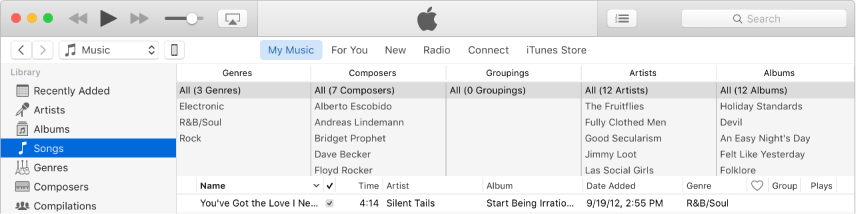
 near the top left of the iTunes window, then choose Music from the pop-up menu.