

To play a song in your iTunes library, double-click it. You can use the controls in the iTunes window to repeat songs, change the order they play in, and more.
To view your music library, click  near the top left of the iTunes window, then choose Music.
Turn shuffle on or off: Click the Shuffle button  .
.
Shuffle is on when the arrows are blue  .
.
Shuffle albums or groupings: Choose Controls > Shuffle > Albums (or Groupings). iTunes plays the songs in the order in which they appear on the album or in the grouping, and then chooses another album or grouping at random.
Repeat all songs in the current view (for example, a playlist): Click the Repeat button  .
.
Repeat the currently playing song: Click the Repeat button until the number 1 appears  .
.
Turn repeat off: Click the Repeat button until it turns gray  .
.
While listening to music, you can use the Up Next list to view and change which songs play next. For example, if you’re listening to a playlist, you can use Up Next to switch to an album after the currently playing song. When the album finishes, iTunes resumes playing the playlist.
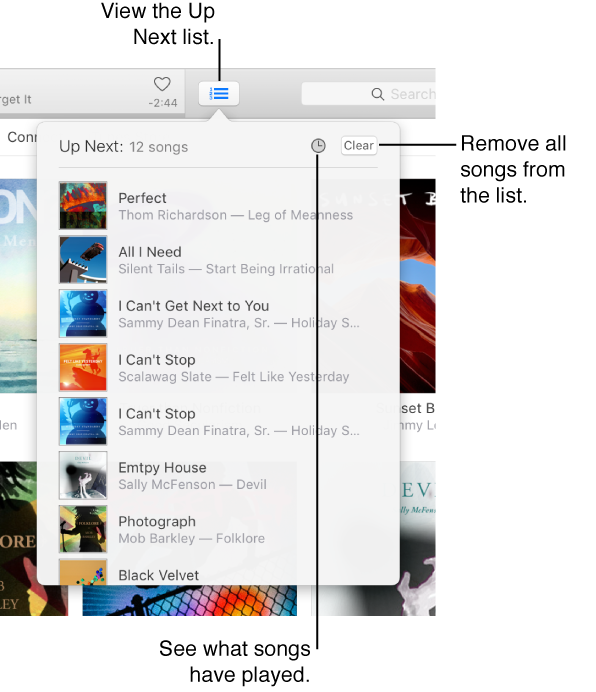
View the Up Next list: Click the Up Next button  .
.
Play a song in the list: Double-click the song.
Add a song or an album to the list: Drag the item to the top center of the iTunes window until a blue border appears.
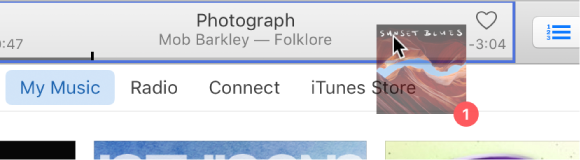
Add or move a song to the top of the list: Control-click the item, then choose Play Next.
Change the order of songs in the list: Drag the songs into the order you want.
Remove a song from the list: Move the pointer over the song and click the Delete button  .
.
Remove all songs from the list: Click the Clear button at the top right of the list one or more times.
See which songs played previously: Click the History button  at the top right of the list. To return to the Up Next list, click the History button again.
If you quit iTunes, the Up Next list is automatically saved for the next time you open iTunes.
Click near the top left of the iTunes window, then choose Music.
Click My Music.

Select Songs in the sidebar on the left.
Do any of the following:
Play songs in alphabetical order by song title, artist, or album (or sort by any other category): Click a column heading.
To select more categories, choose View > View Options.
Customize the order that songs play in: Click the column heading above the numbers, then drag songs to change their order.
You can set iTunes to fade each song in (increase it in volume) while the previous song is fading out, so there are no gaps of silence between songs. This feature is called crossfading.
Choose iTunes > Preferences, and click Playback.
Select Crossfade Songs.
To change the amount of time it takes for the current song to fade out at the end and the new song to fade in, drag the Seconds slider.
When iTunes plays consecutive tracks from the same album, crossfading is automatically turned off, with no fading between the songs (or tracks).
To play songs without fading, deselect Crossfade Songs.
Click near the top left of the iTunes window, then choose Music.
Click My Music.

Select Songs in the sidebar on the left.
Deselect the checkbox next to the song.
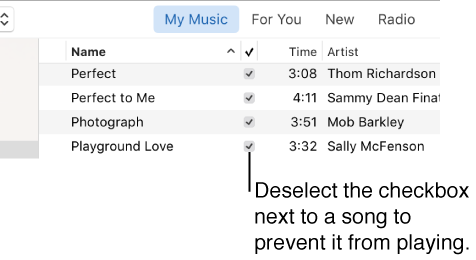
Important: Deselecting a song’s checkbox removes the checkmark from the song in all playlists.