
Import photos from iPad
Connect your iPad to your computer using the connector cable that came with your iPad.
If iPhoto wasn’t already open, it opens for you (unless you changed this preference in iPhoto or your iPad is locked).
After your iPad is connected and turned on, iPhoto opens in import view and your iPad appears in the Source list.
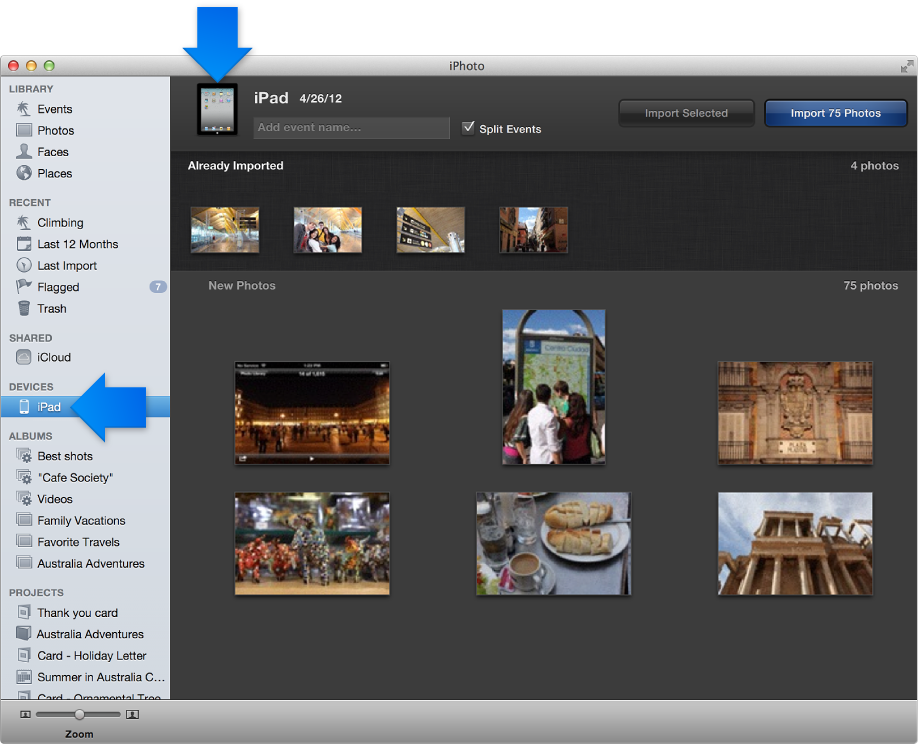
iPhoto displays photos you’ve already imported in a separate area from new photos.
If you’ve already imported all the photos on your iPad, a message appears. To delete the photos from your iPad, click the Remove Photos button.
If you want to name the event where your imported photos will be grouped, enter a description in the Event Name field.
By default, iPhoto divides photos into separate events during the import process. If you don’t want iPhoto to automatically create events, deselect the Split Events checkbox.
If you want to change the time frame used to sort your photos into events, you can change it in iPhoto preferences.
Do one of the following:
To import all new photos shown in the iPhoto window, click the Import Photos button.
To import a selection of photos, press the Command key while clicking photo thumbnails, or drag to select a group of photos, and then click Import Selected.
To cancel photo transfer at any time during your import, click Stop Import.
You can choose to continue importing photos, keep the photos that have been imported and stop importing the remaining photos, or delete the photos that have already been imported.
After the import process is finished, drag the device icon to the iPhoto Trash, and then disconnect your iPad from your computer by unplugging the connector cable.
Important: Before you disconnect your iPad, wait until all photos have been imported into iPhoto (or until you click Stop Import).