Format card text

After you’ve picked a card’s theme and layout, you can change the appearance of any text included on the cover and inside page by choosing different font options.

Format text on a card page

  1. Click the card project in the Source list.

  2. Click the text that you want to format.

  3. Do one of the following:

    • Format the text using the basic text formatting tools that appear above the selected text.
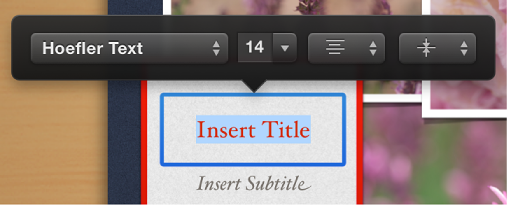
      Image of text formatting tools that appear above the selected text
    • Click the Options button in the toolbar, and then format the text using the text formatting tools in the Options pane.
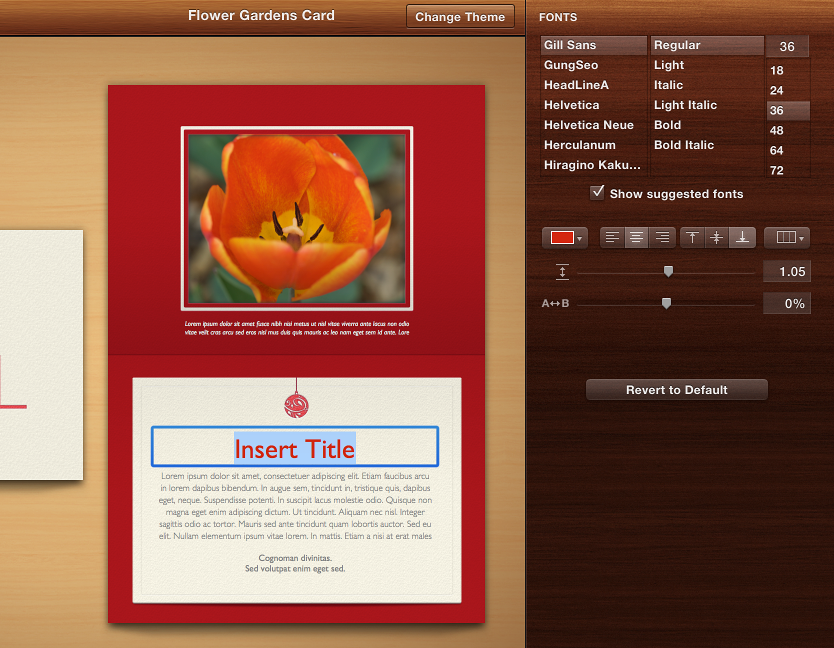
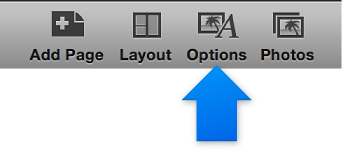
      Image of text editing tools that appear in the Design pane

Restore text to its default settings

  1. Click the card project in the Source list.

  2. Click the Options button in the toolbar.

    Image of the Design button
  3. Click the text field, and then select the text that you want to restore.

  4. In the Options pane, click the “Revert to Default” button.

If you see an alert (red triangle) while working on a card

While working on a card, you may see a red triangle that contains an exclamation point. The alert means that the text doesn’t fit in the available space, either because the font is too large or the text uses too many characters.

Image of the alert symbol on a card page

To fix an alert, do one of the following: