
Print one or more photos
Select one or more photos.
Choose File > Print.
In the print options, select a theme (Fit, Fill, 8” x 10”, 5” x 7”, 4” x 6”, Custom, or Contact Sheet) from the list on the right.
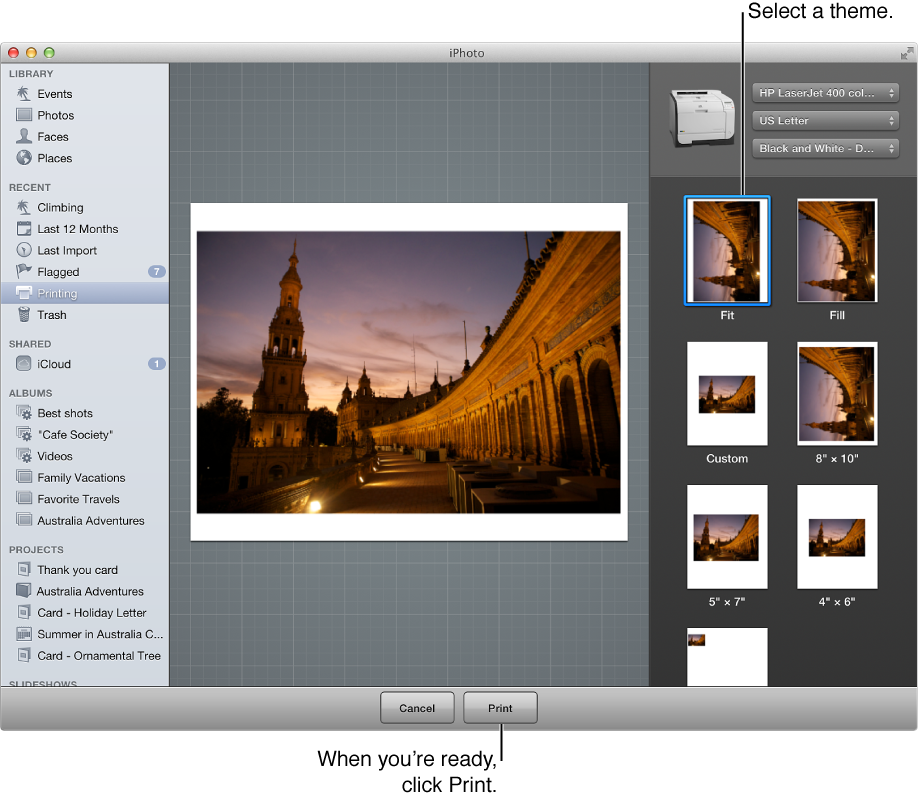
The preview area on the left shows how your photos will look when printed.
With some themes, such as Fill and Custom, you can click photos and use a scaling control to resize the photo in the frame. You can also drag the photo to reposition it within the frame. You may also be able to use other options, such as for resizing, choosing an aspect ratio, or setting margins, that appear depending on the theme you have chosen.
Select any necessary printer settings.
Click Print.
Specify print options in the Print window, and then click Print.