Find photos by text, date, keyword, rating, location, or person

You can quickly find any photo by searching for its keywords, date, or star rating; for the location where the photo was taken or the people in the photograph; or for associated text, such as the photo title or description.

Find photos by text, date, keyword, rating, location, or person

  1. Click to select Events in the Source list.

    If you want, you can select a specific album, slideshow, or project such as a book, card, or calendar that you know contains the photos you’re searching for.

  2. Click the Search button in the toolbar.

    Image of search button

    The search field appears.

  3. Do any of the following:

    • To search for a photo by a word or phrase in its title or description, type the text in the search field. As you type, photos that have the text you entered appear in the viewing area.

    • To find photos of one or more people, type one or more names in the search field.

    • To find photos by location, type a location in the search field.

    • To find photos by date, click the search icon at the left side of the search field as shown below, choose Date, and then select a date. For more about searching by date, see the next task in this topic.

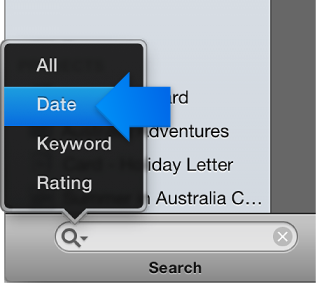
      Image of search icon and field
      Image of Search menu, highlighting Date
    • To find photos by keyword, click the search icon in the search field, choose Keyword, and then select one or more keywords. To deselect a keyword, hold down the Option key while you click your selection.

    • To find photos by star rating, click the search icon in the search field, choose Rating, and then click the dots in the search field to show the number of stars you want.

  4. To display all your photos again after you’ve finished a search, click the Reset button (an X in the search field), or select Events in the Source list.
Find photos by a specific date or a range of dates

  1. Select an event or an album.

  2. Click the Search button in the toolbar.

    Image of search button

    The search field appears.

  3. Click the search icon at the left end of the search field.

    Image of Search icon and field
  4. Choose Date from the pop-up menu that appears.

    Image of Search menu, highlighting Date
  5. Do one of the following:

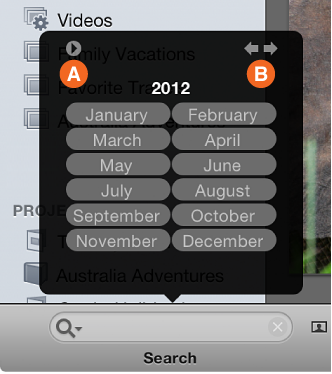
    Note:  Months marked in bold text indicate that photos taken in that month are in your library.

    Image of Search date pane
    • To display photos from a specific month, click a month name.

    • To view the dates in a month, double-click a specific month, or select a month and click the arrow in the top-left corner (A).

    • To display photos from two or more consecutive months, click the first month’s name to select it, hold down the Shift key, and then select the end month’s name.

    • To display photos from multiple, nonconsecutive months, click the first month’s name to select it, hold down the Command key, and then select the next month’s name. You can do this as many times as you wish.

    • To select the same month in more than one year, press the Option key while selecting. Use the left and right arrows (B, shown above) to move to the next or previous year.

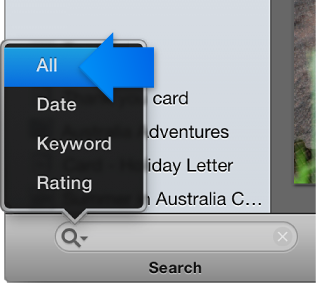
  6. To display all the photos in your library or album again, click the search field icon, and then choose All from the list that appears.

    Image of search pane

View your most recent events

Do one of the following: