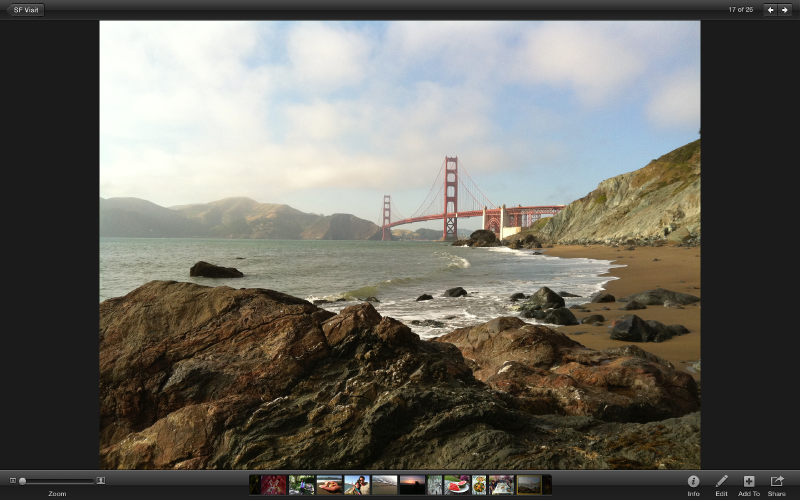

Full-screen view lets you see and edit your photos using every pixel your display offers.
You can change to full-screen view from anywhere in your iPhoto library, whether you’re viewing an event, looking through an album, or creating a project, such as a book, card, or calendar.
Click an item in the Source list.
If you choose an event, a Faces or Places group, or an album, you can view the entire group or open it to select a particular photo you want to view.
Click the Full Screen button in the top-right corner of the iPhoto window to show the item or photo in full-screen view.

The full-screen toolbar appears at the bottom of the screen. If you’re viewing a single photo full screen, the toolbar hides automatically after four seconds for an unobstructed view. To display the toolbar again, move the pointer.
Note: In full-screen view, the Source list is no longer visible. You can access items in your photo library by using the buttons in the toolbar along the bottom of the window.
You can also choose View > Full Screen to change to full-screen view.
Do one of the following:
Move your pointer to the top of the screen, and then click the Full Screen button that appears in the top-right corner.
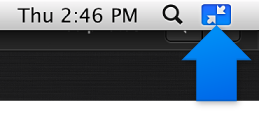
Choose View > Exit Full Screen.
In full-screen view, you can view, edit, and print or publish your events, albums, slideshows, and projects. To take advantage of iPhoto features in full-screen view, use the buttons in the toolbar along the bottom of the window.

Depending on which photos you’re looking at, the center buttons of the full-screen toolbar change, as follows.
If you’re in events, Faces, or Places view, you see the buttons that allow you to move between those views, along with Albums view, and your Projects bookshelf:

If you’re in Photos view or an album view, there’s a Slideshow button so that you can view those photos as an instant slideshow:

If you’re working on a project, such as a book, there’s a Buy button so that you can purchase your creation:

If you’re viewing or editing one or more photos, you see thumbnails of the photos you selected. The highlighted thumbnail identifies the photo you’re working with at that moment:

If you’re viewing a single photo, the toolbar automatically hides after four seconds for an unobstructed view. To display the toolbar again, move the pointer.