
For especially long traces, the delay caused by deferred mode can be significant. Avoid this delay by setting deferred mode for only those traces that require extremely precise data collection.
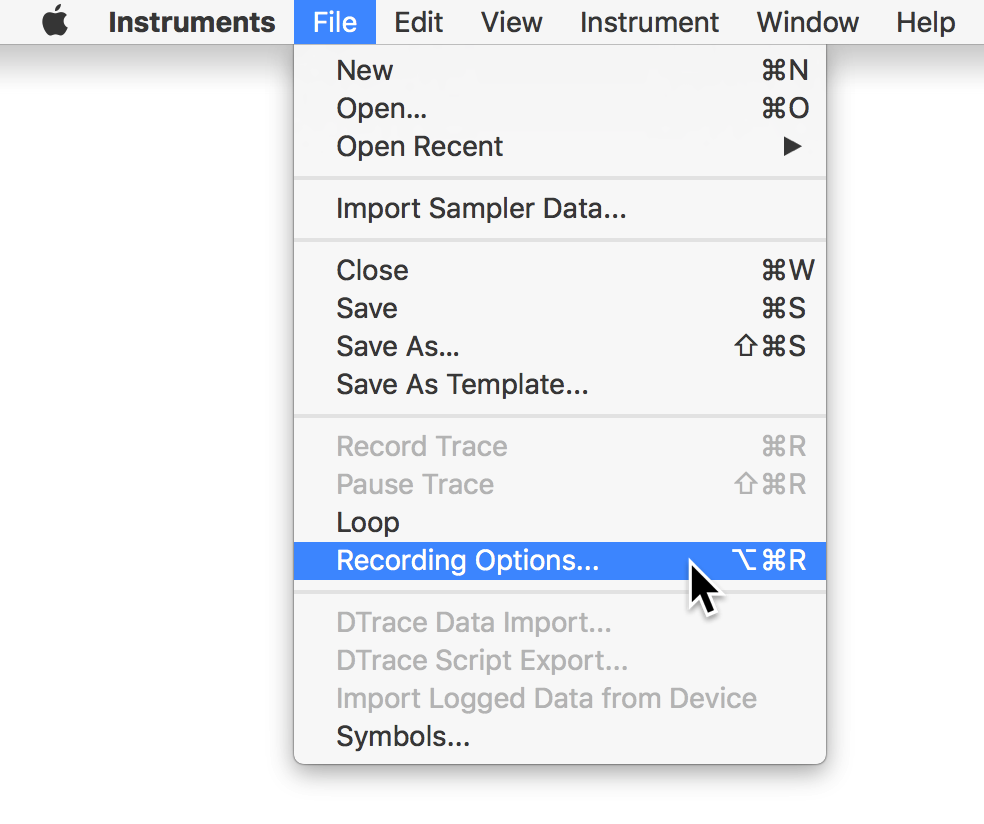
Choose File > Recording Options.
In the dialog that appears, select the Deferred Mode checkbox and then click OK.
This option is disabled if “Always use deferred mode” is enabled in Instruments preferences.
Increase the accuracy of performance-related data by deferring data analysis until you quit the app you are testing. Typically, Instruments analyzes and displays data while your app runs, allowing you to view the data as it is collected. Performing analysis live slows down the target process by taking up CPU time and memory, which leaves you with measurements that may not reflect how the process would normally behave. Running Instruments in deferred mode delays the analysis of data until the data collection is done, either after your app has finished running or after you click Stop. While in deferred mode, you are blocked from interacting with the instruments that are collecting data.
In deferred mode, after Instruments finishes collecting data, Instruments processes the data and displays it onscreen. Deferring data analysis adds time to the later stages of the data collection process, but it helps ensure that performance-related data is accurate.