
In iMovie, projects can be either movies or trailers. The Projects browser displays all of your projects in one place, and it’s where you open your projects to edit, play, share, or delete them.
In the Projects browser, tap the project you want to open.
Tap Edit.
Tip: On iPhone models with 3D Touch, press the iMovie icon on the Home screen to choose from a list of recent projects, or choose New Project.
You can play a project at any time to watch it from the beginning or to check your work in progress.
Do one of the following:
If you’re working in a project: Tap the Play button  . The project begins playing from the playhead (the white vertical line) in the timeline. Tap the Pause button
  to stop playback.
In the Projects browser: Tap a project to see the project details, then tap the Play Full Screen button  . If you’re working in a project, tap Done to see the Play Full Screen button.
The project begins playing from the beginning. If the playback controls aren’t showing, tap the screen to make them appear. Tap Done (in the upper-left corner) to return to the project details screen.
Tip: On iPhone models with 3D Touch, press a project in the Projects browser to play a preview. Swipe up to show a menu of further options: Edit, Share, and Delete.
When you create a new project, iMovie assigns it a default name, which you can change at any time.
In the Projects browser, tap the project you want to rename.
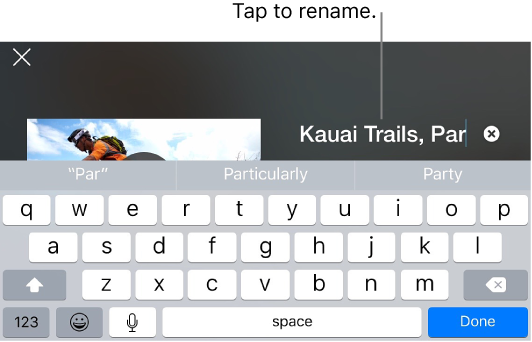
In the project details screen, tap the name of the project; a keyboard appears.
Tap the Clear button  to erase the entire name at once, or use the Delete key.
Type a new name, then tap Done on the keyboard.
You can share a project or export its movie from the details screen.
In the Projects browser, tap the project you want to share.
Tap the Share button  .
.
Do any of the following:
Share the project or movie to another iOS device or a Mac using AirDrop: Tap AirDrop and follow the onscreen instructions. See Share to other devices or apps.
Share a movie to iCloud using Shared Albums: Tap Shared Albums. See Share to other devices or apps.
Share a movie to video-sharing websites: Tap one of the internet sharing options. See Share to video-sharing websites.
Share a movie to Mail or Messages: Tap Mail or Messages. See Share to Mail or Messages.
Share to another app: Tap Other Application. See Share to other devices or apps.
Share a movie to your photo library: Tap Save Video. See Share to other devices or apps.
Share the project or movie to iTunes: Tap iTunes. See Share to other devices or apps.
Share the project or movie to iCloud Drive: Tap iCloud Drive. See Share to other devices or apps.
To learn how to customize the items in the share menu, see Customize sharing options.
When you delete a project, any video clips recorded into iMovie for the project are still available for use in another project until you close iMovie. To keep the clips for future use, move them to the photo library. Photos taken into a project can’t be moved to the photo library.
Video clips that were embedded as part of an imported project are deleted after both the project and its copy imported from iTunes are deleted.
In the Projects browser, tap the project you want to delete.
In the project details screen, tap the Delete button  , then tap Delete Project (or Delete Trailer).
You can duplicate a movie or trailer by sharing it to iTunes and then importing it back to the same device. You don’t have to use iTunes on your computer to do this.
In the Projects browser, tap the project you want to duplicate.
Tap the Share button .
Tap iTunes, then tap iMovie Project.
When prompted, tap Keep Both to create a duplicate version of the project.
The duplicate project has the same name as the original, with a version number appended (for example, Kauai Trail Biking 1).
Tap Projects to return to the Projects browser.
Tap the Import button  , then tap iTunes.
Tap the name of the project that you just shared to iTunes.