
You can add, remove, or modify the border (also called stroke) around most objects. Instead of a line, you can use a graphical border called a picture frame.
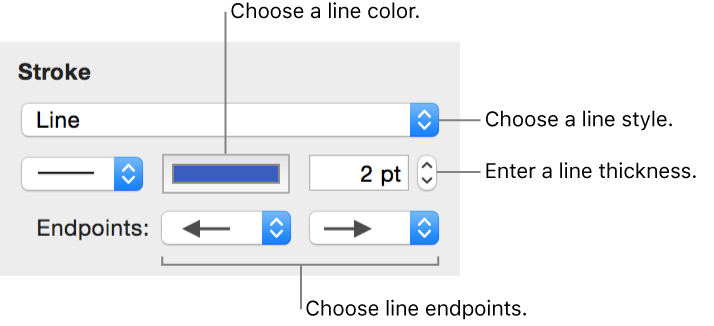
The format bar contains controls for changing a border’s line style, thickness, and color. Use the Graphic inspector to make additional adjustments. Here are the Stroke controls in the Graphic inspector:
Select the object you want to change.
If the Graphic inspector isn’t open, click the Inspector button  in the toolbar and click the Graphic inspector button
  .
.
Do one of the following:
Add a border: Click the Stroke pop-up menu and choose Line.
Modify a line style: Choose an option from the pop-up menu below the Stroke pop-up menu.
Modify a line color: Click the color well and select a color.
Add a picture frame: Click the Stroke pop-up menu and choose Picture Frame, then click a thumbnail to choose a style. To change the frame’s thickness, drag the Scale slider or enter a percentage in the adjacent field. (Not all picture frames can be adjusted.)
To remove the object’s border, click the Stroke pop-up menu and choose None.