
The properties of a job containing a standard media file are described below. The job’s properties are displayed in the Job inspector.
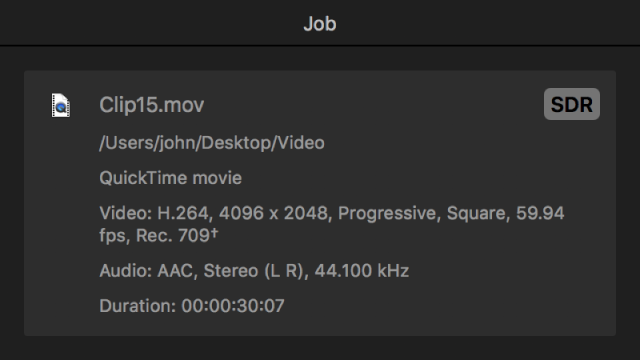
Displays the source file’s name, location, video and audio encoding information, and duration. If the source is a standard-dynamic-range video file, an SDR badge appears in the upper-right corner of the summary area; if the source is a high-dynamic-range video file, an HDR badge appears in the upper-right corner. For more information about HDR and SDR files, see About wide color gamut and HDR.
Provides the timecode for the Start point, In point, and duration of the output file.
The following properties are available in the File Properties section of the Job inspector:
Language: Use the pop-up menu to set the default language for the selected job.
Country: After you’ve set a language, use the pop-up menu to set the country for the selected job.
Note: Language and country settings are used only for certain types of jobs, such as Create Blu-Ray and Create DVD, and for uploading to some file-sharing services.
When you add a source file, Compressor detects its video properties and displays them in this area. If you think the source video properties are incorrect, you can modify them here. However, in most cases you should not change these values.
The following properties are available in the Video Properties section of the Job Inspector:
Field order: If you think Compressor incorrectly interpreted the order of video fields in the source file, use this pop-up menu to choose a different field order. This property defines how Compressor interprets the field order of the source file; it does not convert the field order to another option upon output. To convert from one field order to another, use the “Field order” pop-up menu in the Video pane for a selected setting in a batch. There are three field order options:
Progressive: All lines are sampled at the same instant in time.
Top First: The field containing the top line (even lines) is sampled at an earlier instant in time than the field containing the bottom line (odd lines). Top-first field order is commonly used for high-definition video and standard-definition PAL video.
Bottom First: The field containing the bottom line (odd lines) is sampled at an earlier instant in time than the field containing the top line (even lines). Bottom-first field order is commonly used for standard-definition NTSC video.
Color space: Use this pop-up menu to choose a color space to apply to the source clip in the job. This property defines how Compressor interprets the color data in the source clip; it doesn’t convert the clip you output to another color space. To convert from one color space to another upon output, use the “Color space” pop-up menu in the Video pane for each specific setting in the batch.
Note: If the source file is tagged with a color space (such as Rec. 709), Compressor adds an asterisk (*) to the item in the pop-up menu. If the source file is untagged or tagged with an unrecognized color space, Compressor chooses the most likely color space and adds a dagger (†) to the item in the pop-up menu.
The following properties are available in the Metadata section of the Job inspector:
Closed captions: Click the Choose button to add closed-caption data to your output file.
Add Job Annotation: Use this pop-up menu to add job annotation metadata to your output file.
For more information about metadata, see Add metadata.
If a high-dynamic-range source file has HDR metadata, the values are shown in this area of the Job inspector. After you apply a transcode setting to the source file, Compressor passes this metadata to the export file. When a user plays the exported video on a TV or display that supports HDR, the device detects the metadata and automatically adjusts its color levels. You can modify those values in the following fields (if these fields are not visible, move the pointer to the right of the HDR Metadata heading in the Job inspector, then click Show):
Include HDR metadata: To include HDR metadata in your output file, select this checkbox. (If Compressor detects HDR metadata in the source file, it automatically checks this box.)
Red, Green, Blue, White point: Displays chromacity coordinates (an x value and a y value) for each of the three primary colors and for the white point of the targeted display (an HDR-capable device).
Display luminance: Displays the minimum and maximum luminance of the targeted display in nits (candelas per square meter).
MaxCLL: Displays the value, in nits, of the brightest pixel in the video file (Maximum Content Light Level).
MaxFALL: Displays the value, in nits, of the maximum average light level for any single frame in the video file (Maximum Frame Average Light Level).
For more information about working in HDR color space, see Change the color space of video. (HDR transcoding in Compressor requires macOS 10.13 or later.)
The following properties are available in the 360° Metadata section of the Job inspector (if these properties are not visible, move the pointer to the right of the 360° Metadata heading in the Job inspector, then click Show):
Include 360° metadata: To include 360° video metadata in your output file, select this checkbox. (If Compressor detects 360° video metadata in your source file, it automatically checks this box.)
Stereoscopic mode: Use this pop-up menu to identify the 360° video file as monoscopic (2D) or stereoscopic (3D). There are three options:
Monoscopic: Use this option for standard (2D) video.
Over/Under: Use this option for stereoscopic (3D) video that displays the left-eye and right-eye images vertically.
Side by Side: Use this option for stereoscopic (3D) video that displays the left-eye and right-eye images horizontally.
Source software: This field identifies the software tool used to add metadata to the source file. If the source file has no metadata and you use Compressor to add it, this field displays “Apple CompressorKit.”
Orientation: Displays the coordinates—Tilt (X), Pan (Y), and Roll (Z), in degrees—of the source video’s view origin (the initial angle that viewers will see in a VR headset before they turn their heads). Enter new coordinates to change the initial orientation.
Projection mode: Sets the type of spatial mapping used to store the 360° video. There are two options:
Equirectangular: The most common form of spatial mapping for 360° video, this mode squeezes and distorts the spherical data like a flat map of the spherical earth.
Cubic: A less common form of spatial mapping (used in the Spherical Video V2 metadata standard), this mode represents the spherical data as an unfolded cube with six faces.
Pixel bounds: When “Projection mode” is set to Equirectangular, this property becomes available, allowing you to modify the boundaries of the equirectangular frame. Most of the time, there’s no need to change these values. However, if you need to alter the dimensions of 360° video from its 2:1 aspect ratio to a more conventional aspect ratio (16:9, for example), you can do so using these controls. Enter values in the Left and Top fields to crop a specific number of pixels from the left edge and top edge of the image. Enter new values in the Width and Height fields to change the dimensions of the equirectangular frame.
Layout and Padding: When “Projection mode” is set to Cubic, these fields become available, allowing you to adjust the six faces of the unfolded cube. Most of the time, there’s no need to change these values. The integer value in the Layout field specifies the order of the six unfolded cube faces (the default value of 0 specifies the face order used in the Spherical Video V2 metadata standard: right, left, up, down, front, back). The value in the Padding field specifies the width (in pixels) of borders around the edges of each cube face.
For information about working with 360° metadata, see Assign 360° video metadata.
The Audio Properties section lists each of the audio tracks in the source clip. Each track is displayed with an activation checkbox and a “Channel layout” pop-up menu.
Activation checkbox: Use the checkbox to include or exclude the audio track from the job.
Channel layout: Use the pop-up menu to define how Compressor interprets the individual audio channels in each track.
The contents of the pop-up menu are dependent on the number of channels in the track. For example, if there are two channels, the pop-up menu includes two-channel options such as Stereo (L R), 2 Discrete Channels, Binaural, and so on. If there are six channels in the audio track, the pop-up menu includes six-channel options such as 5.1 (L, R, C, LFE, Ls, Rs), and so on.
For information about each job action and the properties it contains, see Job action properties.