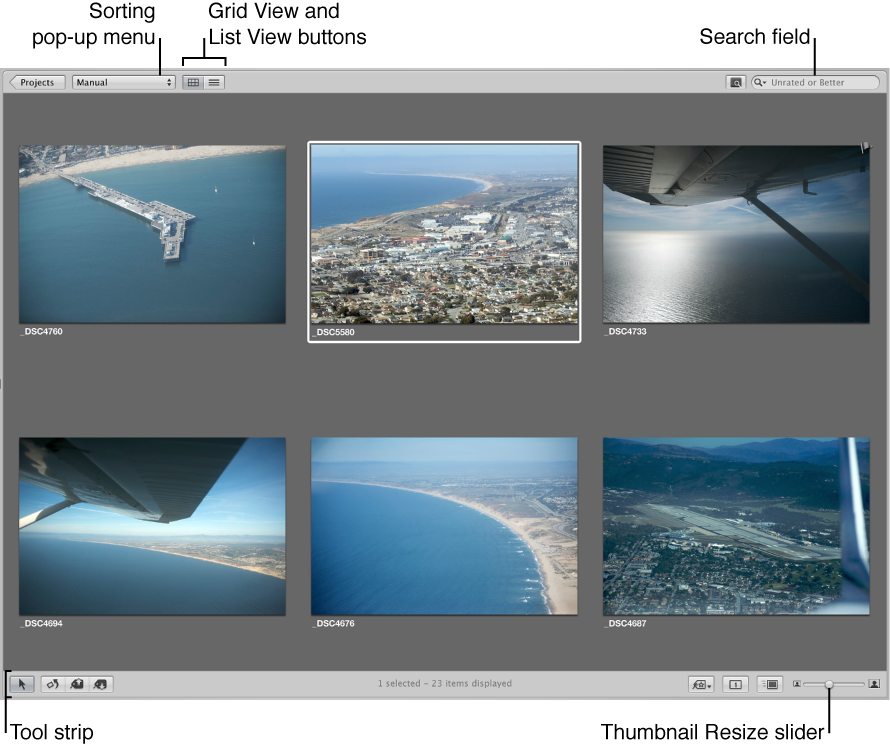

After a shoot, you may need to sort through hundreds or even thousands of photos in a project. Aperture provides efficient methods for increasing your productivity when working with large numbers of photos.
When you select a project, a folder, or an album in the Library inspector, thumbnails of its photos appear in the Browser. You select photos in the Browser to work with them. You can move and rearrange photos, rotate photos, make new versions, and delete photos from a project.
Aperture provides fast and efficient ways of selecting photos in the Browser. You can use the arrow keys to quickly select a photo or multiple photos to work on. You can also select photos by clicking, dragging a selection rectangle, and using keyboard shortcuts. If using Aperture with a trackpad, you can use the swipe gesture to select photos. For more information about using gestures with Aperture, see Use gestures with Aperture.
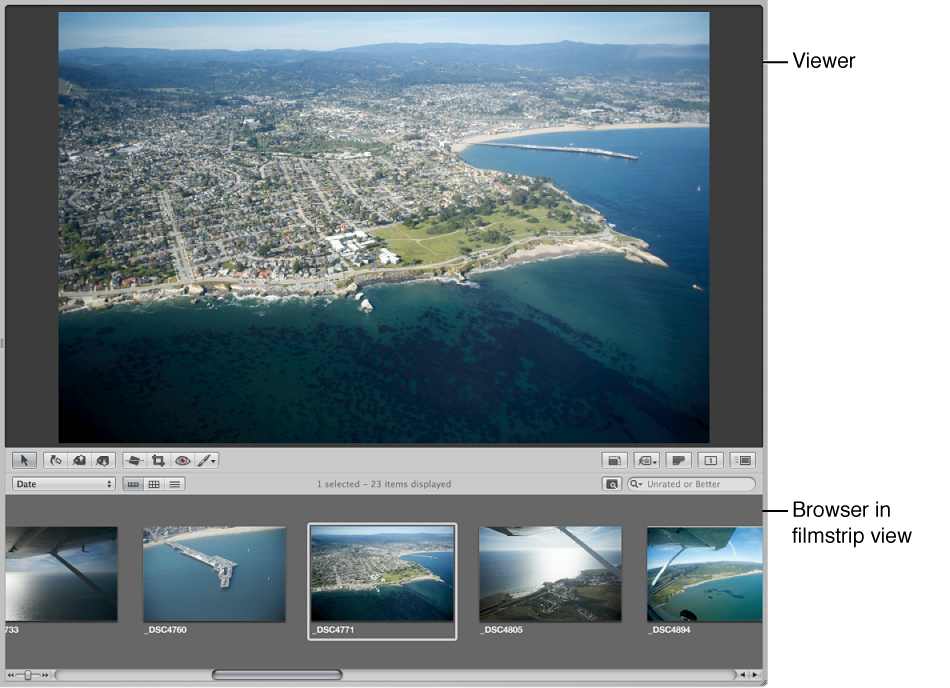
In the Browser, you can display thumbnails in any of three views:
Filmstrip view: Displays a single row of photos that you can select and navigate through.
Grid view: Displays thumbnails of your photos in a grid pattern. Use grid view when it’s easiest to identify your photos by sight and work with thumbnails as you organize, stack, or assign keywords to photos.
List view: Displays a list of your photos with associated file information. Use list view when you need to see or sort your photos by corresponding file properties such as image date, file size, or rating.
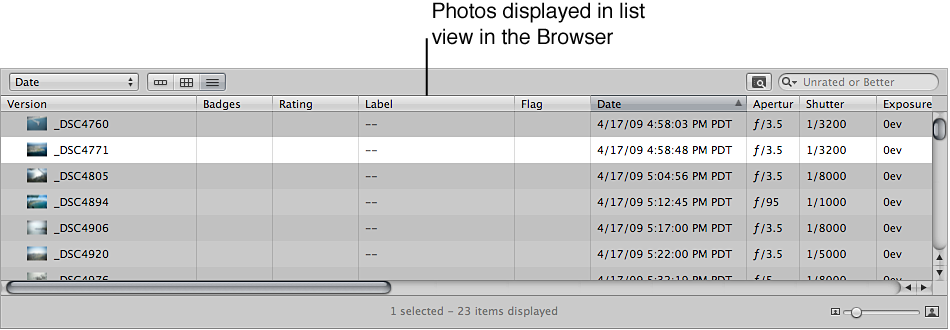
List view is a great way to quickly see information about your files. You can also use list view to sort your photos by any of the column categories. Click a column heading to sort your photos by that category.
You can also customize the information that appears with your photos in the Browser. For example, you can set your photos to appear with the filename as well as the IPTC data and EXIF data. You can change what information appears in the Browser in grid view, list view, and filmstrip view by customizing the Metadata options in the Browser & Viewer Metadata window. For more information, see Metadata overlays overview.
For information about changing the configuration of Aperture window layouts, see Change the main window layout.