
By default, Xcode stores derived data for all of your projects in ~/Library/Developer/Xcode/DerivedData. Derived data consists of project indexes, logs, and build products including intermediate build files. Archives are stored in ~/Library/Developer/Xcode/Archives. Use Locations preferences to specify different locations for project-generated files, to choose a version of the Xcode app for command-line tools such as xcodebuild to use, and to configure custom paths for your projects.
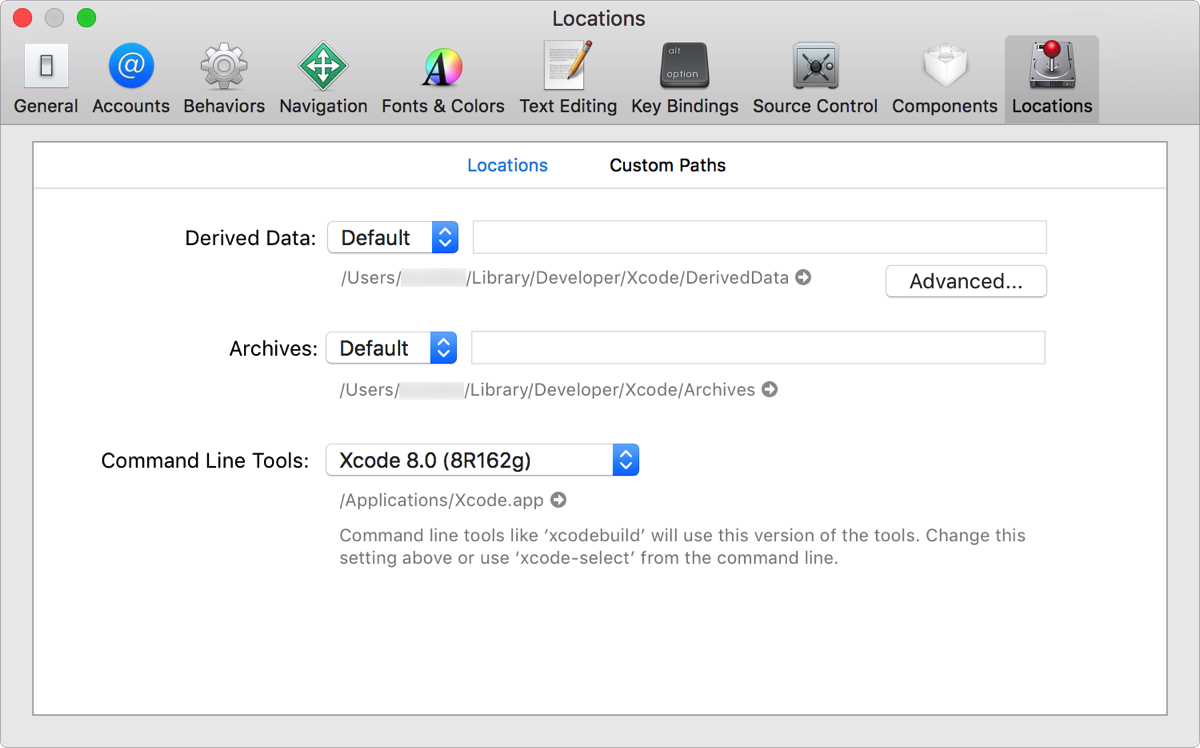
From the Derived Data pop-up menu, choose Relative or Custom.
Relative: The derived data folder is located in relation to the project or workspace folder, for example /DerivedData.
Custom: Click the folder icon ( ) in the path field to select a new absolute path for the derived data folder.
Note: The derived data folder is often large and can be re-created at any time from your source files. If you configure a relative location for your derived data folder, it’s best not to back up the folder, send it to others, or check it into source control management (SCM) systems.
From the Derived Data pop-up menu, select Default.
The derived data folder location reverts to ~/Library/Developer/Xcode/DerivedData.
From the Derived Data pop-up menu, choose Custom.
Click the folder icon () in the path field to select a new absolute path for the derived data folder.
From the Archives pop-up menu, select Default.
The archives folder location reverts to ~/Library/Developer/Xcode/Archives.
Click the Advanced button for the Derived Data setting.
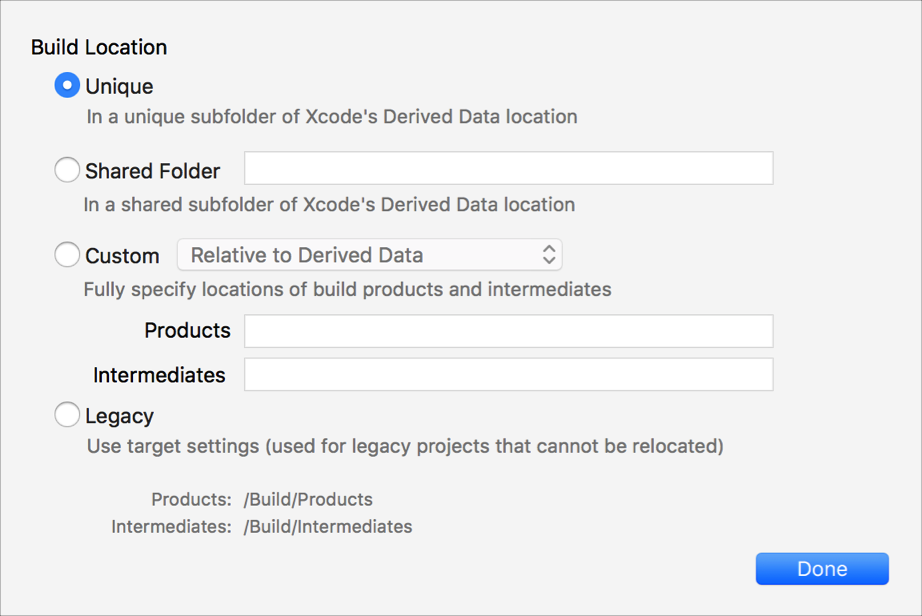
From the available options, select a build location and click Done. Options include:
Unique: A unique subfolder within the derived data folder. The subfolder name is based on your project or workspace name and location. This is the recommended choice and the default setting.
Shared Folder: A shared folder within the derived data folder. You specify the name of this subfolder, which is shared by all projects. This choice assumes that the derived data location is not workspace-relative. This option can be used to let separate projects build into the same location so that they can share their build products. Build products are automatically shared among all projects in a workspace, so this setting is unnecessary if you can place your projects in the same workspace.
Custom: From the pop-up menu, choose whether the path should be relative to the derived data, relative to your workspace, or absolute. In the text fields, specify the custom path to the build products and intermediate build files.
Legacy: This option is intended to support older projects that won’t work correctly unless they’re in custom per-target or per-project build locations, as specified in the SYMROOT and OBJROOT build settings).
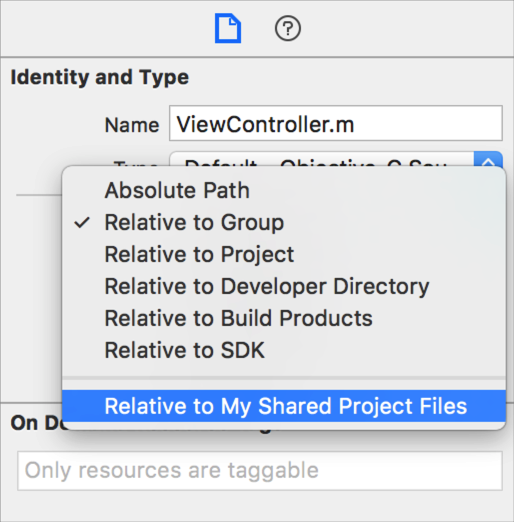
Typically, Xcode references files relative to a project’s folder structure. You can define custom paths, however, that Xcode can use to reference files stored outside of your project folders, such as in a shared folder on your hard drive or on a server volume. Your custom paths appear in the Location pop-up menu in the File inspector.
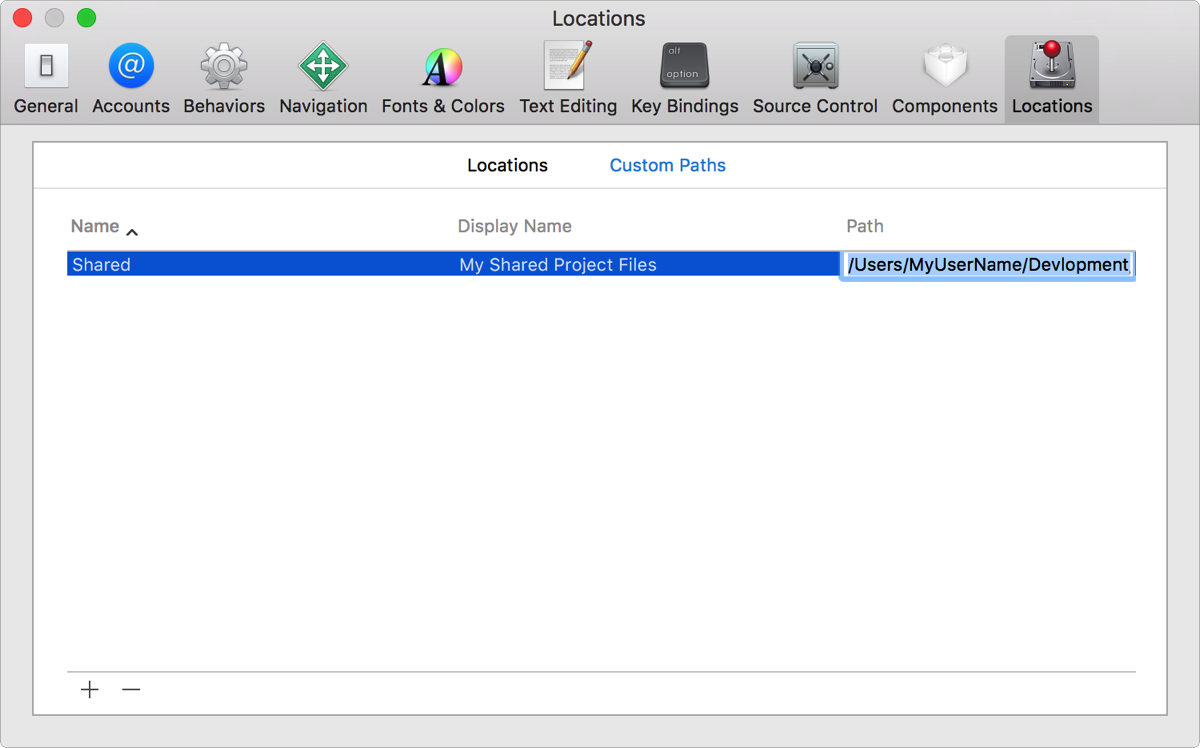
At the top of the preference pane, click Custom Paths.
Click the Add button (+).
In the Name column, enter a name that identifies the custom path.
In the Display Name column, enter a name that Xcode can display for the path in the File inspector.
In the Path column, enter the full custom path.
From the Command Line Tools pop-up menu, choose a version.
Enter administrator credentials.