
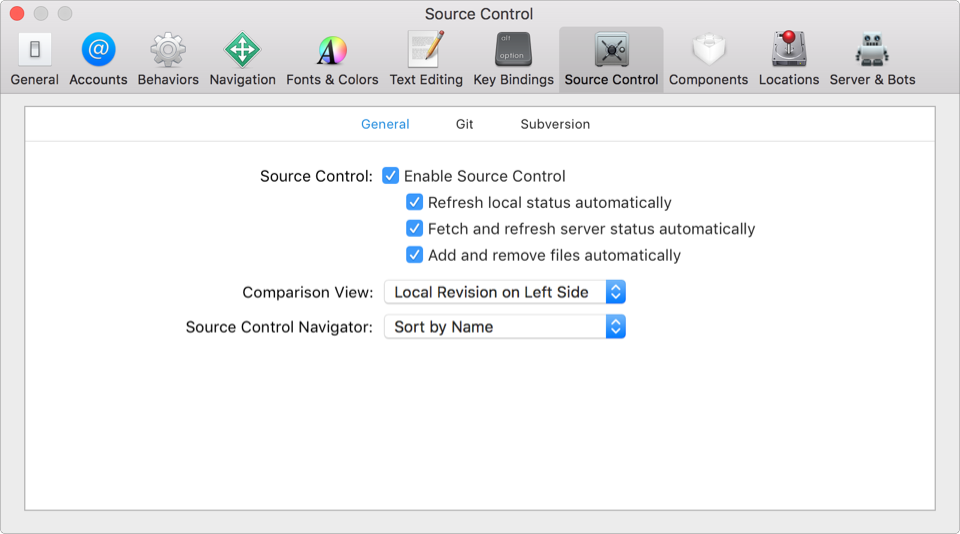
Use Source Control preferences to configure source control, including specific systems, such as Git and Subversion. On the General pane, you can enable or disable source control, and customize behavior.
Option | Description | ||||||||||
|---|---|---|---|---|---|---|---|---|---|---|---|
Enable Source Control | Enables the Source Control menu items and other source control actions. | ||||||||||
Refresh local status automatically Refresh server status automatically | Automatically refresh the status of source control managed files when they change. (To manually refresh the status, choose Source Control > Refresh Status.) | ||||||||||
Fetch and refresh server status automatically | For remote repositories, periodically refresh the status of files that are updated on the server. | ||||||||||
Add and remove files automatically | Automatically update working copies when adding or removing files in your projects. | ||||||||||
Comparison View | Specifies whether the local revision of a file appears on the left or right in the comparison editor. | ||||||||||
Source Control Navigator | Specifies whether files in the Source Control navigator ( | ||||||||||
Option | Description | ||||||||||
|---|---|---|---|---|---|---|---|---|---|---|---|
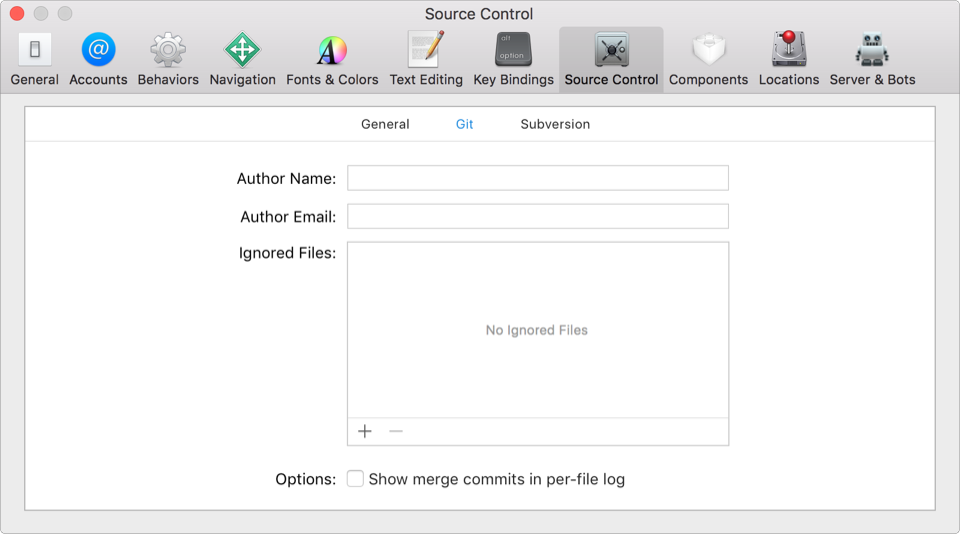
Author Name | The author name used by git in the “Author Name” field. (Appears in the history editor.) | ||||||||||
Author Email | The email used by git in the “Author Email” field. (Appears in the history editor.) | ||||||||||
Ignored Files | Specify the files that are ignored by Git:
| ||||||||||
Show merge commits in per-file log | Show Git merge commits in the project history. | ||||||||||
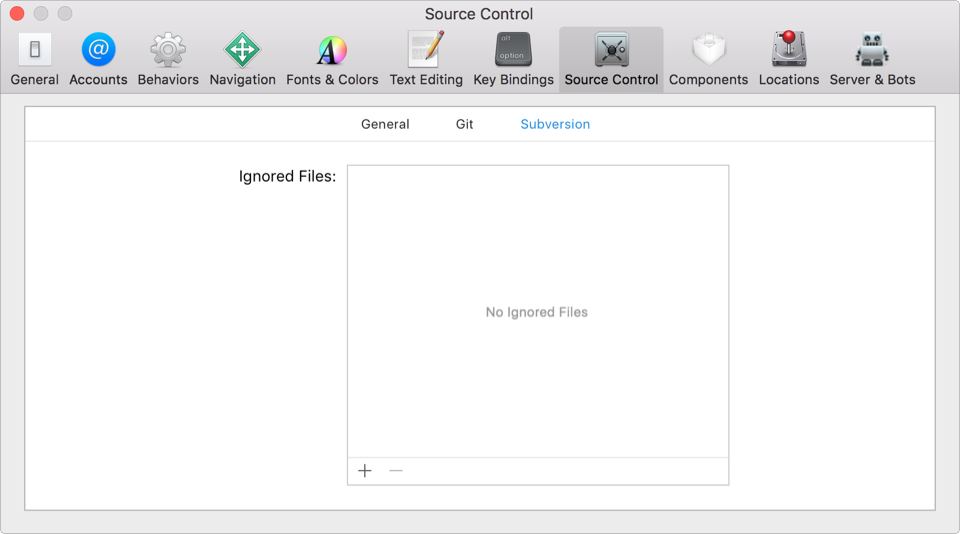
Specify the files that are ignored by Subversion:
To add an ignored file, click the Add button (+).
To remove an ignored type, select an item in the table, then click the Delete button (–).
To edit an item, double-click it.
 ) are sorted by name or date.