
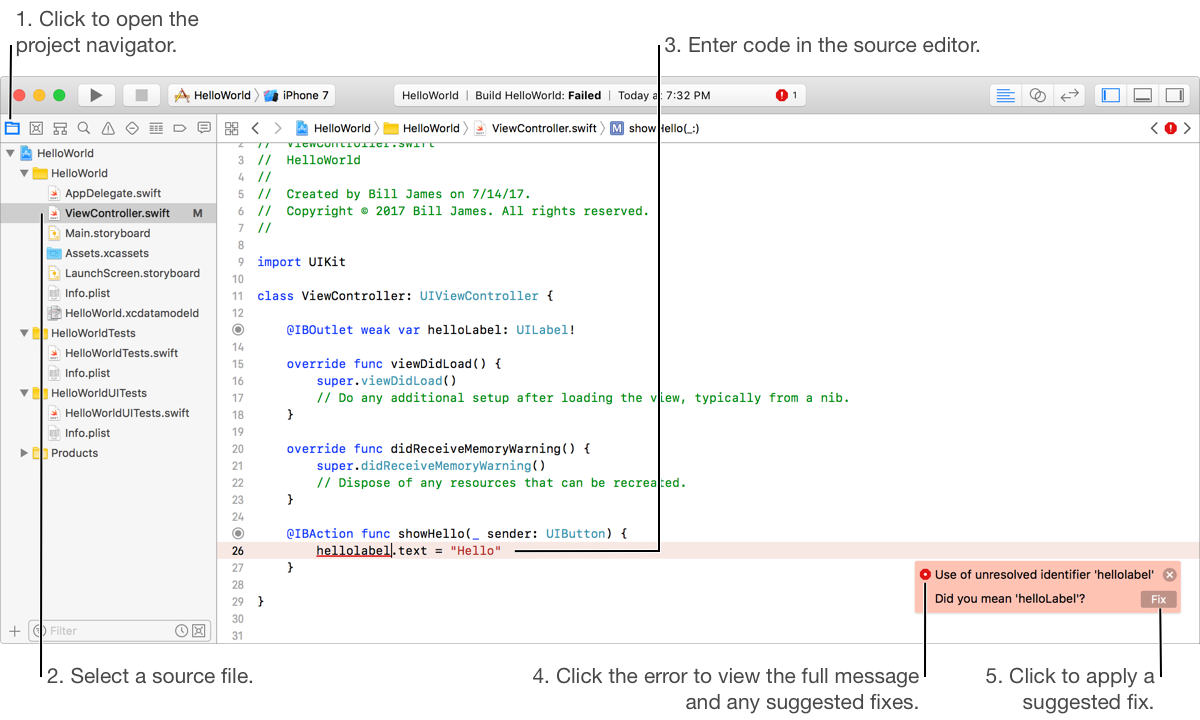
After you create the user interface, you need to implement the action methods that Interface Builder added to your source files. To view and edit a source file, select the file in the Project navigator ( ), and the file contents appear in the source editor on the right. To open the source file in a separate window, double-click the file.
To enter code, position the pointer at the desired insertion point in the file, press Return to create a new line, and begin typing. As you type in the source editor, Xcode scans your text. When you make a syntax error, Xcode marks it with a red underline. If an error icon appears, click it to display a message describing the issue and any suggested fixes. Click on the Fix button next to a suggestion to update your code.
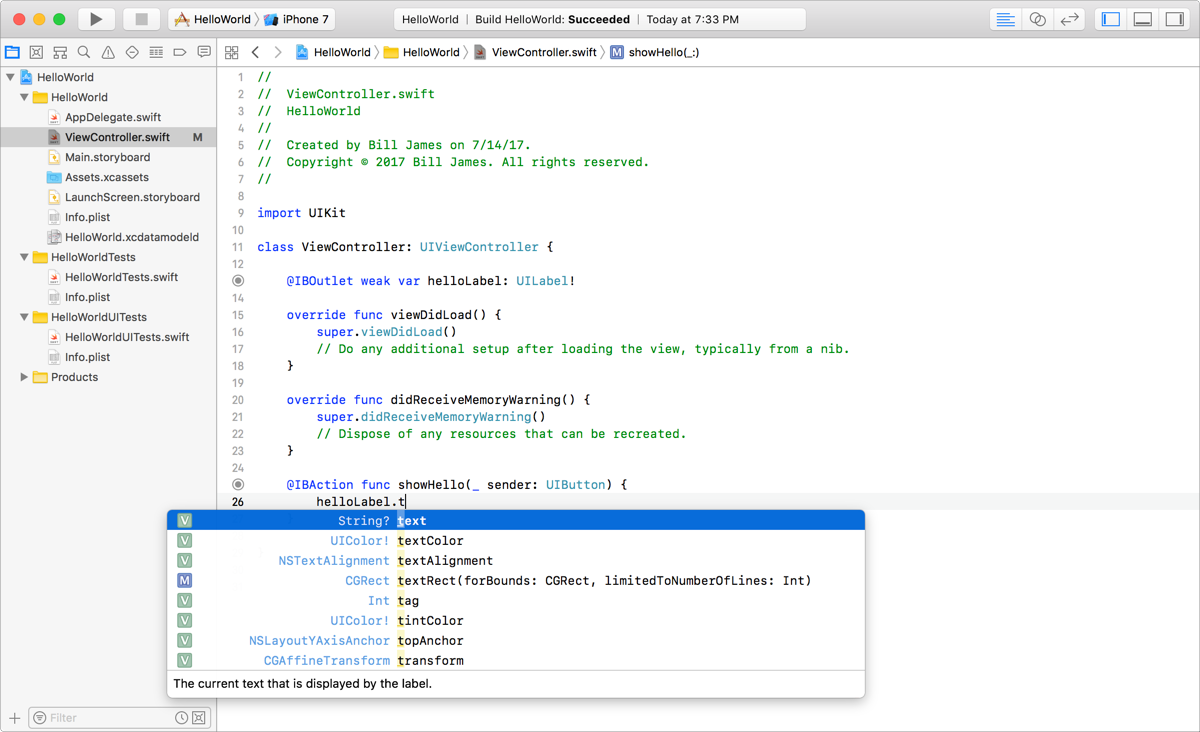
When you begin typing the name of a symbol, Xcode offers inline suggestions for completing the name. Click an item in the suggestion list to select it, or use the Up Arrow and Down Arrow keys to change the selected suggestion. Press Return to accept a suggestion.
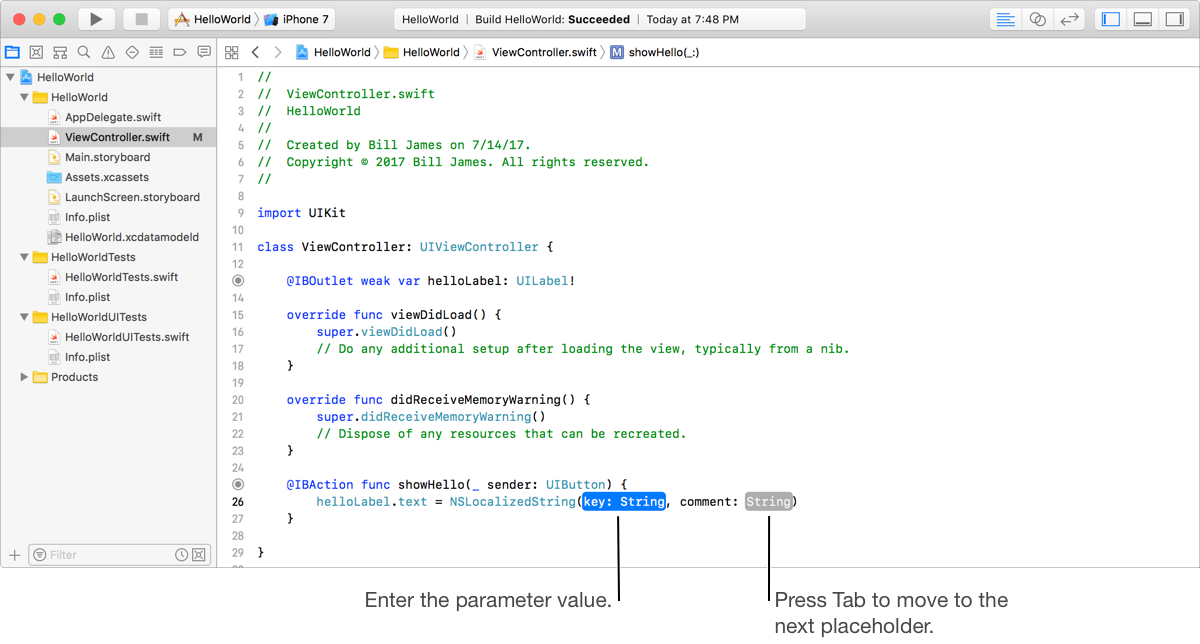
When a method or function contains parameters or arguments, code completion includes a placeholder for each. To move to the next placeholder, press Tab; to move to the previous placeholder, press Shift-Tab.
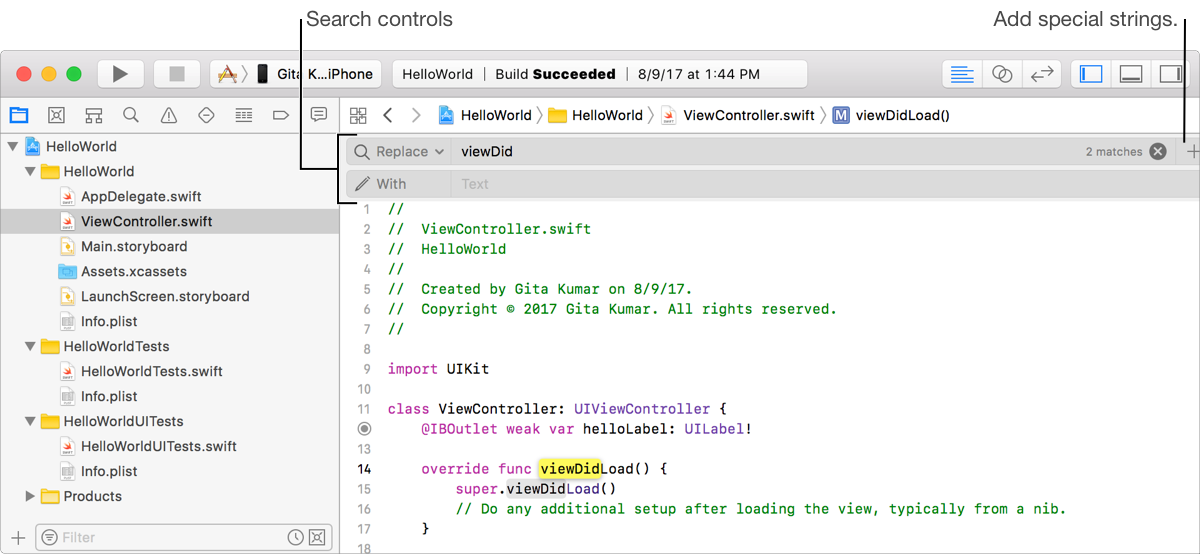
To find and replace text in the source editor, choose Find > Find and Replace (or press Option-Command-F). The search controls appear above the source file. As you type the search string in the first field, Xcode searches the file and highlights the occurrences of the string. Enter a replacement string in the second field. (To add a URL, email address, or IP address, click the Add button (+) in the upper-right corner of the search controls.) To replace the occurrence and find the next, enter Return. To replace all occurrences, choose Find > Replace All.
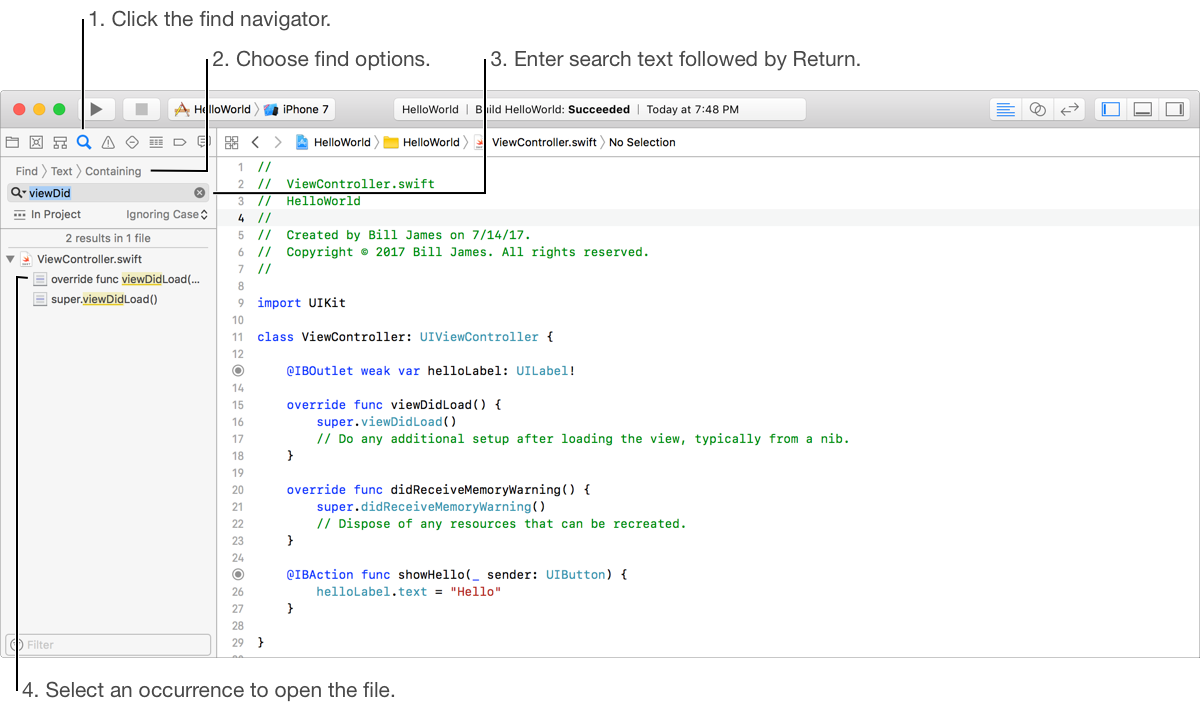
To find strings in your entire project, choose Find > Find in Project or select the Find navigator ( ) in the navigator area. Enter text in the search field followed by Return, and Xcode displays occurrences of the string in the entire project. Select an occurrence to view it in the editor area. To scope the search, above the text field, choose a string type and options. To find all occurrences that start with a string, choose Find > Text > Starting with. To find symbols that start with a string, choose Find > Definitions > Starting with.
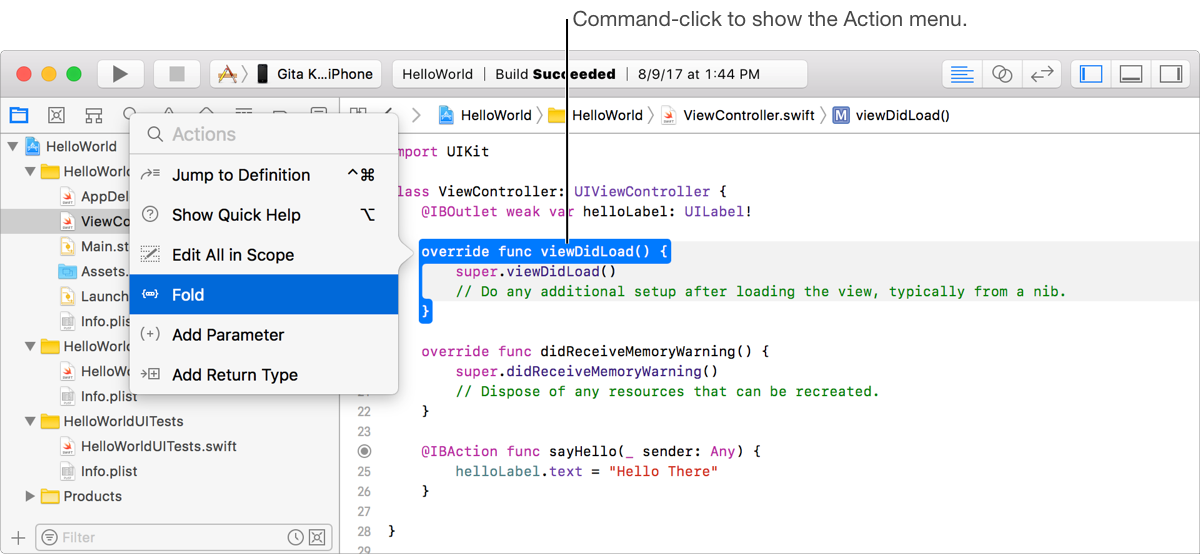
You can perform some actions on structures in your code such as methods and symbols. Hold the Command key and move the pointer around your code to highlight the different structures. Command-click on a highlighted structure and choose an action from the Action menu.
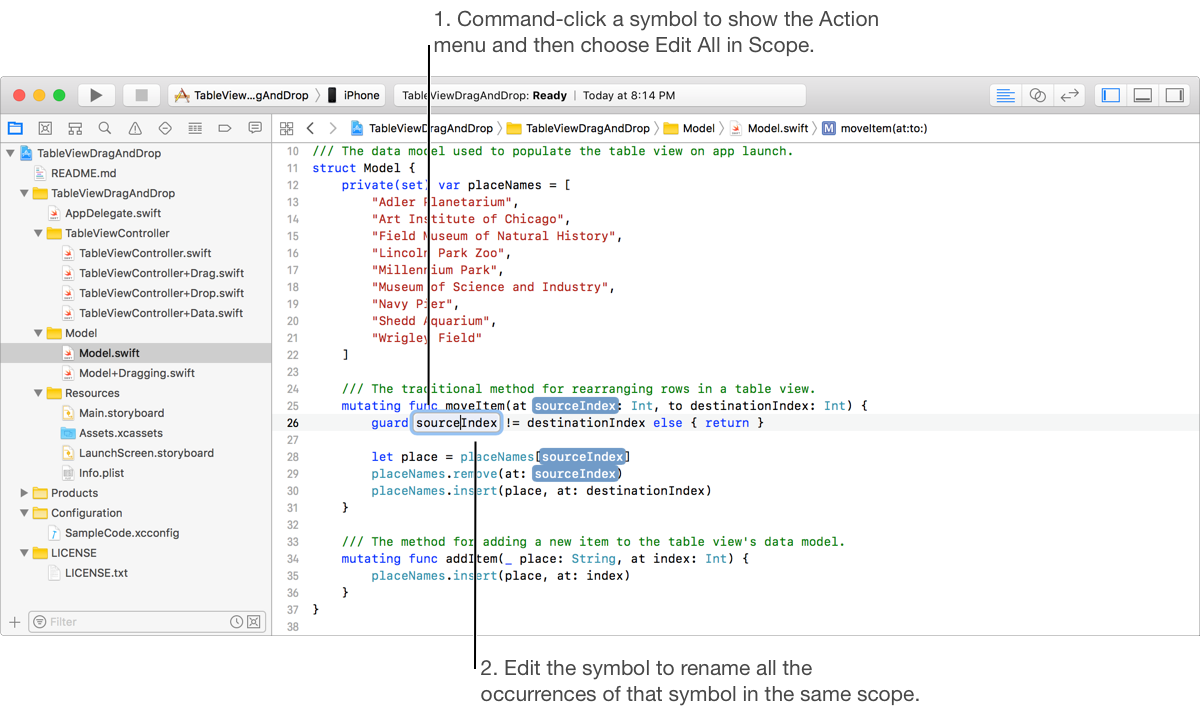
To edit all occurrences of a symbol in the current scope, choose Edit All in Scope in the Action menu. Xcode highlights all occurrences of the symbol in the current scope. As you edit the symbol, all occurrences are updated with the changes. Press Return to accept the changes or Escape to cancel.
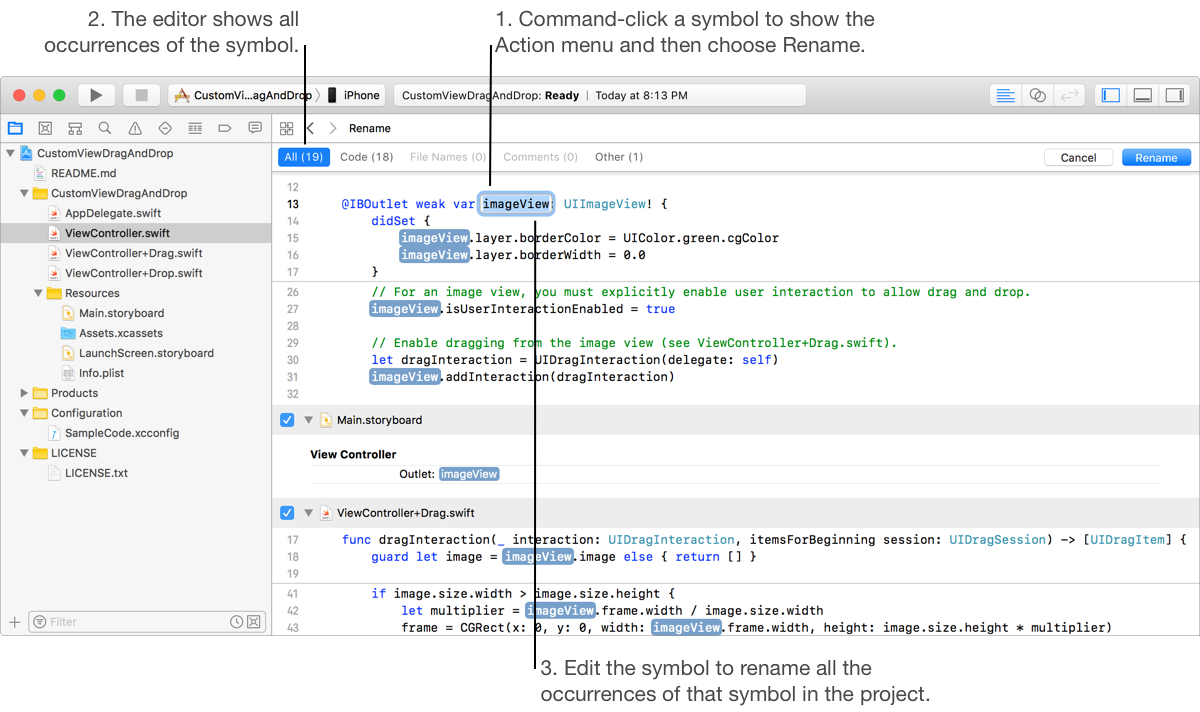
To rename a symbol in the entire project, choose Rename in the Action menu. The edit area collapses to show all source, Interface Builder, and Core Data files in which the symbol occurs. As you edit the symbol, all occurrences are updated with the changes. Press Return to accept the changes or Escape to cancel. For example, choose Rename when you want to change the name of an outlet or action so that you don’t break the connection you made in Interface Builder.
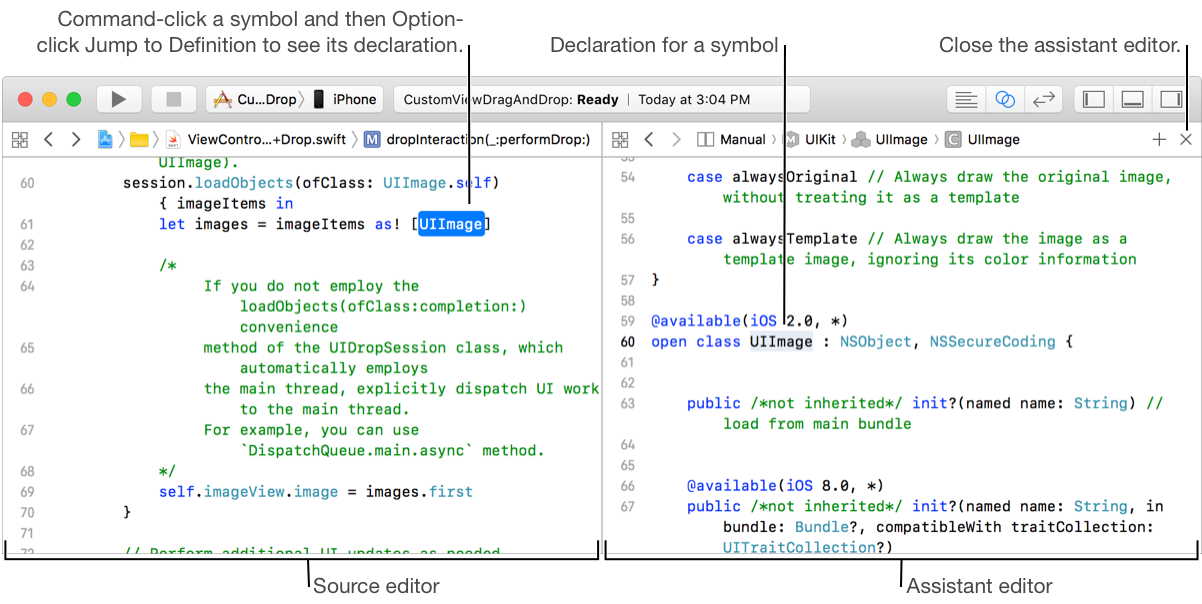
To view a symbol declaration, choose Jump to Definition in the Action menu. The file containing the definition is opened to the declaration of the symbol. Clicking a symbol in the list opens the file in the main editor. To open the file in the assistant editor, hold the Option key and choose Jump to Definition. To remove the assistant editor, click the close button in the upper-right corner. If there is more than one possible definition for the highlighted symbol, the Action menu then shows a list of possible symbols. Choose a symbol to open the file.
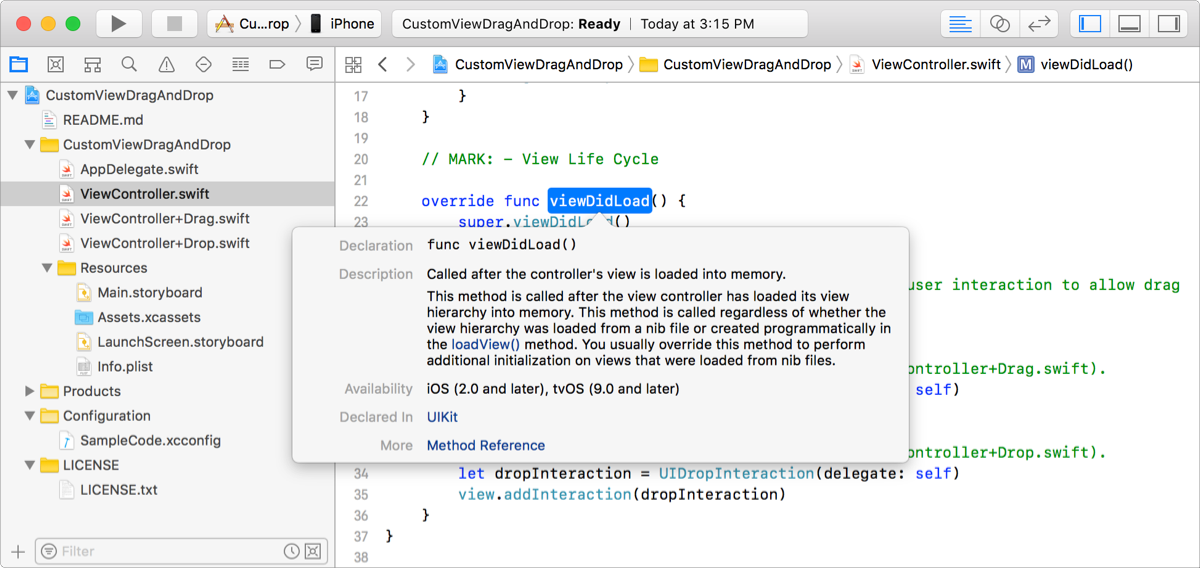
To read a description of a symbol, Option-click a symbol or choose Show Quick Help in the Action menu to display a Quick Help popover. To view the full documentation for a symbol, click the Declared In or More link. To dismiss a Quick Help popover, click anywhere in the source file.
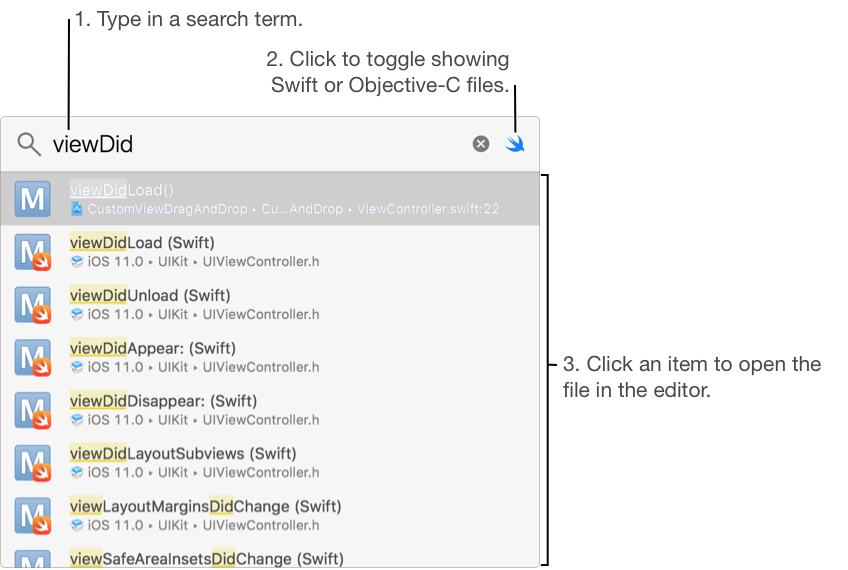
To open a file in your project or in the system frameworks that contains specific text, choose File > Open Quickly (Command-Shift-O) from anywhere in your project. In the search field popover, enter the desired text. The list of matching files updates as you type. Double-click an item in the list to open the file in the main editor. Click the Swift button ( ) to toggle between showing Swift files and Objective-C files.
Next Step: Debug your app.