
Before you can launch your app on a wireless device, you must pair the device with Xcode.
Note: Running an app on a network device requires Xcode 9.0 or later running on macOS 10.12.4 or later, and on the device, requires iOS 11.0 or later, or tvOS 11.0 or later.
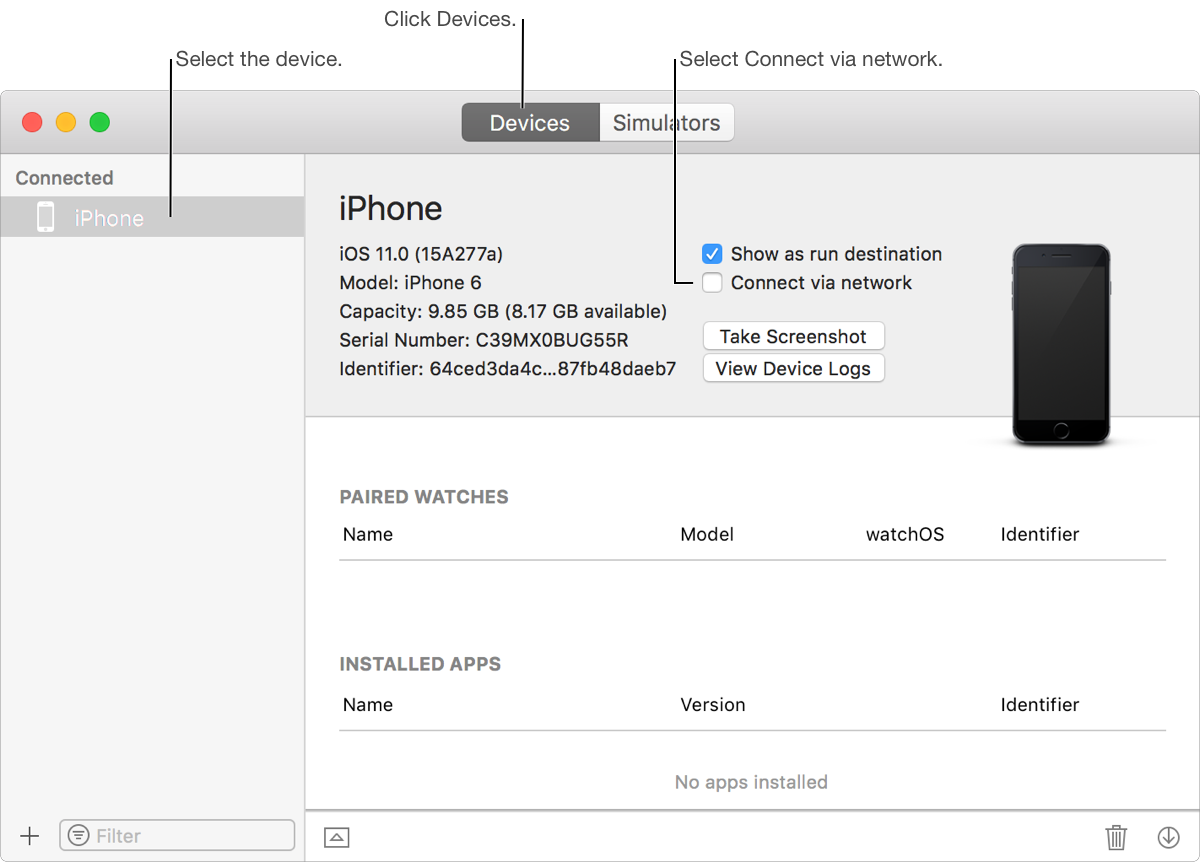
Choose Window > Devices and Simulators, then in the window that appears, click Devices.
Connect the iOS device to your Mac with a lightning cable.
Note: The first time you connect an iOS device to your Mac, you may need to click Trust on the device to continue.
In the left column, select the device.
In the detail area, select Connect via network.
Xcode pairs with the iOS device.
Disconnect the lightning cable.
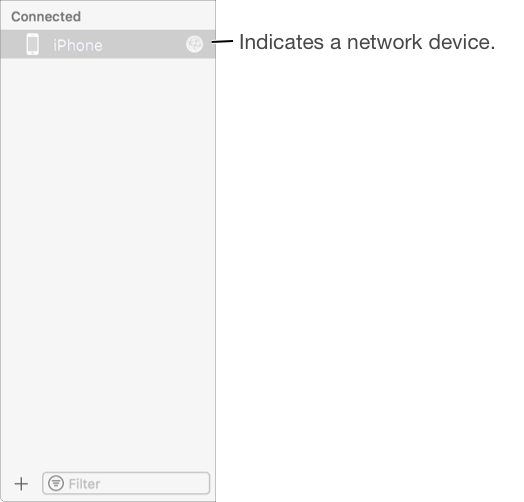
In the left column, a device that is connected (using a lightning cable or over the network) appears under Connected. If a network icon appears next to the device, the device is paired and it is safe to disconnect the lightning cable.
Connect the Mac running Xcode and the Apple TV to the same network.
In Xcode, choose Window > Devices and Simulators, then in the window that appears, click Devices.
On the Apple TV, open Settings, then choose Remotes and Devices > Remote App and Devices.
The Apple TV searches for possible pairing devices including the Mac.
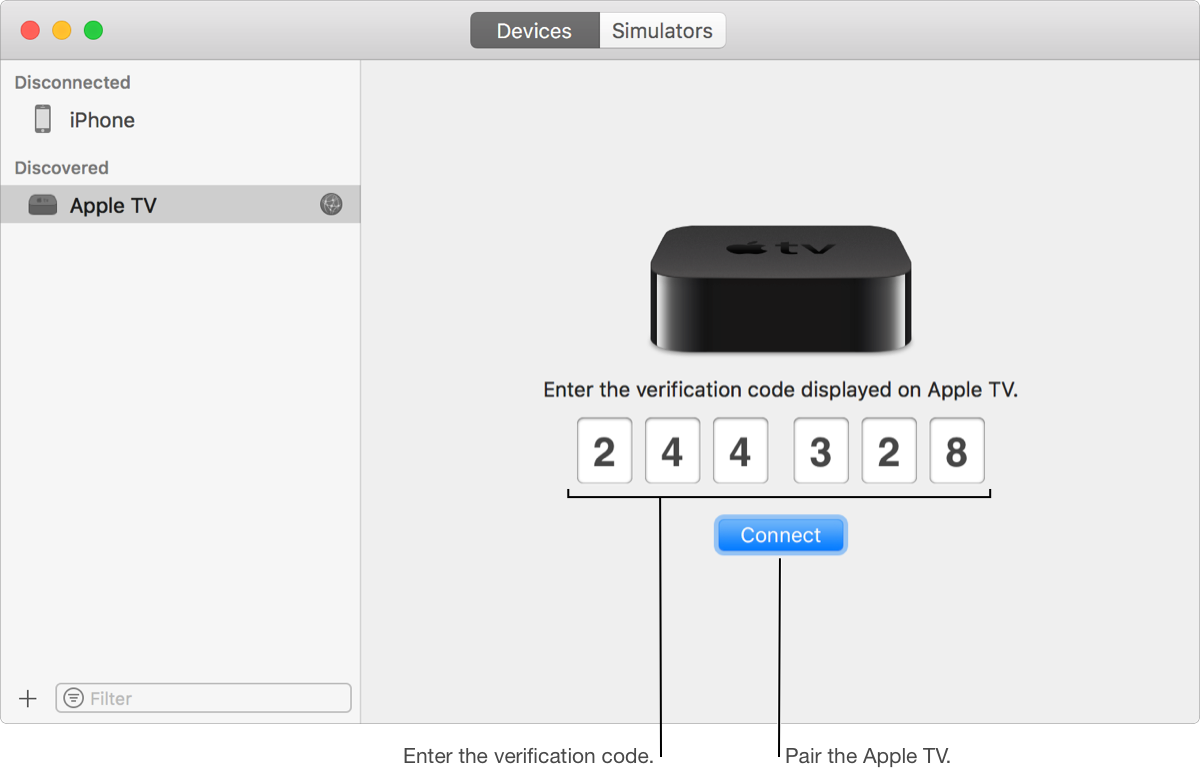
In Xcode, select the Apple TV in the left column under Discovered.
The status of the Apple TV connection request appears in the detail area.
Enter the verification code displayed on the Apple TV, then click Connect.
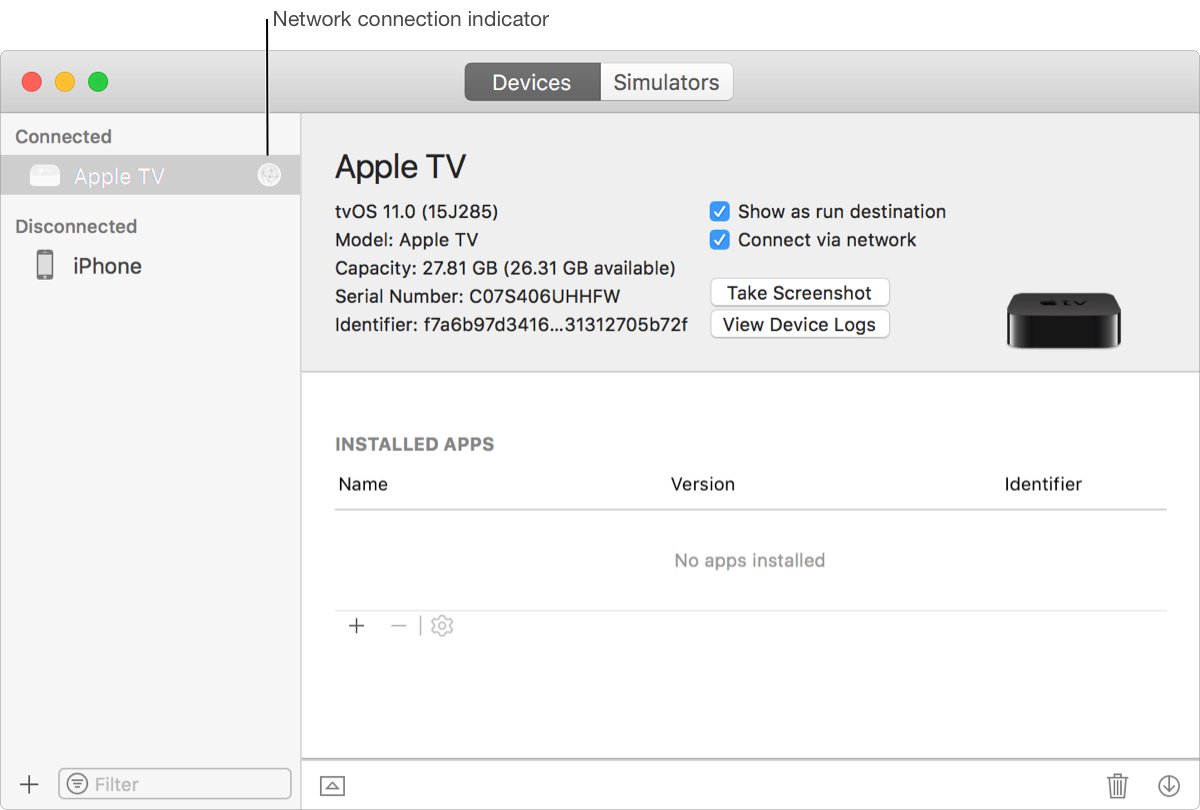
Xcode pairs with the Apple TV and a network icon appears next the the Apple TV in the left column.
Choose Window > Devices and Simulators, then in the window that appears, click Devices.
In the left column, Control-click the network device.
In the pop-up menu that appears, choose Unpair Device.
Alternatively, on an iOS device, reset network settings including the Wi-Fi settings. Tap Settings, choose General > Reset > Reset Network Settings, then tap Reset Network Settings in the dialog that appears.