
All iOS, tvOS, and watchOS apps must be code signed using a provisioning profile to launch on a device. macOS apps that use certain app services must be signed to launch too. If you use automatic signing (recommended), Xcode creates the necessary signing assets for you in your developer account. Although, you’ll need to explicitly register the device before running the app. For macOS apps, you register the Mac running Xcode.
Before you begin, add your Apple ID account and assign the target to a team.
Connect the device to your Mac. For watchOS apps, connect an iPhone that is paired with an Apple Watch.
In the toolbar, choose your device from the Scheme menu. For watchOS apps, choose the active Apple Watch from the menu.
If this is the first time you are using a device for development, you may need to wait for Xcode to enable the device before it appears in the Scheme menu. In the Devices and Simulators window, you can check the status of a connected device.
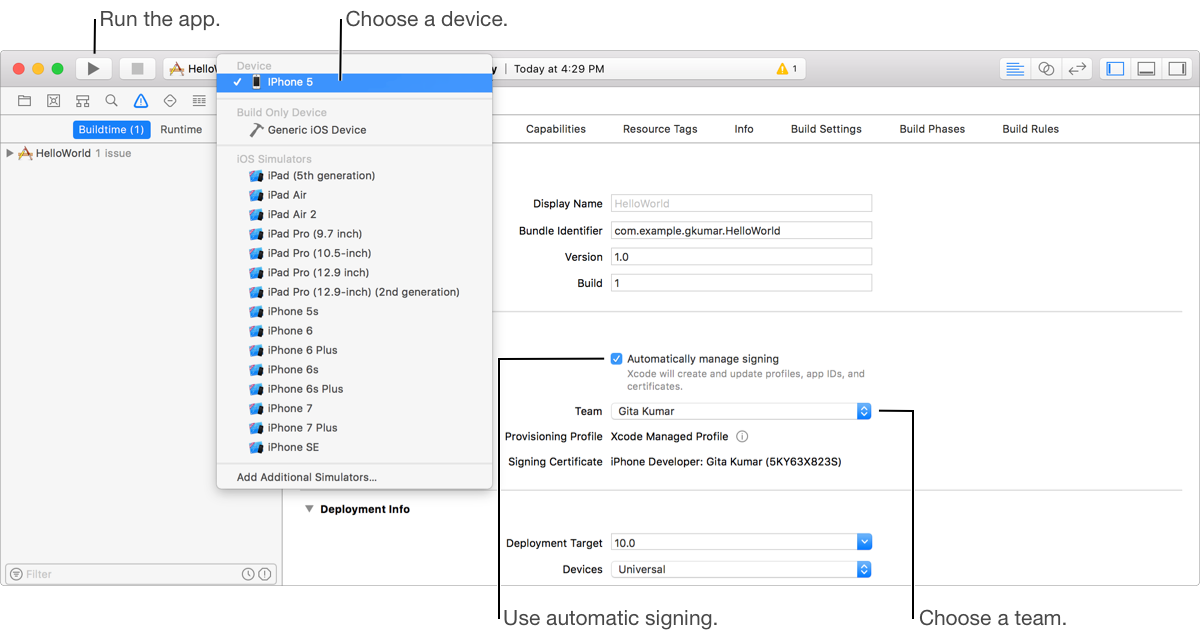
If the device appears under Unavailable Device in the Scheme menu, hover the mouse over the device, read the reason, and fix the problem.
For example, if the OS version is lower than the deployment target, upgrade the OS version on the device or choose the version you want to target from the Deployment Target pop-up menu (go to Edit deployment info settings). Then select the device from the Scheme toolbar menu again.
In the Signing section (located in the General pane of the project editor), click Register Device(s).
If you previously registered the device, the Register Device button doesn’t appear.
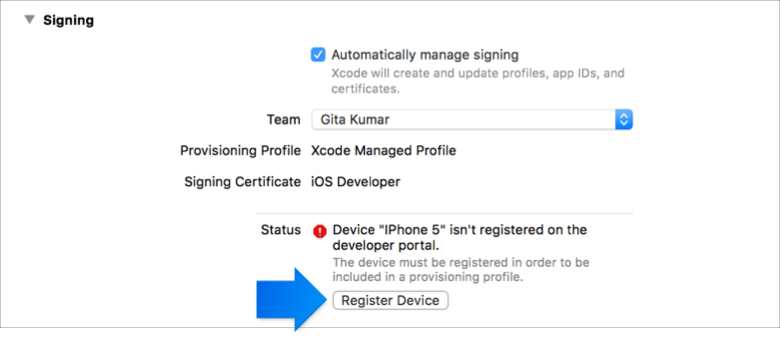
Note: You’re allowed to register a fixed number of devices per product family per year, and disabling a device in your developer account (after registering it) won’t decrease the count of registered devices.
For iOS and watchOS apps, unlock the device screen.
In the toolbar, click the Run button.
Xcode installs and launches the app on the device.