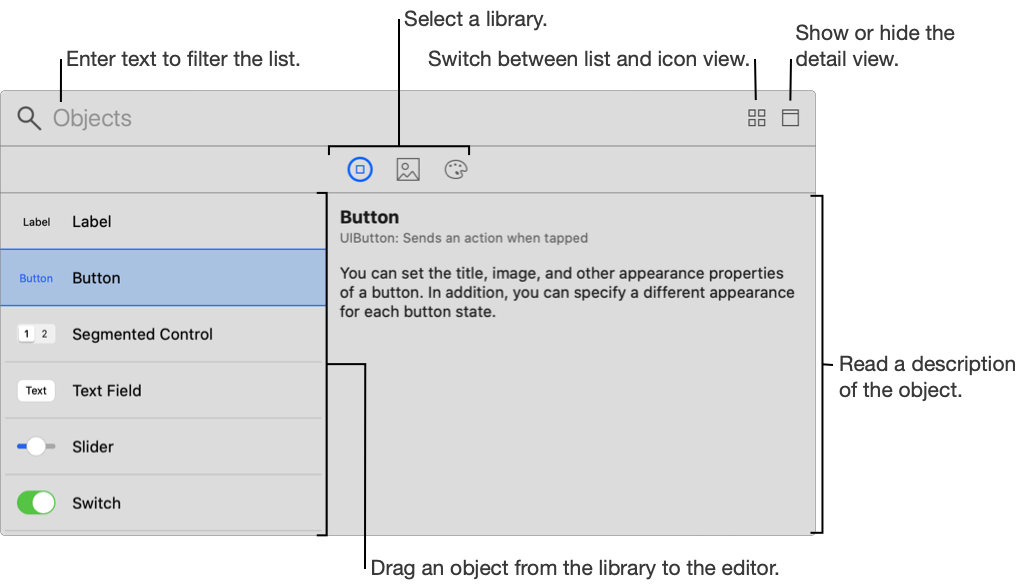
Use the library to add objects to files or settings that you edit in the editor area of the main window. The libraries (collections of objects) shown in the library window depend on the type of editor, target platform, and other conditions.
Open the library: In the Project navigator, select a file or the project, then click the Library button (+) in the toolbar.
Open the library in a persistent window: Option-click the Library button (+) in the toolbar.
Switch between libraries: Click the buttons below the filter bar.
Add an object to the editor: Drag the object from the library to the editor.
Filter the objects shown in the list or icon view: Enter text in the filter bar at the top of the library.
Switch between list and icon view: Click the list or icon button in the toolbar.
Show or hide the details view: Click the Show Details or Hide Details button in the upper-right corner of the toolbar.