
Use the Core Data model editor to change a Core Data entity-relationship model or schema (a file with a .xcdatamodeld file extension). To open the Core Data model editor, select a Core Data model file in the Project navigator and the file opens in the editor area.
The outline view shows the entities, fetch requests, and configurations in the model. You can select one or more items at a time within a single group.
The detail area shows details about the selected item or items in the outline view. You can select one or more items from the same group at the same time.
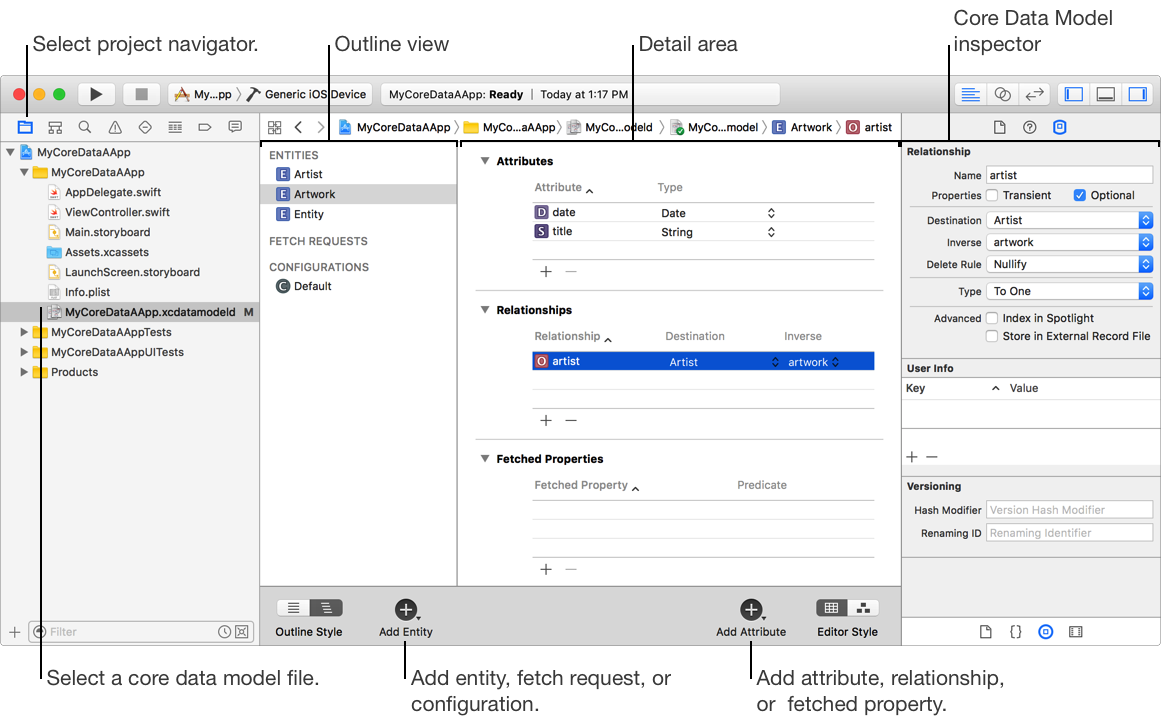
Add an entity: At the bottom of the Core Data model editor, click the Add Entity button.
Add a fetch request: From the Add Entity pop-up menu, choose Add Fetch Request.
Add a configuration: From the Add Entity pop-up menu, choose Add Configuration.
View the outline by list or hierarchically: In the lower-left corner, select a mode from the Outline Style control.
View the detail area by table or graphically: In the lower-right corner, select a mode from the Editor Style control. Use the table mode to edit details, and the graph mode to visualize your schema.
Note: The Add Entity button retains the label from the last time it was used. It could be labeled Add Entity, Add Fetch Request, or Add Configuration.
To edit properties of the selected item or items in the detail area, use the Core Data Model inspector.