
You can run a shell script as part of building a target by adding it to the Build Phases pane.
Important: You should provide the inputs and outputs for the shell script because they determine the task execution order when you build targets in parallel. In addition, the inputs and outputs determine if the shell script phase needs to run again for incremental builds. If you don’t specify inputs and outputs, the shell script is run during every build.
In the Project navigator, select a project.
Choose the target from the Project/Targets pop-up menu or in the Targets section of the second sidebar if it appears.
Click Build Phases.
Click the Add button (+), then choose “New Run Script Phase” from the pop-up menu.
Click the disclosure triangle next to Run Script.
In the Shell text field, enter the type of shell, then drag or enter the contents of the shell script below.
If you want to show the environment variables in the build log, select the “Show environment variables in build log” checkbox below the shell script. For additional variables you can use in the shell script, go to Use additional variables.
To write error messages to the build log or trigger a build failure, go to Log errors and warnings and Trigger a build failure.
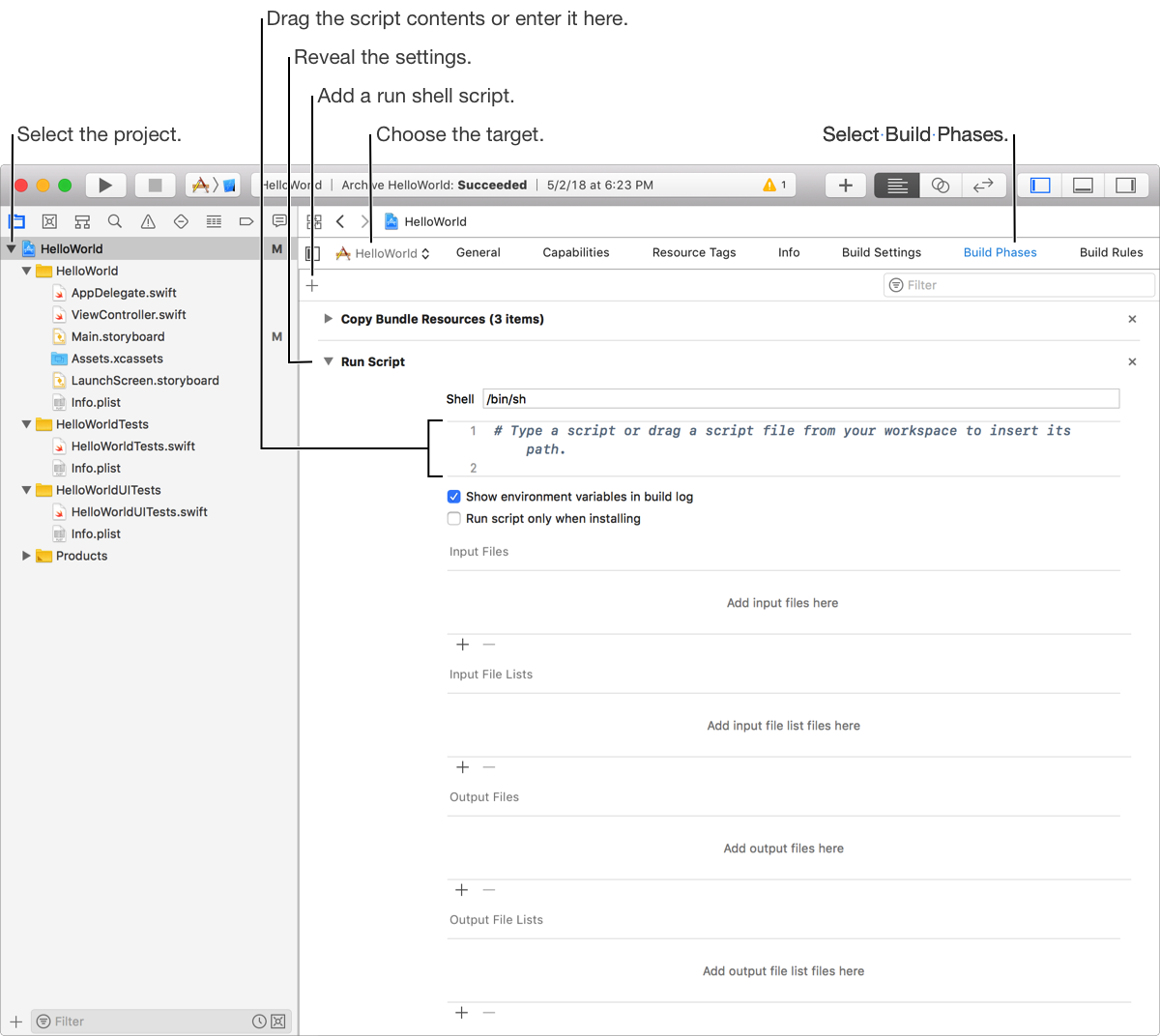
In the Input Files section, enter the files that are inputs to the shell script.
The contents of input files can be static or generated. Although generated content must be an output of another run script phase.
To add an input file, click the Add button (+) at the bottom of the table and enter the file path.
To delete an input file, select the file in the table and click the Delete button (–).
In the Input File Lists section, enter the file lists (files with a .xcfilelist file extension) that describe a static list of inputs to the shell script.
Click the Add button (+) to add files and the Delete button (–) to delete files.
In the Output Files section, enter a listing of all of the files that are generated as outputs to the shell script.
In the Output File Lists section, enter the file lists that describe a static list of outputs to the shell script.
Click the Add button (+) to add files and the Delete button (–) to delete files.
You can use build setting in the input paths that you enter and the file lists you provide. The build settings will be replaced with the build setting values of the target. For example, use $(SRCROOT) for the directory containing the target’s source files, or $(CONFIGURATION_BUILD_DIR) for the directory containing the build products. For more build settings, go to Build settings reference.