
To register a device using your developer account, you will need the device ID. Typically, you register multiple devices using your developer account before you export your app for testing.
For iOS and tvOS apps, connect the device to your Mac. For watchOS apps, connect an iPhone paired with an Apple Watch.
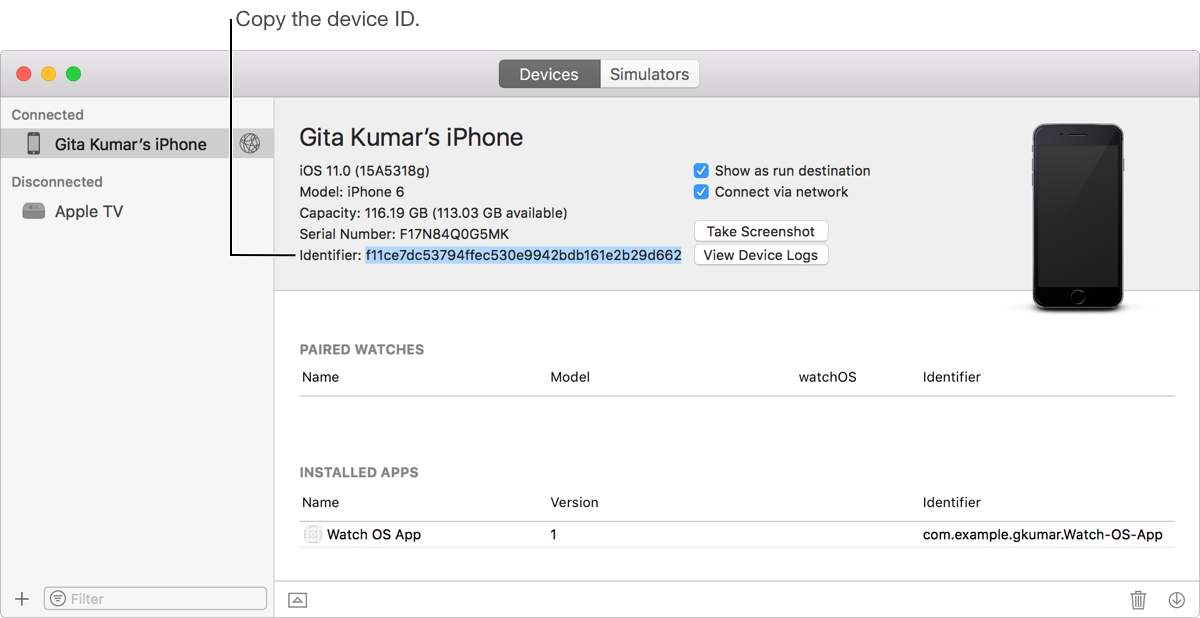
Open the Devices and Simulators window (choose Window > Devices and Simulators).
At the top of the window, click Devices, then in the left column, select a device.
The device ID appears in the Identifier field.
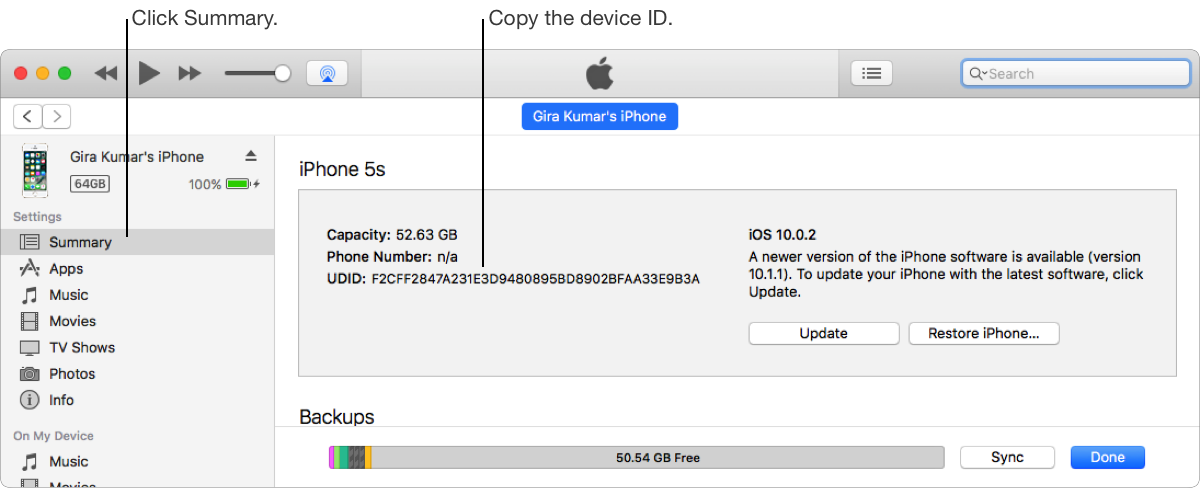
For iOS and tvOS apps, you can also obtain a device ID using iTunes. For example, external testers can follow these steps to get their device ID if they don’t have Xcode installed.
Launch iTunes on your Mac.
Connect your device to your Mac.
Select the device.
In the Summary pane, click the Serial Number label and it changes to the device ID.
For iOS devices, the serial number appears under Capacity or Phone Number.
For Apple TV devices, the serial number appears next to the device icon.
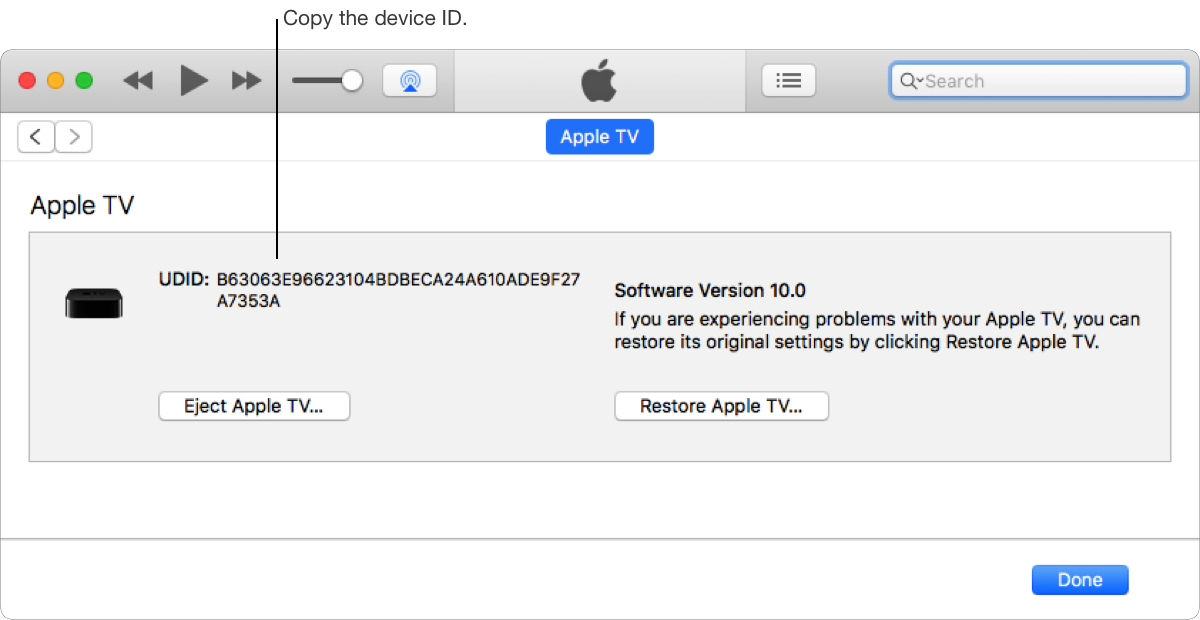
Copy the device ID by Control-clicking the identifier and choosing Copy from the shortcut menu.
Connect the device to your Mac.
Open the System Information app located in the /Applications/Utilities folder.
Select USB under Hardware in the left column.
On the right, select the connected device under USB Device Tree.
The device ID, or “Serial Number”, appears below.
Use this method if you want to register a Mac for testing that isn’t used for development.
Open the System Information app located in the /Applications/Utilities folder.
Select Hardware in the left column.
The device ID, or hardware UUID, appears near the bottom of the Hardware Overview pane and is in the format XXXXXXXX-XXXX-XXXX-XXXX-XXXXXXXXXXXX.