
iCloud allows you to share user or app data among multiple instances of your app running on different devices. You can choose from three different iCloud services—key-value storage, document storage, and CloudKit—to add to your targets depending on how you want to store and retrieve data. Document storage and CloudKit use containers that you can share with apps developed by the same team.
Note: On macOS v10.11 and later, you can store documents in the user's iCloud Drive folder without needing to set the signing certificate and enable iCloud in the Xcode project. To configure iCloud Drive, read “Enabling Document Storage in iCloud Drive” in iCloud Design Guide.
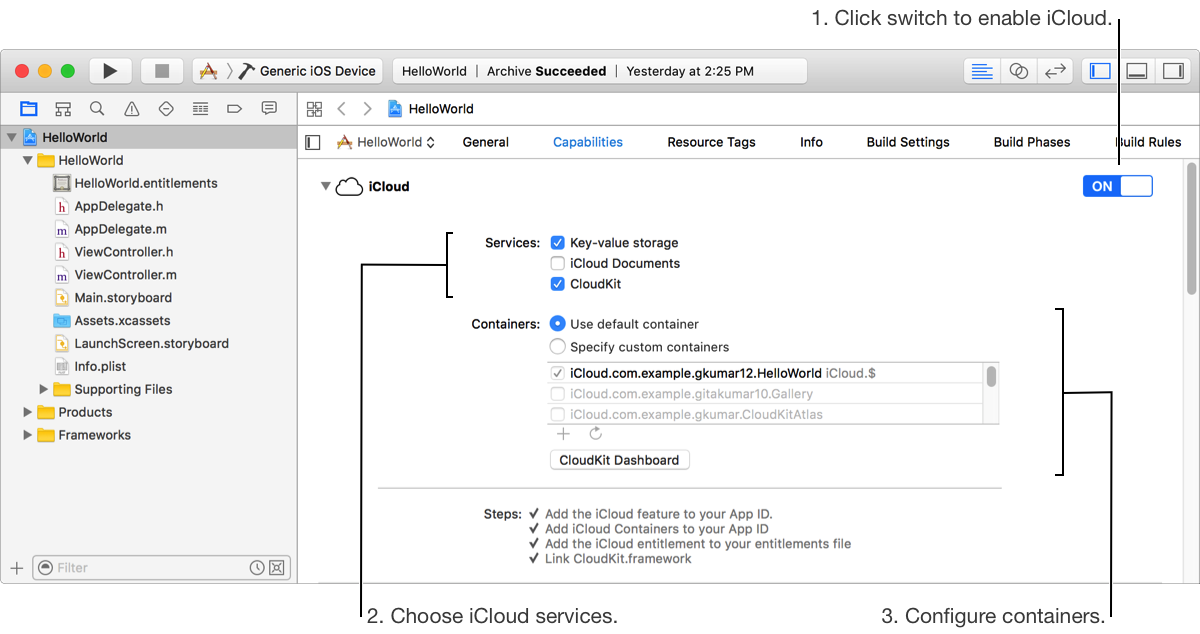
In the project editor, select the target, then click Capabilities.
In the iCloud row, click the switch to turn it from OFF to ON.
The types of iCloud storages appear below. Xcode enables key-value storage by default.
Key-value storage allows an app to share small amounts of data with other instances of itself running on the user’s other devices. The container ID for key-value storage is iCloud.[$(TeamIdentifierPrefix)].[$(CFBundleIdentifier)] where the Team ID is a unique string assigned to your team.
To enable (or disable) key-value storage, click the “Key-value storage” checkbox.
Document storage stores user documents and app data in the user’s iCloud account.
Important: Only the Team Agent or Admin role can configure iCloud document storage.
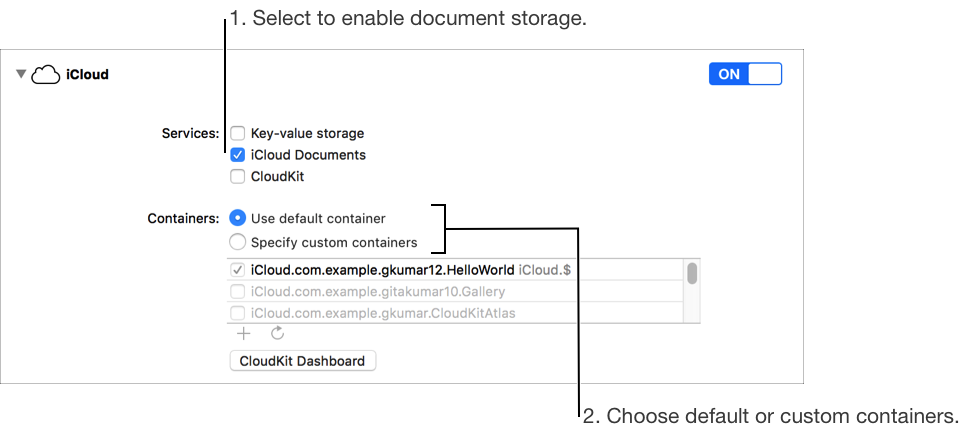
To enable (or disable) iCloud document storage, select the “iCloud Documents” checkbox.
If necessary, Xcode creates a default iCloud container for document storage that appears selected in the Containers table below. Document storage containers can be share with apps developed by the same team.
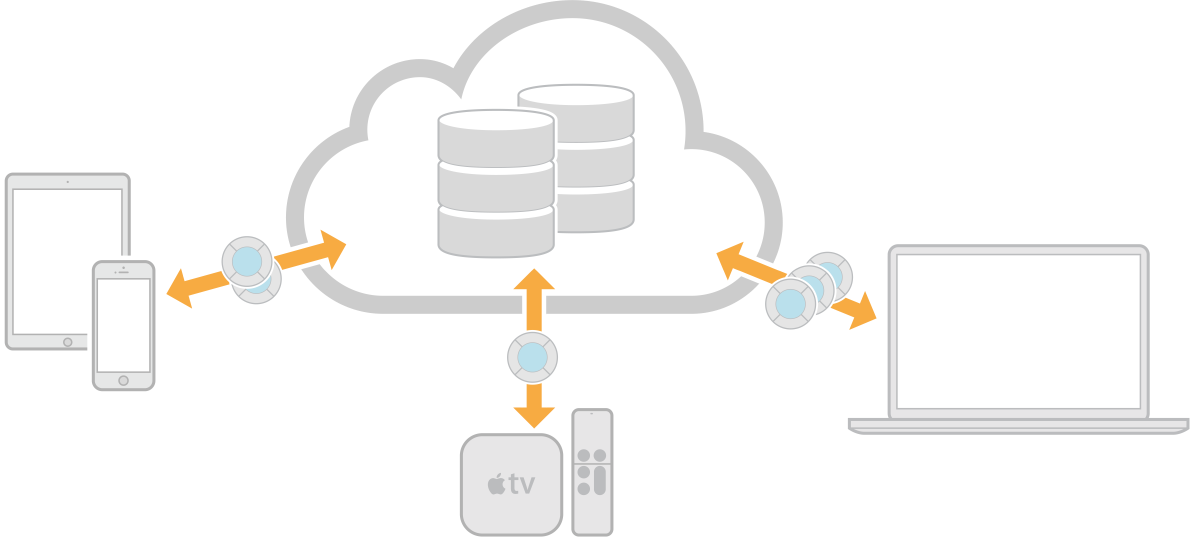
Use CloudKit to store and retrieve both public and private data as records in a database and to access the these records from multiple devices.
The app owns the public database and can share it with all users of the app. Users own their private database and can share selected records with other users. Apps can use multiple containers and containers can be shared between different apps developed by the same team.
Important: Only the Team Agent or Admin role can configure CloudKit.
To enable CloudKit and add the CloudKit framework to your project, select the CloudKit checkbox.
To use multiple containers or share containers between apps, go to Manage iCloud document storage and CloudKit containers.
To manage your container data (create the schema and view records) during development, click CloudKit Dashboard.