
Create literals in your playground code when the value of a color, file, or image does not need to change. You can use the same literal in multiple places in your playground. The types of literals are:
Literal | Description | ||||||||||
|---|---|---|---|---|---|---|---|---|---|---|---|
Color | A | ||||||||||
File | An | ||||||||||
Image | A | ||||||||||
Open the source editor for the playground page that will contain the literal.
Place the insertion point at the location in the code for the UIColor or NSColor.
Choose Editor > Insert Color Literal.
A color literal is added at the insertion point, and the color picker opens.
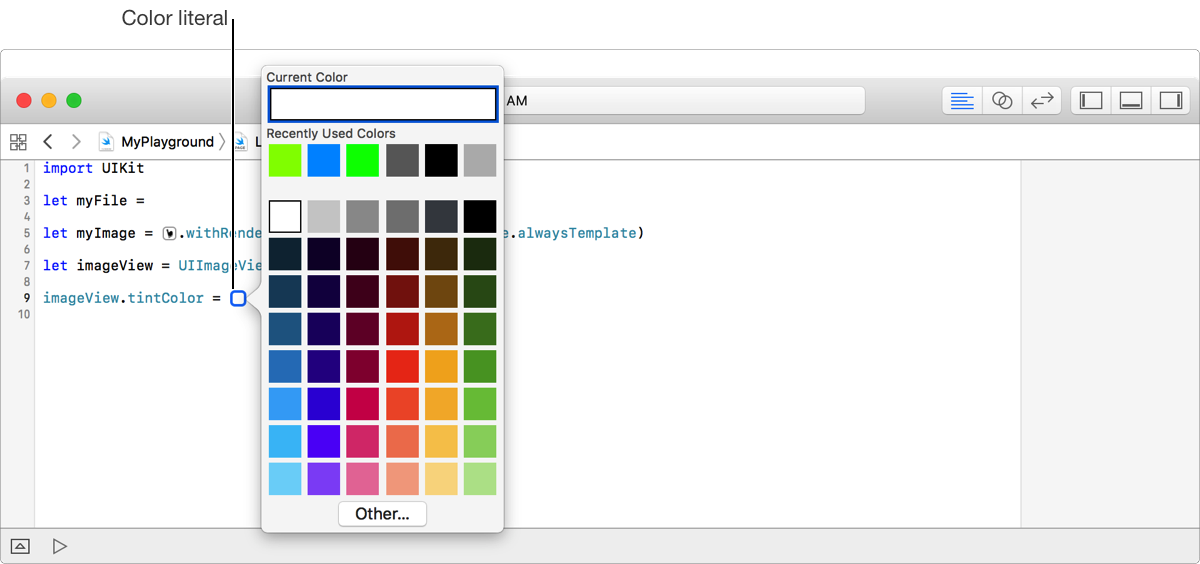
Choose the desired color from the color picker.
Double-click the color literal to change the value.
Open the source editor for the playground page that will contain the literal.
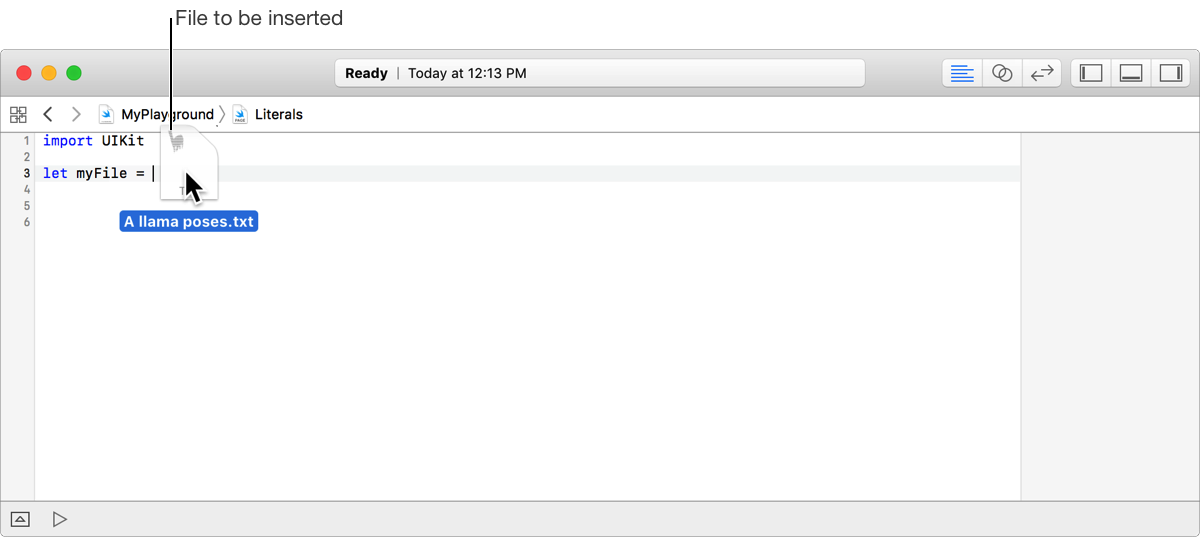
Select the desired file in the Finder or in the playground, and drag it to the location in the source editor where you want to add the file literal.
The insertion point tracks the pointer by moving to the nearest location in the code where the file literal can be placed.
Adding a file literal to a playground adds the referenced file to the top-level resources folder.
In the following screenshot, myFile is set to a file literal that references the file A llama poses.txt. The file is dragged into the playground from the Finder. The file is copied to the top-level resources folder of the playground.
Open the source editor for the playground page that will contain the literal.
Select the desired file in the Finder or in the playground, and drag it to the location in the source editor where you want to add the file literal.
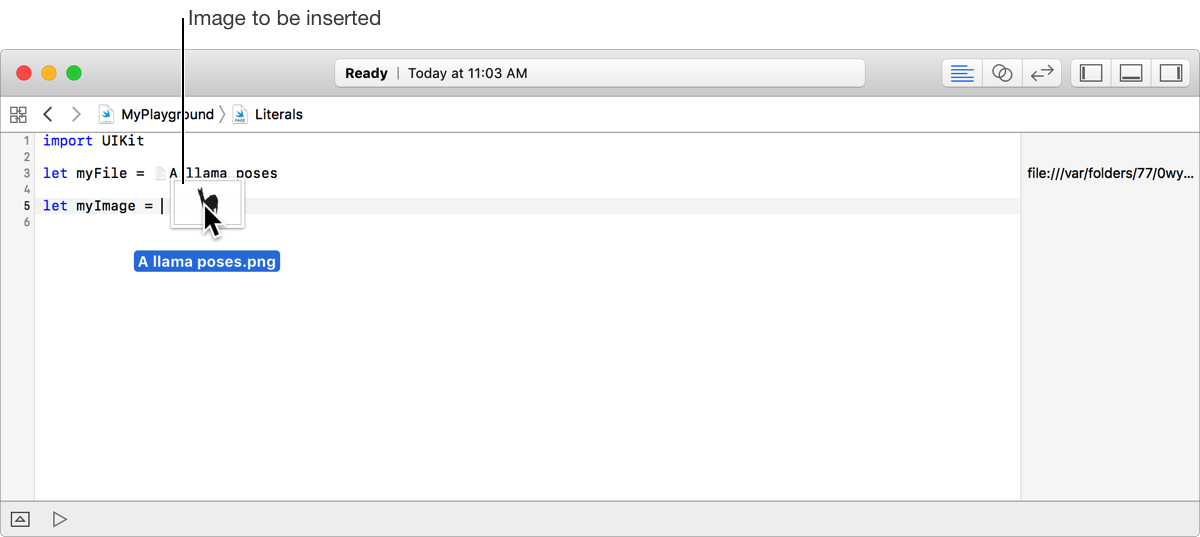
The insertion point tracks the pointer by moving to the nearest location in the code where the image literal can be placed.
Adding an image literal to a playground adds the referenced file to the top-level resources folder.
In the following screenshot, myImage is set to an image literal that references the file A llama poses.png. The file is dragged into the playground from the Finder. The file is copied to the top-level resources folder of the playground.
Use the Edit menu to cut, copy, and paste literals.