Use the Favorites bar: Choose View > Show Favorites Bar.


You can change the layout of Safari bars, buttons, and bookmarks to suit your browsing style.
Use the Favorites bar: Choose View > Show Favorites Bar.
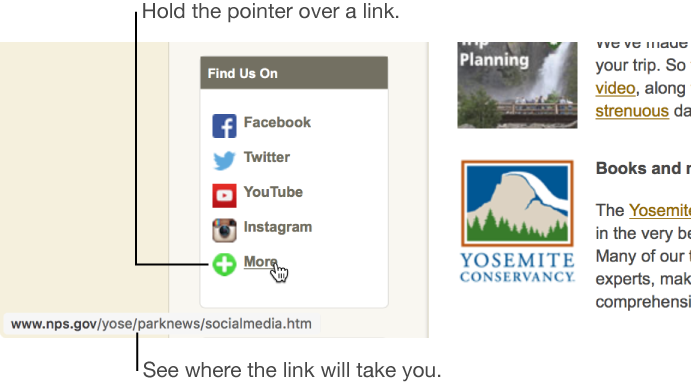
Show the status bar: Choose View > Show Status Bar. When you hover over a link, the status bar at the bottom of the Safari window shows the link’s full address.
Customize the toolbar: Choose View > Customize Toolbar, then add, remove, and rearrange toolbar items by dragging them. For example, you can add an iCloud Tabs button that shows a list of webpages open on your other devices that have Safari turned on in iCloud preferences.
Quickly rearrange toolbar buttons: Hold down the Command key and drag buttons right or left. This shortcut doesn’t work for the Back/Forward, Sidebar, Top Sites, Home, History, or Downloads buttons, or the Smart Search field.
Resize the toolbar: If you see angle brackets  at the right end of the toolbar, it means the window is too small to show all of the toolbar items. Enlarge the window or click the brackets to see the rest of the items.
Remove a toolbar item: Hold down the Command key and drag the item out of the toolbar.
Show or hide the toolbar in full-screen view: While in full-screen view, choose View > Always Show Toolbar in Full Screen.
To customize Safari even more, choose Safari > Preferences, then change options.