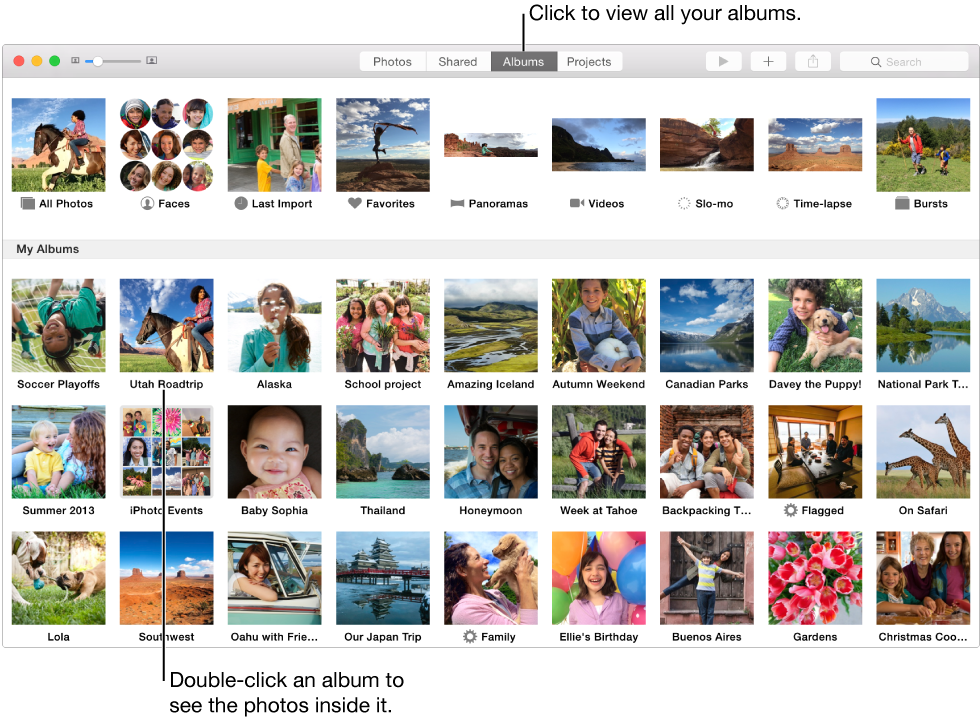

An album is a collection of photos and video clips you can create to organize your photos. You can create as many albums as you want, and place individual photos in more than one album. You can also create Smart Albums, which automatically gather photos for you based on criteria you specify—such as keywords or locations—and you can organize your albums in groups by placing them in folders.
To see your albums, click Albums in the toolbar.
Photos offers the following types of albums:
Standard albums: You create and name these albums, and can add any photos and video clips you like to them. You can include the same photo in multiple albums, and add or delete photos from an album at any time.

Smart Albums: These albums gather and display photos automatically based on criteria you specify. For example, you could create a Smart Album and set it to include any photos taken in 2014 that are also a favorite; Photos then adds photos that meet those criteria to your Smart Album. Whenever you import new photos, Photos continues to add the ones that meet the criteria to your Smart Album.

All Photos album: This album contains all the photos in your library. This album also holds photos transferred from your other iOS devices and Mac computers that have iCloud Photo Library or My Photo Stream turned on.

Faces: This album contains photos of people. Photos automatically scans your library and identifies people in your photos using facial recognition technology. You can name identified faces and then easily find and browse photos of your favorite people.

Last Import album: This album contains the photos you’ve most recently added to your Photos library. The photos in this album are updated each time you import photos. Previously imported photos no longer appear here, but the photos are still in the All Photos album, in Photos view, and in any albums where you might have placed them.

Favorites: This album contains photos that you have marked as favorites.

Panoramas: This album contains panoramic photos you’ve imported from your iOS devices.

Videos: This album contains video that you’ve imported.

Slo-mo: This album contains slow-motion video that you’ve imported from your iOS devices.

Time-lapse: This album contains time-lapse video that you’ve imported from your iOS devices.

Bursts: This album contains photo bursts you’ve imported from your iOS devices. You can open this album to inspect each photo burst and select the best image from it.

My Photo Stream: This album contains photos transferred by My Photo Stream. It appears if you’ve turned on My Photo Stream and turned off iCloud Photo Library.

iPhoto Events: If you upgraded an iPhoto or Aperture library to Photos, the iPhoto Events folder contains an album of photos for each iPhoto Event or Aperture Project. You can reorganize the albums in the iPhoto Events folder, drag the albums into Albums view, or leave the folder as is.

Folders: To further organize your library, you can group albums in folders. For example, you could create folders to hold family reunion albums or albums with photos of your camping trips. For more information about using folders, see Group albums in folders.