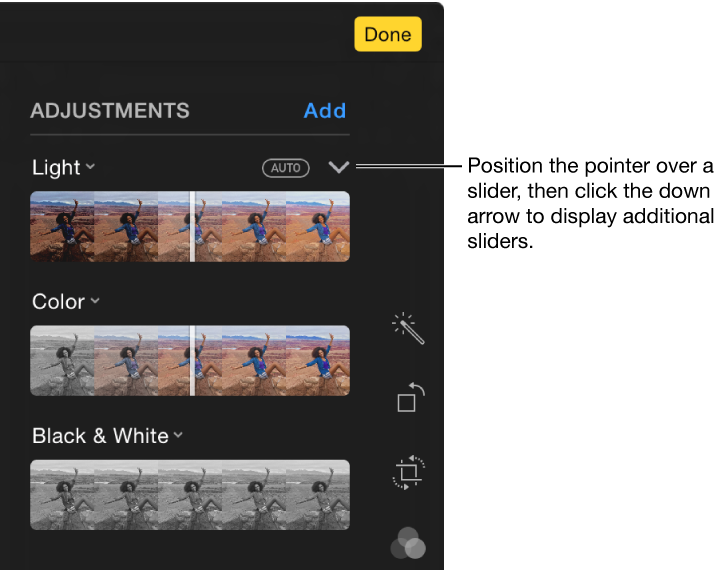
You can use the Smart Sliders in Photos to easily adjust a photo’s light and color with optimal results. Using sophisticated algorithms, Photos analyzes your image and applies the correct mix of adjustments to make your photo look its best. You can also reveal detailed controls that let you fine-tune each adjustment, including exposure, highlights and shadows, brightness, and contrast.
Tip: To quickly see the adjustment tools while editing, press A. Press A again when done making changes.
Make basic adjustments to photos
Double-click a photo, then click Edit in the toolbar.
Click the Adjust button .
Do any of the following:
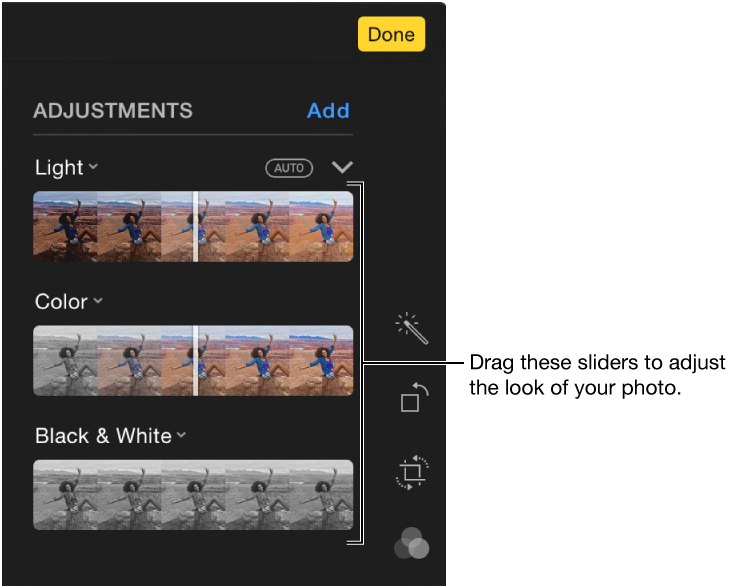
Drag the Light, Color, or Black & White slider until you are satisfied with the look of the photo.
Hold the pointer over any of the sliders until the Auto button appears, then click Auto. Photos automatically corrects the photo for that quality.
Tip: To discard your changes and revert to the original settings, double-click any of the sliders.
Make fine adjustments to photos
You can further fine-tune the adjustments you make to the Light, Color, and Black & White settings of a photo.
Double-click a photo, then click Edit in the toolbar.
Click the Adjust button .
Hold the pointer over the Light, Color, or Black & White slider, then click the down arrow that appears to see detailed adjustments you can make.
Here are the fine adjustments you can make:
Light adjustments
Exposure
Adjusts the tones of the entire image.
Highlight
Adjusts the highlight detail.
Shadows
Adjusts the detail that appears in shadows.
Brightness
Adjusts the brightness of the photo.
Contrast
Adjusts the contrast of the photo.
Black Point
Sets the point at which the darkest parts of the image become completely black without any detail. Setting the black point can improve the contrast in a washed-out image.
Color adjustments
Saturation
Adjusts the photo’s overall color intensity.
Contrast
Adjusts the color contrast and separation between similar colors in the photo.
Cast
Adjusts and corrects for color cast in the photo.
Black & White adjustments
Intensity
Increases or decreases the intensity of the tones of the photo.
Neutrals
Lightens or darkens the gray areas of the photo.
Tone
Adjusts the photo for a more high-contrast or low-contrast look.
Grain
Adjusts the amount of film grain that appears in the photo.
Copy and paste adjustments
After you adjust a photo, you can copy the adjustments that you’ve made and paste them on other photos. You can only paste adjustments onto one photo at a time.
Double-click a photo you’ve made adjustments to, then click Edit.
Choose Image > Copy Adjustments.
Double-click the photo to which you want to apply the adjustments, then click Edit.
Choose Image > Paste Adjustments.
Tip: You can also Control-click a photo and choose Copy Adjustments or Paste Adjustments.

 .
.
 that appears to see detailed adjustments you can make.