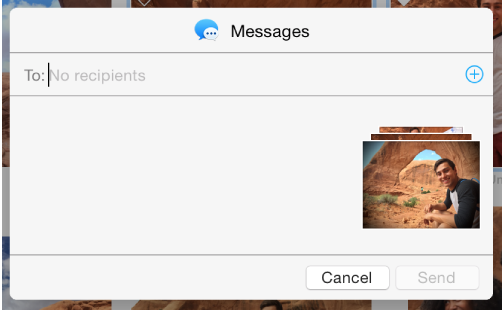
You can use the Messages app to send up to 10 photos at a time in a text message, directly from Photos.
To share using Messages, you must sign in to the Messages app. You can sign in using your Apple ID or using the user name and password for your AIM, Jabber, GoogleTalk, or Yahoo! account.
Sign in to Messages
Open the Messages app.
Choose Messages > Preferences, then click Accounts.
Do one of the following:
Type your Apple ID and password, then click Sign In.
Click the Add button (+) in the lower-left corner of the Accounts pane, click an account type, click Continue, then enter your user name and password.
Close the preferences window.
Share photos using Messages
In Photos, select up to 10 photos to share.
Click the Share button in the toolbar and choose Messages.
Type one or more email addresses, or click the Add button (+) and select people from Contacts.
If you want, you can type a text message to include with your photos—and even add an emoticon (or “smiley”).

 in the toolbar and choose Messages.