Show or hide the sidebar
You can see your photos, albums, and projects displayed in a sidebar at the left of the Photos window.
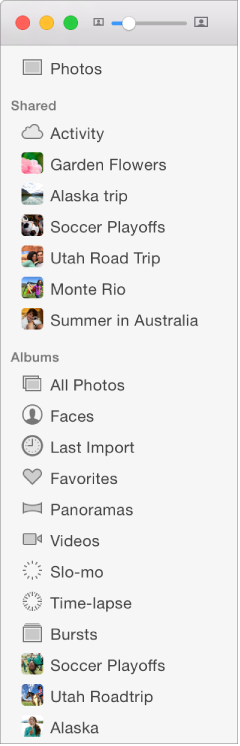
Choose View > Show Sidebar or press Command-Option-S.

You can set up Photos to display photos in the way you prefer.
You can see your photos, albums, and projects displayed in a sidebar at the left of the Photos window.
Choose View > Show Sidebar or press Command-Option-S.
When viewing an individual photo, you can view the other photos in the moment as thumbnails on the left side of the window, where you can easily select them. This view is called split view.
See the other photos in a moment in split view: Click the Split View button  in the toolbar.
Use the arrow keys to scroll through the thumbnails, and click a thumbnail to view the photo. You can also drag the edge of the split view to show more or fewer thumbnails at a time.
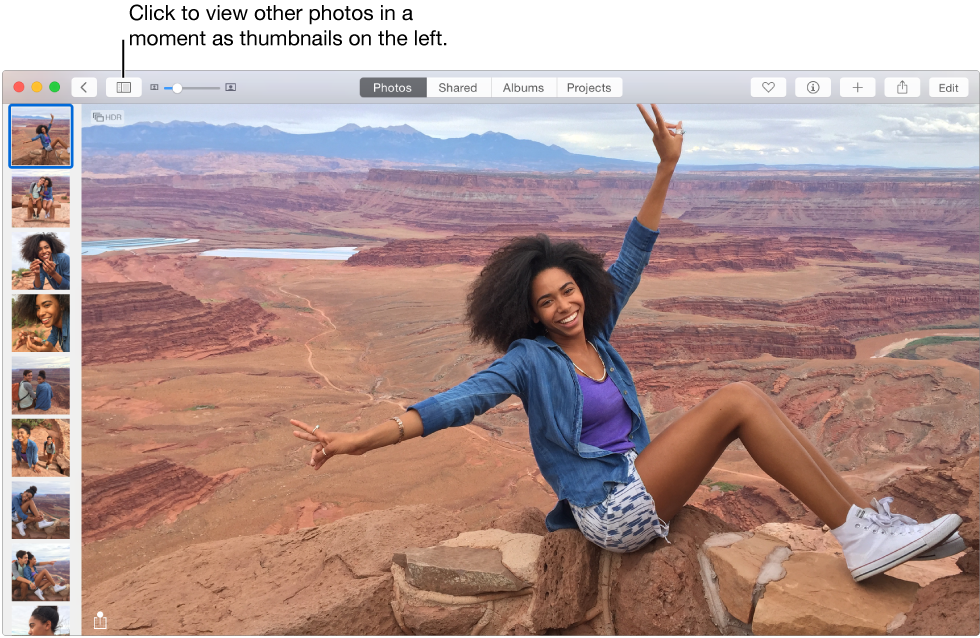
Change the thumbnails in split view to square thumbnails: Choose View > Display Square Thumbnails in Split View.
Enlarge or reduce the size of photo thumbnails, albums, and projects: Drag the Zoom slider or pinch in or out on the trackpad.
You can view and edit your photos in a larger full-screen window.
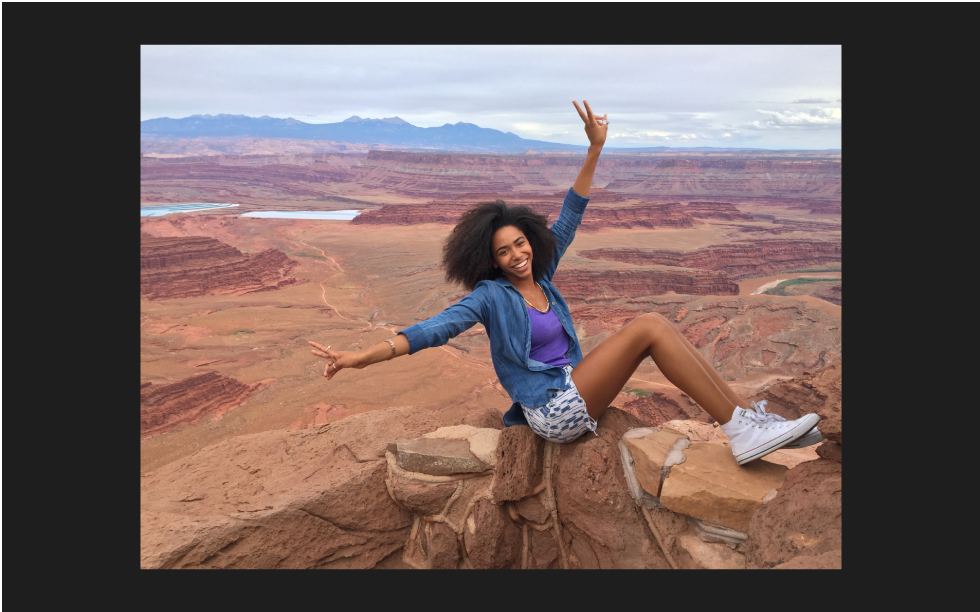
Do any of the following:
Enter full-screen view: Choose View > Enter Full Screen.
Leave full-screen view: Choose View > Exit Full Screen or press Escape.
Show the toolbar in full-screen view: Choose View > Always Show Toolbar in Full Screen so there’s a checkmark next to it.
Hide the toolbar in full-screen view: Choose View > Always Show Toolbar in Full Screen to remove the checkmark.